Home Blog Page 602

How to invest in the stock market?

0

In a world driven by financial aspirations, the stock market stands as a captivating arena where fortunes are made and dreams are realized. However, for many, the intricacies of investing in stocks remain shrouded in mystery and uncertainty. In this essay, we embark on a journey to demystify the stock market, exploring the fundamentals of investing, understanding stocks, conducting research, developing a strategy, and managing risks. Join me as we unlock the potential of the stock market and empower you to navigate this fascinating realm of wealth creation.

I. Understanding the Stock Market:
The stock market represents a marketplace where individuals and institutions buy and sell shares of publicly traded companies. Stocks, also known as equities, represent ownership in these companies and provide investors with the opportunity to participate in their growth and profitability. Investing in the stock market offers the potential for long-term capital appreciation, dividend income, and the ability to build wealth over time.

II. Fundamentals of Investing:
Before diving into the stock market, it is crucial to grasp the fundamentals of investing. This includes understanding concepts such as risk and return, diversification, asset allocation, and the power of compounding. Investing is a long-term endeavor that requires patience, discipline, and a clear understanding of one’s financial goals and risk tolerance.

III. Research and Analysis:
Successful investing in the stock market relies on thorough research and analysis. This involves evaluating the financial health of companies, analyzing their business models, studying industry trends, and assessing competitive advantages. Fundamental analysis delves into financial statements, earnings reports, and other company-specific data, while technical analysis examines historical price patterns and market trends. Utilizing both approaches can provide a comprehensive view for making informed investment decisions.

IV. Developing an Investment Strategy:
Developing a well-defined investment strategy is essential for navigating the stock market. This includes setting clear investment objectives, determining the appropriate investment horizon, and establishing a risk management framework. Considerations such as asset allocation, diversification across sectors and geographies, and investment styles (e.g., value, growth, or a blend) should be carefully weighed to align with individual goals and risk tolerance.

V. Managing Risks:
Investing in the stock market inherently carries risks, and managing them is crucial to long-term success. Diversification across different asset classes, sectors, and geographic regions can help mitigate risks associated with individual stocks. Additionally, setting stop-loss orders, having an exit strategy, and staying informed about market conditions can minimize potential losses. It is vital to remember that no investment is entirely risk-free, and market fluctuations are inevitable.

VI. Continuous Learning and Adaptation:
The stock market is a dynamic and ever-evolving ecosystem. Continuous learning, staying updated with market trends, and adapting to changing economic conditions are essential for successful investing. Reading financial news, following reputable analysts, and engaging with investment communities can provide valuable insights and enhance investment decision-making.

Investing in the stock market offers individuals the opportunity to participate in the growth and success of publicly traded companies, potentially yielding financial rewards and long-term wealth accumulation. By understanding the fundamentals of investing, conducting thorough research, developing a well-defined investment strategy, and managing risks, investors can navigate the stock market with confidence and increase their chances of achieving their financial goals. Remember, investing is a journey that requires patience, discipline, and continuous learning. So, embrace the stock market’s potential, embark on your investment journey, and unlock the possibilities that lie within this captivating realm of wealth creation.


What is cloud computing?

0

In the realm of technology, clouds no longer solely belong to the skies above. They have become the foundation of a revolutionary concept known as cloud computing. With its ethereal allure and transformative capabilities, cloud computing has emerged as a pillar of modern technological infrastructure. In this essay, we will delve into the fascinating world of cloud computing, exploring its definition, key characteristics, service models, deployment models, and the profound impact it has had on businesses, individuals, and society as a whole. Join me as we uncover the power of the cloud and its boundless potential.

I. Understanding Cloud Computing:
Cloud computing is a paradigm shift in computing that enables the delivery of computing resources and services over the internet. It offers a scalable, on-demand model, allowing users to access a shared pool of computing resources, including servers, storage, databases, software, and networking, without the need for local infrastructure. The cloud acts as a virtualized environment, abstracting hardware complexities and providing flexible and efficient solutions to meet the diverse needs of users.

II. Key Characteristics of Cloud Computing:
Cloud computing embodies several key characteristics that set it apart from traditional computing models. First and foremost is its ubiquitous accessibility, allowing users to access resources from anywhere at any time, as long as an internet connection is available. Scalability is another crucial aspect, enabling users to quickly scale resources up or down based on demand, ensuring optimal utilization and cost efficiency. Additionally, cloud computing offers elasticity, enabling resources to be provisioned dynamically, ensuring peak performance during high-demand periods while minimizing waste during low-demand periods.

III. Service Models:
Cloud computing offers several service models tailored to different user requirements. Infrastructure as a Service (IaaS) provides virtualized computing resources, allowing users to deploy and manage their own operating systems and applications. Platform as a Service (PaaS) offers a higher level of abstraction, providing a platform for developers to build, deploy, and manage applications without worrying about infrastructure management. Software as a Service (SaaS) delivers complete applications over the internet, eliminating the need for local installations and maintenance.

IV. Deployment Models:
Cloud computing offers various deployment models to cater to different needs and preferences. Public clouds are hosted by service providers and accessible to the general public, offering scalability, affordability, and ease of use. Private clouds, on the other hand, are dedicated to a single organization, offering enhanced security and control. Hybrid clouds combine the best of both worlds, integrating public and private cloud environments, enabling organizations to leverage the benefits of both.

V. Impact on Businesses and Society:
Cloud computing has had a profound impact on businesses and society. For businesses, it has revolutionized the way information technology is utilized, allowing for cost savings, increased agility, and accelerated innovation. Cloud-based solutions have empowered startups and small businesses, leveling the playing field and enabling access to enterprise-grade infrastructure and services. On a societal level, cloud computing has facilitated collaboration, enhanced productivity, and enabled the development of transformative technologies such as artificial intelligence, big data analytics, and the Internet of Things (IoT).

Cloud computing has ushered in a new era of computing, transcending physical limitations and unleashing a world of possibilities. Its ubiquitous accessibility, scalability, and flexibility have transformed the technological landscape, empowering businesses and individuals alike. As we continue to embrace the cloud, it is essential to recognize its power, understand its intricacies, and leverage its vast potential. Cloud computing is not merely a fleeting trend; it is a fundamental shift that has reshaped our digital ecosystem, enabling us to reach new heights and unlock the true potential of technology. So, let us embrace the cloud, for it has become the cornerstone of a future where innovation knows no bounds.

Unveiling the Magic: How Search Engines Revolutionize the Internet

0

In the vast virtual expanse of the internet, where information is abundant but often elusive, search engines stand as the guiding beacons of knowledge. Whether we seek answers to burning questions, explore new topics, or discover the latest news, these digital gatekeepers have become an indispensable part of our lives. But have you ever wondered how search engines work their magic? In this essay, we will embark on a fascinating journey that unravels the intricate mechanisms behind these complex algorithms, exploring their evolution, crawling and indexing processes, ranking factors, and the challenges they face. Join me as we dive into the realm of search engines, where technology and information converge.

I. Evolution of Search Engines:
Search engines have come a long way since the humble beginnings of the internet. In the early days, directories manually organized website listings, providing limited access to information. However, the advent of search engines revolutionized the landscape, introducing automated tools to crawl and index web pages. Pioneers like Yahoo!, AltaVista, and Excite paved the way for the modern giants we know today, such as Google, Bing, and Yahoo! Search. These engines continually adapt and refine their algorithms to deliver increasingly accurate and relevant search results.

II. Crawling and Indexing:
At the heart of every search engine lies a web crawler, also known as a spider or bot, which tirelessly scours the internet to discover and analyze web pages. The crawling process begins with a seed set of known URLs, from which the bot follows links, creating a vast interconnected web of pages. As it traverses the internet, the crawler collects information about each page, indexing key details like keywords, metadata, and page structure. This indexing enables search engines to organize and retrieve information quickly and efficiently when responding to user queries.

III. Ranking Factors:
Search engines aim to provide the most relevant and high-quality results to users. To accomplish this, they employ complex algorithms that evaluate numerous ranking factors. These factors consider various aspects, including keyword relevance, page authority, content quality, user engagement metrics, and website credibility. The algorithms assign weights to these factors, analyzing hundreds of signals to determine the order in which search results appear. Search engine optimization (SEO) professionals strive to understand and align with these factors to improve a website’s visibility and ranking.

IV. Challenges and Innovations:
While search engines have made remarkable strides, they face several challenges. One major obstacle is combating web spam, which involves manipulative techniques to deceive search algorithms and achieve undeserved rankings. Search engines employ sophisticated techniques, such as link analysis, content analysis, and machine learning, to identify and penalize spammy websites. Additionally, the rise of mobile devices and voice search has prompted search engines to adapt their algorithms to deliver optimal results across various platforms and cater to changing user behaviors.

In the vast realm of the internet, search engines serve as the gatekeepers of knowledge, navigating the ever-expanding digital landscape to deliver relevant and valuable information to users worldwide. Through their evolution, crawling and indexing processes, intricate ranking factors, and constant technological innovations, search engines have revolutionized the way we access and consume information. As we continue to rely on search engines to satiate our thirst for knowledge, let us appreciate the remarkable complexity and ingenuity that lies behind the search box. Truly, search engines are the modern-day magicians, conjuring answers from the vast depths of the internet with each click of a button.

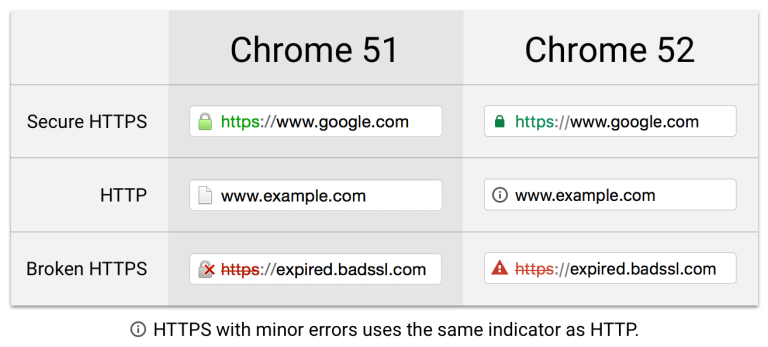
Handling Expired or Not Yet Valid Certificates: Date not yet fixed

0

Handling Expired or Not Yet Valid Certificates: A Practical Guide

!Certificate

Introduction

In the digital realm, security certificates play a crucial role in establishing trust and ensuring secure communication. However, what happens when a certificate expires or is not yet valid? In this article, we’ll explore the steps to take when faced with this situation and discuss why timely action is essential.

1. Identify the Culprit: Where Is the Expired Certificate?

Before you can address the issue, you need to pinpoint the expired certificate’s location within your IT ecosystem. Here’s how:

  1. Full Visibility: Maintain a comprehensive inventory of certificates across your network. Knowing where each certificate resides is essential.
  2. Systems Connected: Identify all systems connected to the certificate. This includes servers, applications, and endpoints.

2. Renewal and Prevention Strategies

Renewal Steps

  1. Act Swiftly: As soon as you discover an expired certificate, act promptly. Delay can lead to service outages and unencrypted connections.
  2. Check Reminders: Renew certificates before they expire. Calendar reminders and alerts from certificate authorities (CAs) are your allies.
  3. Certificate Lifecycle Management: Adhere to industry best practices for managing certificate lifespans.

Prevention Measures

  1. Automate Renewals: Implement automated renewal processes to minimize manual errors.
  2. Monitor Expiry Dates: Regularly review certificate expiration dates.
  3. Proactive Alerts: Set up automated alerts for impending expirations.

3. Impact of Certificate Outages

Expired certificates can cause significant disruptions:

  • Customer Services: 55% of organizations report severe disruptions to customer-facing services due to certificate outages.
  • Internal Users: 50% experience major disruptions internally.

Conclusion

In the digital age, certificates are the guardians of trust. By proactively managing their lifecycle, promptly addressing expirations, and maintaining visibility, you can ensure a secure and reliable environment for your organization.

Remember, an expired certificate is like a wilted flower—it needs renewal to bloom again!

Troubleshooting “DNS Server Not Responding” Errors: A Comprehensive Guide

0

Domain Name System (DNS) is the backbone of the internet, translating human-friendly domain names (like www.example.com) into IP addresses that computers use to locate websites. When you encounter a “DNS Server Is Not Responding” error, it means your device is having trouble connecting to the DNS server. Fear not! In this article, we’ll explore the causes of this issue and provide practical solutions to get your internet back on track.

Why Do You Get a “DNS Server Not Responding” Error?

Before diving into solutions, let’s understand why this error occurs:

  1. DNS Server Unavailability: The DNS server you rely on might be down or experiencing issues.
  2. Router Problems: A malfunctioning router can disrupt DNS communication.
  3. Browser Glitches: Sometimes, your web browser itself can cause DNS hiccups.
  4. VPN Interference: Certain VPN apps may interfere with DNS resolution.
  5. Corrupt DNS Cache: Cached DNS records can become corrupted, leading to errors.
  6. Network Adapter Issues: Outdated or faulty network adapter drivers can play a role.
  7. Antivirus or IPv6 Settings: These settings might conflict with DNS resolution.
  8. Multiple Network Adapters: Having too many active network adapters can confuse DNS.

How to Fix DNS Server Not Responding Errors

Let’s roll up our sleeves and troubleshoot:

  1. Try a Different Web Browser:
    • Sometimes, the issue is browser-specific. Open a different browser and check if the problem persists.
    • Clear the cache, disable extensions, and reset your original browser if needed.
  2. Restart Your Router:
    • Power off your router, wait a minute, and turn it back on. This simple step often resolves connectivity issues.
  3. Disable VPN:
    • If you’re using a VPN, disable it temporarily and see if the error disappears.
  4. Flush DNS Cache:
    • Open the Command Prompt (Windows) or Terminal (macOS/Linux).
    • Type ipconfig /flushdns (Windows) or sudo dscacheutil -flushcache (macOS/Linux) and hit Enter.
    • This clears the DNS cache.
  5. Update Network Adapter Drivers:
    • Visit your computer manufacturer’s website or use Windows Update to ensure your network drivers are up to date.
  6. Check Another Device on the Same Network:
    • If another device works fine, the issue is likely specific to your computer.
    • If not, it could be a broader network problem.
  7. Change DNS Servers:
    • Use public DNS servers like Google’s (8.8.8.8 and 8.8.4.4) or Cloudflare’s (1.1.1.1).
    • Update your DNS settings in your network adapter properties.
  8. Boot in Safe Mode:
    • Boot your PC in safe mode to rule out any third-party software causing conflicts.
  9. Antivirus and Firewall Settings:
    • Temporarily disable your antivirus and firewall to see if they’re blocking DNS requests.
  10. IPv6 Deactivation:
    • Turn off IPv6 if it’s causing issues.

Remember, these steps are like a toolbox. Try them one by one until you find the wrench that fixes your DNS woes.

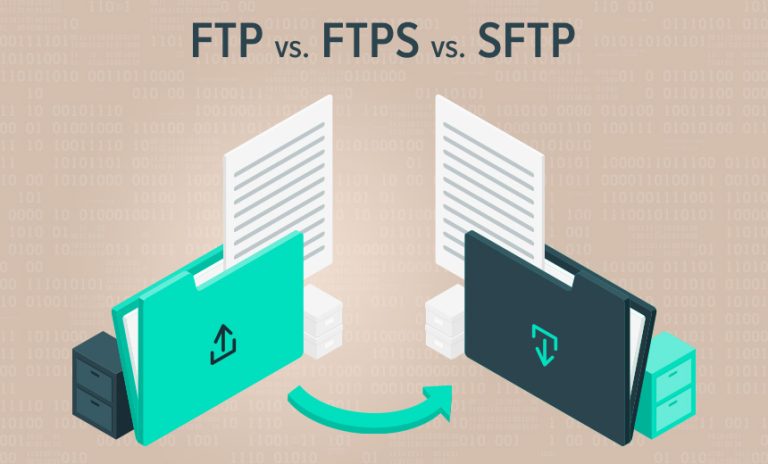
FTP vs SFTP: A Comparative Analysis

0

Let’s delve into the differences between FTP (File Transfer Protocol) and SFTP (SSH File Transfer Protocol). Both protocols serve the purpose of transferring files, but they operate in distinct ways, especially when it comes to security.

FTP vs SFTP: A Comparative Analysis

1. What Is FTP?

  • FTP stands for File Transfer Protocol.
  • It follows the client/server model, allowing direct file transfers between your chosen FTP client (e.g., FileZilla) and your web server.
  • FTP uses two separate channels: a command channel and a data channel.
  • Unencrypted by default: Both channels are unencrypted, which means that malicious actors could potentially eavesdrop on the information being transferred.

2. What Is SFTP?

  • SFTP stands for SSH File Transfer Protocol (also known as Secure File Transfer Protocol).
  • Like FTP, it allows file transfers, but with an added layer of security.
  • Tunneling and SSH: SFTP performs file transfers over SSH (Secure Shell), which provides secure access to a machine (in this case, your server) over unsecured networks.
  • Single channel: SFTP uses only one channel for communication.
  • Authentication options: You can authenticate your SFTP client using either a username/password or SSH cryptographic keys.

3. The Key Difference: Security

  • FTP:
    • Unencrypted channels expose data during transfer.
    • Malicious actors can potentially intercept your data.
    • Requires authentication with a username and password.
  • SFTP:
    • Always secured: Data moves between your FTP client and web server encrypted.
    • No eavesdropping: Malicious actors cannot intercept your data.
    • Authentication options include both username/password and SSH keys.

4. Which One Should You Use?

  • SFTP is recommended:
    • Due to its enhanced security features, we recommend using SFTP.
    • Here at Tremhost, we exclusively offer SFTP for our users.
    • While the end-user experience is similar for both protocols, the underlying security makes SFTP the better choice.

In summary, if you want a secure file transfer solution, opt for SFTP. It ensures that your data remains confidential during transmission, protecting it from potential threats.

Understanding SMTP Ports: A Comprehensive Guide

0

Understanding SMTP Ports

SMTP (Simple Mail Transfer Protocol) is the backbone of email communication on the web. Whether you’re sending a casual message to a friend or managing a business’s email infrastructure, understanding SMTP ports is crucial. In this article, we’ll delve into the world of SMTP ports, demystify their significance, and help you choose the right one for your needs.

What Is an SMTP Port?

An SMTP port serves as a communication endpoint that facilitates the transfer of information between servers. When you send an email, the process involves multiple steps:

  1. Your email client (such as Apple Mail or Outlook) uploads the email to the outgoing mail server.
  2. The outgoing mail server then transfers the email to the recipient’s incoming mail server.

Think of SMTP as the postal service for emails, ensuring they reach their intended destinations. But what about ports?

The Port Analogy

Imagine an IP address as the physical street address of a business complex. Now, consider a port as the specific suite number within that complex. If you want to deliver something to a business, you can’t just address it to the entire complex—you need the right suite number.

Similarly, an IP address identifies a computer, while a port identifies a specific application or service running on that computer. For SMTP, the port ensures that the right email data reaches the correct place.

Common SMTP Ports

Let’s explore the most commonly used SMTP ports:

  1. Port 25 (SMTP): Historically, this was the default port for SMTP. However, due to security concerns and spam-related issues, many ISPs and email providers now block Port 25. It’s best to avoid using it unless you have specific reasons to do so.
  2. Port 587 (SMTPS): This is the recommended port for encrypted email transmissions. SMTPS encrypts, authenticates, and prevents data tampering. It’s commonly used for submission (uploading outgoing emails) and requires authentication.
  3. Port 465 (SMTPS Legacy): Although once popular, Port 465 is now deprecated. It was used for SMTP over SSL/TLS, but its use has declined due to security vulnerabilities.
  4. Port 2525: Some email services use Port 2525 as an alternative to Port 587. It’s less likely to be blocked by ISPs and provides a secure connection.

Choosing the Right SMTP Port

Consider the following factors when selecting an SMTP port:

  1. Security: For secure email transmission, opt for Port 587 (SMTPS). It ensures encryption and authentication.
  2. ISP Restrictions: Check if your ISP blocks any specific ports. If so, choose an alternative like Port 2525.
  3. Application Compatibility: Ensure your email client or server supports the chosen port.
  4. Troubleshooting: If you encounter issues, verify that your firewall or security software allows traffic on the selected port.

Troubleshooting Common SMTP Port Problems

  1. Blocked Ports: If emails aren’t sending, check if your ISP or hosting provider blocks certain ports. Adjust your SMTP settings accordingly.
  2. Authentication Errors: Ensure you’ve configured authentication correctly, especially when using Port 587.
  3. Firewall Rules: Review your firewall rules to allow traffic on the chosen port.

Remember, choosing the right SMTP port ensures smooth email delivery and enhances your overall email experience. So, next time you’re configuring your email client or server, make an informed choice based on your specific requirements.

Understanding SSH Ports: A Secure Gateway to Remote Systems

0

!SSH

Secure Shell (SSH) is a powerful protocol that allows secure communication between your local machine and remote servers. Whether you’re a system administrator, developer, or curious tech enthusiast, understanding SSH and its default port is essential. Let’s dive into the world of SSH ports and explore how they work.

What Is SSH?

SSH, short for Secure Shell, provides a secure way to log onto remote systems. It encrypts data during transmission, ensuring confidentiality and integrity. Here are the key points about SSH:

  1. Authentication: SSH uses various methods for authentication, including passwords and public-key cryptography.
  2. Encryption: All data exchanged between the client and server is encrypted.
  3. Remote Access: SSH allows you to execute commands remotely on a server.
  4. Port: By default, SSH communicates over port 22.

The Default SSH Port

The standard TCP port for SSH is 22. When you connect to a remote system using SSH, you’ll use the ssh command. Here’s the basic syntax:

ssh remote_host
  • Replace remote_host with the IP address or domain name of the server you want to access.
  • If your username on the remote system differs from your local username, use this syntax:
ssh remote_username@remote_host

Windows Users

  • PowerShell: Install OpenSSH to use SSH from PowerShell.
  • WSL (Windows Subsystem for Linux): Set up WSL to have a full Linux environment, including SSH.
  • Git for Windows: Provides a native Windows bash terminal with the ssh command.

How Does SSH Work?

  1. Client-Server Connection: SSH connects a client program (like ssh) to an SSH server (sshd).
  2. Server Availability: On most Linux systems, sshd starts automatically. If not, start it using:
    sudo systemctl start ssh
    
  3. Configuration: Modify SSH settings in /etc/ssh/sshd_config.

Enhancing Security: Changing the Default Port

While port 22 is the default, consider changing it for added security. Why?

  1. Reduced Scans: Attackers often scan port 22 for vulnerabilities. Changing the port reduces exposure.
  2. Obscurity: Although not a primary security measure, using a non-standard port adds a layer of obscurity.

To change the SSH port:

  1. Edit /etc/ssh/sshd_config.
  2. Locate the line with Port 22.
  3. Replace 22 with your desired port (e.g., Port 2222).
  4. Restart SSH: sudo systemctl restart ssh.

Remember to update your firewall rules to allow the new port.

Key-Based Authentication

Instead of passwords, use SSH keys for authentication. Generate keys using ssh-keygen and add your public key to the server’s ~/.ssh/authorized_keys file.

Conclusion

SSH is your gateway to remote systems, and understanding its default port and security practices is crucial. Whether you’re managing servers or exploring the tech landscape, SSH empowers you to securely interact with the digital world.

Remember: Secure your keys, change the port, and explore the possibilities of SSH!

HTTP 500 Internal Server Error: What, How and Why

0

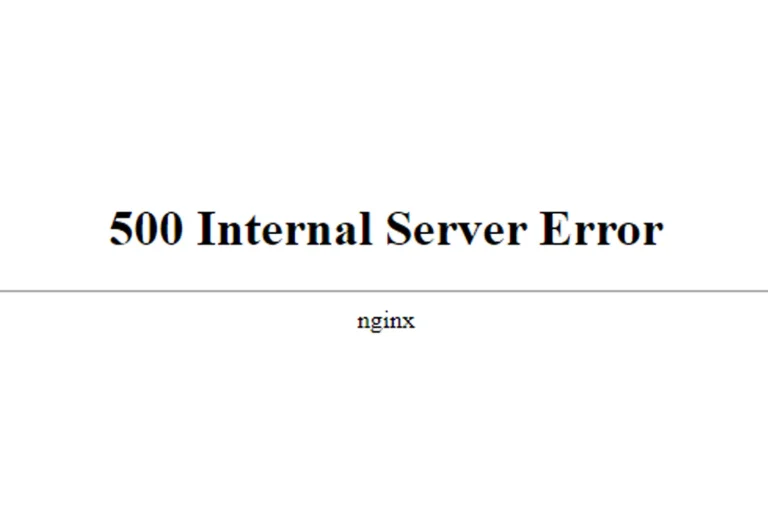
Understanding the HTTP 500 Internal Server Error

When browsing the web, you might have encountered a cryptic message: “500 Internal Server Error”. It’s like stumbling upon a locked door with no key. Fear not! Let’s delve into this enigmatic error, understand its causes, and explore potential solutions.

What Is a 500 Internal Server Error?

  • Definition: A 500 Internal Server Error is an HTTP status code that indicates something went awry on the web server’s end. Instead of serving a regular web page, the server throws up its hands and says, “Oops, something unexpected happened!”

How Does It Manifest?

  • You might see variations of this error message:
    • “500 Internal Server Error”
    • “500 Error”
    • “HTTP Error 500”
    • “500. That’s an error”
    • “Temporary Error (500)”

Causes and Impact:

  1. Server Glitches: The website’s backend machinery hiccupped. It could be due to overloaded servers, misconfigured scripts, or database issues.
  2. Faulty Code: A bug in the website’s code triggered the error.
  3. Permissions Snafu: Incorrect permissions on files or directories can lead to a 500 error.
  4. Plugins Gone Rogue: Misbehaving plugins or extensions can wreak havoc.
  5. PHP Timeout: If a PHP script takes too long to execute, the server throws its hands up.

How to Fix It (Or at Least Cope):

  1. Wait It Out: Sometimes, it’s a temporary glitch. Reload the page after a few minutes.
  2. Click Reload: Hit that “Reload” button (F5) on your browser. The server might recover.
  3. Avoid Double Payments: If you were making a transaction, be cautious. Reloading during payments could lead to double charges.
  4. Contact the Website Owner: Politely inform them about the issue. They’ll need to fix it on their end.

Remember, the 500 Internal Server Error isn’t your fault—it’s the website’s. So, take a deep breath, sip your virtual tea, and wait for the server elves to sort things out.

Understanding Email Error 550: Causes and Solutions

0

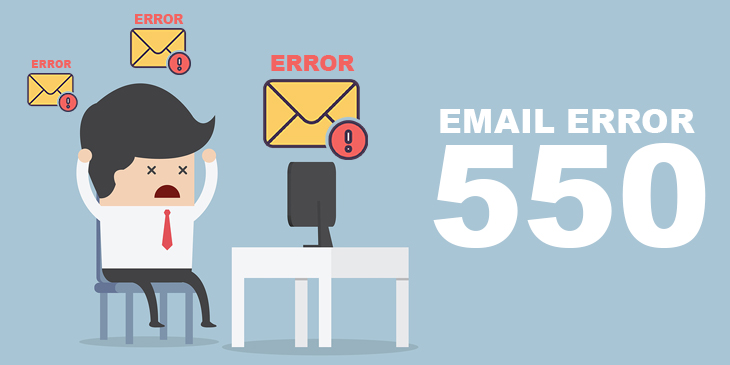
Understanding Email Error 550: Causes and Solutions

Email communication is an integral part of our daily lives, whether for personal correspondence or professional interactions. However, encountering email errors can be frustrating, especially when you’re trying to send an important message. One such error that often perplexes users is the dreaded Error 550. Let’s delve into what it means, why it occurs, and how to resolve it.

What Is Error 550?

Error 550 is an SMTP (Simple Mail Transfer Protocol) error code. When you encounter this error, it means that your email message was blocked by the recipient’s email hosting server and returned to you. But why does this happen, and what can you do about it?

Common Causes of Error 550:

  1. Relaying Denied:
    • Relaying occurs when an email message is sent to an address whose domain (the part after the “@” symbol, like “example.com”) is not processed by the SMTP server you’re using.
    • The SMTP server must connect to another SMTP server to relay the message.
    • If the recipient’s domain isn’t recognized by your SMTP server, you’ll receive an Error 550.
    • Example error message: “The message could not be sent because one of the recipients was rejected by the server. The rejected email address was ‘[email protected]’.”
    • Solution: Ensure that your SMTP server settings are correct and that you’re authorized to send emails through it.
  2. Blacklisting:
    • Some spam filters maintain Real-time Blackhole Lists (RBLs) containing domains known for sending spam.
    • If your email domain appears in an RBL, your message might be blocked.
    • Example error message: “The message could not be sent because one of the recipients was rejected by the server. The rejected email address was ‘<email address>’.”
    • Solution: Check if your domain is blacklisted and take necessary actions to remove it.
  3. Incorrect Email Address:
    • A mistyped or nonexistent email address can trigger Error 550.
    • Example error message: “553 sorry, that domain isn’t in my list of allowed rcpthosts (#5.7.1).”
    • Solution: Double-check the recipient’s email address and ensure it’s accurate.

How to Fix Error 550:

  1. Verify Email Address:
    • Ensure that the recipient’s email address is correct and properly formatted.
    • Avoid typos or missing characters.
  2. Check SMTP Authentication:
    • Make sure SMTP authentication is enabled in your email client settings.
    • Authentication helps verify your identity when sending emails.
  3. Avoid Blacklisting:
    • Regularly monitor your domain’s reputation.
    • If blacklisted, follow the necessary steps to get delisted.
  4. Contact Your Email Provider:
    • If all else fails, reach out to your email service provider.
    • They can investigate and provide specific guidance.

Remember, while Error 550 can be frustrating, understanding its causes and taking corrective measures will help ensure smooth email communication. Keep your email house in order, and those messages will find their way to the right inboxes!