Home Blog Page 542

Tremhost: Your Gateway to Affordable Plesk Licenses

0

Efficiently managing your web hosting environment is crucial for website owners, and a reliable control panel plays a significant role in achieving this. Plesk, a widely recognized and user-friendly control panel, offers a range of powerful features to simplify website administration. Tremhost proudly stands as a leading provider of affordable Plesk licenses. In this comprehensive essay, we will explore why Tremhost is the preferred choice for affordable Plesk licenses. From their competitive pricing to exceptional customer support, Tremhost ensures that website owners can optimize their hosting environment without straining their budget.

Competitive Pricing
Tremhost understands the importance of affordability for businesses and individuals managing websites. They offer Plesk licenses at highly competitive prices, making it accessible for website owners to leverage the full potential of this robust control panel without incurring excessive costs. Tremhost’s commitment to affordability ensures that even small businesses and budget-conscious website owners can benefit from the advanced features and functionalities of Plesk.

Licensing Flexibility
Tremhost provides various licensing options to cater to the diverse needs of website owners. Whether you’re managing a single website or multiple websites across different hosting accounts, Tremhost offers flexible licensing plans. They understand that each website has unique requirements, and their licensing options can be tailored to meet those needs. This flexibility ensures that you only pay for the licenses you need, allowing you to optimize your budget effectively.

Streamlined Activation and Support
Tremhost streamlines the process of acquiring and activating Plesk licenses, ensuring a hassle-free experience for website owners. Their user-friendly interface allows you to purchase and activate licenses swiftly, without any unnecessary delays. Moreover, Tremhost provides exceptional customer support to guide you throughout the activation process or address any licensing-related queries you may have. Their knowledgeable support team is readily available to provide assistance and ensure a smooth licensing experience.

Reliable and Secure Control Panel
Plesk is renowned for its reliability, user-friendly interface, and robust security features. With Tremhost’s affordable Plesk licenses, you can harness the power of this industry-leading control panel to efficiently manage your website hosting environment. From managing domains and email accounts to deploying applications and optimizing server performance, Plesk simplifies complex tasks, saving you time and effort. Additionally, Plesk’s comprehensive security features help safeguard your website and protect sensitive data from potential threats.

Value-added Services
Tremhost goes beyond offering affordable Plesk licenses by providing value-added services that enhance your overall hosting experience. These services may include automatic backups, advanced security measures, and additional resources to optimize your website’s performance. By bundling these services with your Plesk license, Tremhost ensures that you receive maximum value for your investment, further enhancing the efficiency and security of your hosting environment.

Conclusion
Tremhost has emerged as the go-to provider of affordable Plesk licenses. With their competitive pricing, licensing flexibility, streamlined activation and support, reliable control panel, and value-added services, Tremhost empowers website owners to efficiently manage their hosting environment without straining their budget.

By choosing Tremhost as your Plesk license provider, you gain access to the advanced features and user-friendly interface of Plesk at an affordable price. With their affordable licenses and exceptional customer support, Tremhost ensures that website owners can optimize their hosting environment, streamline operations, and focus on growing their online presence.

Unlock the full potential of Plesk without breaking the bank. Choose Tremhost as your gateway to affordable Plesk licenses and experience the convenience, reliability, and security that this industry-leading control panel offers. Streamline your website management and enjoy peace of mind knowing that you have a trusted partner in Tremhost.

Tremhost: Your Affordable cPanel License Provider

0

When it comes to managing your website hosting environment, having a reliable control panel is essential. cPanel, a widely recognized and user-friendly control panel, offers a range of powerful features to simplify website management. Tremhost stands out as a leading provider of affordable cPanel licenses. In this comprehensive essay, we will explore why Tremhost is the go-to choice for affordable cPanel licenses . From their competitive pricing to exceptional customer service, Tremhost ensures that website owners worldwide, can efficiently manage their hosting environment without breaking the bank.

Competitive Pricing 
Tremhost understands the importance of affordability, especially for small businesses and individuals managing websites. They offer cPanel licenses at highly competitive prices, allowing to leverage the full potential of this robust control panel without straining their budget. Tremhost’s commitment to affordability ensures that even startups and budget-conscious website owners can access the powerful features of cPanel without compromise.

Licensing Flexibility 
Tremhost provides various licensing options to cater to the diverse needs of website owners. Whether you’re running a single website or managing multiple websites across different hosting accounts, Tremhost offers flexible licensing plans. They understand that each website has unique requirements, and their licensing options can be tailored to meet those needs. By offering flexibility, Tremhost ensures that you only pay for the licenses you need, saving you money in the process.

Streamlined Activation and Support
Tremhost makes the process of acquiring and activating cPanel licenses seamless and hassle-free. Their user-friendly interface allows you to purchase and activate licenses quickly, without any unnecessary delays. Additionally, Tremhost provides exceptional customer support to assist you throughout the activation process or address any licensing-related queries you may have. Their knowledgeable support team is readily available to provide guidance and ensure a smooth experience.

Reliable and Secure Control Panel
cPanel is renowned for its reliability and robust security features. With Tremhost’s affordable cPanel licenses, you can harness the power of this industry-leading control panel to effectively manage your website hosting environment. From managing domains and subdomains to creating email accounts and databases, cPanel simplifies the tasks involved in website administration. Furthermore, cPanel’s security features help safeguard your website and protect sensitive data from potential threats.

Value-added Services 
In addition to offering affordable cPanel licenses, Tremhost provides value-added services that enhance your overall hosting experience. These services may include automatic backups, advanced security measures, and additional resources to optimize your website’s performance. By bundling these services with your cPanel license, Tremhost ensures that you receive maximum value for your investment.

Conclusion
Tremhost has established itself as the go-to provider of affordable cPanel licenses internationally. With their competitive pricing, licensing flexibility, streamlined activation and support, reliable control panel, and value-added services, Tremhost empowers website owners to effectively manage their hosting environment without straining their budget.

By choosing Tremhost as your cPanel license provider, you gain access to the powerful features and user-friendly interface of cPanel at a fraction of the cost. With their affordable licenses and exceptional customer service, Tremhost ensures that website owners can efficiently manage their websites, streamline operations, and focus on growing their online presence.

Unlock the full potential of cPanel without breaking the bank. Choose Tremhost as your affordable cPanel license provider and experience the convenience, reliability, and security that this industry-leading control panel offers. Streamline your website management and enjoy peace of mind knowing that you have a trusted partner in Tremhost.

Tremhost: Unveiling Nigeria’s Leading Web Hosting Company

0

When it comes to establishing a strong online presence, choosing the right web hosting company is paramount. In Nigeria’s vibrant digital landscape, Tremhost has emerged as a prominent player, offering reliable hosting solutions tailored to the needs of businesses and individuals alike. In this comprehensive essay, we will explore the reasons why Tremhost stands out as the best web hosting company in Nigeria. From its robust infrastructure to exceptional customer support, Tremhost continues to empower Nigerian businesses and individuals to thrive in the digital realm.

Unparalleled Infrastructure and Reliability 
Tremhost’s commitment to providing top-notch infrastructure sets it apart from the competition. Their servers are equipped with cutting-edge technology, ensuring optimal performance, and uninterrupted website availability. With state-of-the-art data centers and redundant network connectivity, Tremhost guarantees high uptime and fast loading speeds for websites hosted on their platform. This reliability is crucial for businesses looking to establish a strong online presence and cater to their audience without interruptions.

Tailored Hosting Solutions 
Tremhost understands that every website has unique requirements. Whether you’re a small business owner, blogger, or e-commerce entrepreneur, Tremhost offers a range of hosting plans to suit diverse needs. From shared hosting for cost-effective solutions to VPS hosting for greater control and scalability, Tremhost ensures that you have the right resources to support your online endeavors. Their hosting plans come equipped with ample storage, bandwidth, and user-friendly control panels, making it easy for customers to manage their websites efficiently.

Enhanced Security Measures
In an age where online threats are prevalent, Tremhost prioritizes the security of your website and customer data. They employ robust security measures, including firewalls, malware scanning, and intrusion detection systems, to safeguard your online assets. Additionally, Tremhost offers secure sockets layer (SSL) certificates to encrypt data transmitted between your website and users, instilling trust and protecting sensitive information. By prioritizing security, Tremhost ensures that your website remains protected from potential cyber threats.

Exceptional Customer Support 
Tremhost’s commitment to customer satisfaction extends beyond their hosting services. They provide exceptional customer support, ensuring that assistance is readily available whenever you need it. Their knowledgeable support team is accessible through various channels, including live chat, email, and phone, promptly addressing any concerns or technical issues you may encounter. Whether you’re a beginner or an experienced webmaster, Tremhost’s friendly support staff is dedicated to helping you navigate the hosting journey smoothly.

Competitive Pricing and Value 
Tremhost understands the importance of affordability without compromising on quality. Their hosting plans are competitively priced, offering excellent value for the features and resources provided. Whether you’re a startup or an established business, Tremhost’s pricing structure ensures that you get the most out of your investment, allowing you to allocate resources to other crucial aspects of your online presence.

Conclusion 
Tremhost has established itself as the best web hosting company in Nigeria, offering a comprehensive range of hosting solutions tailored to the needs of businesses and individuals. With their unparalleled infrastructure, tailored hosting plans, enhanced security measures, exceptional customer support, and competitive pricing, Tremhost empowers Nigerian businesses to thrive in the digital landscape.

By choosing Tremhost as your web hosting provider, you can rest assured that your website will benefit from reliable performance, robust security, and the support of a dedicated team. Whether you’re launching a blog, an e-commerce store, or a corporate website, Tremhost’s hosting solutions are designed to meet your specific requirements and fuel your online success.

It’s time to take your online presence to new heights with Tremhost—the best web hosting company in Nigeria. Experience the difference and unlock the full potential of your website in a secure, reliable, and customer-centric hosting environment.

How do I upgrade or downgrade my cPanel hosting plan?

0

As your website grows and evolves, you may find the need to upgrade or downgrade your cPanel hosting plan to accommodate changing requirements or resource needs. Upgrading allows you to access more features, resources, and capabilities, while downgrading helps you optimize costs or adjust to a lower level of usage. In this blog post, we will guide you through the process of upgrading or downgrading your cPanel hosting plan, step by step.

Step 1: Assess Your Hosting Needs
Before making any changes to your hosting plan, it’s important to assess your current and future hosting needs. Consider factors such as website traffic, storage requirements, anticipated growth, and any specific features or resources you may require. This evaluation will help you determine whether an upgrade or downgrade is necessary and what specific changes you need to make.

Step 2: Contact Your Hosting Provider
Once you have evaluated your hosting needs, reach out to your hosting provider’s customer support team. Most hosting providers offer multiple ways to contact them, such as live chat, email, or phone support. Choose the method that is most convenient for you and explain your intention to upgrade or downgrade your cPanel hosting plan.

Step 3: Discuss Available Options
Engage in a conversation with the customer support representative and discuss the available options for upgrading or downgrading your hosting plan. They will provide you with details about the different plans, features, and pricing structures available. Take this opportunity to ask any questions you may have and seek clarification on any concerns or doubts.

Step 4: Select the Desired Plan
Based on your discussion with the customer support representative and your hosting needs assessment, select the hosting plan that best suits your requirements. If you are upgrading, ensure that the new plan offers the features, resources, and capabilities necessary to accommodate your anticipated growth. If you are downgrading, choose a plan that aligns with your adjusted usage and budget.

Step 5: Review the Pricing and Terms
Carefully review the pricing and terms associated with the new hosting plan. Understand the billing cycle, payment frequency, any applicable discounts or promotions, and any potential changes to your billing amount. Take note of any specific terms or conditions related to the upgrade or downgrade process, such as contract durations or early termination fees.

Step 6: Backup Your Website
Before making any changes to your hosting plan, it’s crucial to backup your website and all associated data. This ensures that you have a copy of your website in case of any unforeseen issues or data loss during the transition. Use cPanel’s backup tools or a third-party backup solution to create a comprehensive backup of your website files, databases, and configurations.

Step 7: Proceed with the Plan Change
Once you have reviewed the pricing and terms and backed up your website, inform the customer support representative of your decision. They will guide you through the process of upgrading or downgrading your cPanel hosting plan. This may involve signing a new contract, agreeing to updated terms, or making changes to your billing information.

Step 8: Migrate Your Website (if necessary)
If you are changing to a different hosting plan within the same hosting provider, migration may not be required. However, if you are switching to a different hosting provider, you will need to migrate your website to the new hosting environment. Your new hosting provider should provide instructions or assistance for this process. Alternatively, you can seek the help of a professional web developer or utilize migration tools to ensure a smooth transition.

Step 9: Test and Verify the Changes
After the plan change and any necessary migration, thoroughly test and verify your website to ensure that everything is functioning as expected. Check that all website files, databases, email accounts, and other configurations have been successfully transferred to the new hosting plan. Test website functionality, performance, and any specific features or integrations to confirm that they are working correctly.

Step 10: Update DNS and Monitor Performance
If your domain’s DNS settings were not automatically updated during the plan change or migration process, make sure to update them manually. Update the DNS records to point to the new hosting provider’s nameservers or IP address. Additionally, closely monitor your website’s performance, uptime, and any potential issues in the days following the plan change. Address any issues promptly with your hosting provider’s support team.

In conclusion, upgrading or downgrading your cPanel hosting plan is a straightforward process that involves evaluating your hosting needs, contacting your hosting provider, selecting the desired plan, reviewing pricing and terms, backing up your website, and proceeding with the plan change. By following the step-by-step instructions outlined in this guide, you can seamlessly transition to a hosting plan that aligns with your requirements, whether you need more resources, advanced features, or a more cost-effective solution. With careful planning and execution, you can ensure a smooth and successful transition while maintaining the performance and stability of your website.

How can I check my website’s statistics in cPanel?

0

Monitoring and analyzing your website’s statistics is crucial for understanding its performance, identifying visitor trends, and making informed decisions to optimize your online presence. Fortunately, cPanel provides powerful tools to help you track and analyze these statistics easily. In this blog post, we will guide you through the process of checking your website’s statistics in cPanel, step by step.

Step 1: Log in to cPanel
To begin, log in to your cPanel account provided by your hosting provider. Once logged in, navigate to the “Metrics” or “Statistics” section. The exact location of this section may vary depending on the cPanel theme used by your hosting provider.

Step 2: Choose a Statistics Tool
Within the “Metrics” or “Statistics” section, you will find several tools to analyze your website’s statistics. cPanel typically offers popular options such as AWStats, Webalizer, and Analog. Each tool provides different types of reports and visualizations, so you can choose the one that best suits your needs.

Step 3: Select the Domain
After choosing a statistics tool, you will be presented with a list of domains associated with your cPanel account. Select the domain for which you want to view the statistics. If you have multiple domains, you can analyze each one individually by repeating the process for each domain.

Step 4: Generate the Statistics Report
Once you have selected the domain, click on the corresponding tool to generate the statistics report. This may be labeled as “View,” “Generate,” or similar. The tool will process the available data and generate a comprehensive report on your website’s statistics.

Step 5: Explore the Statistics Report
After the statistics report is generated, you will be presented with a wealth of information about your website’s performance. The exact layout and sections may vary depending on the chosen statistics tool, but you can expect to find valuable insights such as:

Visitor statistics: Learn about the number of unique visitors, page views, and visits over a specific period. Understand how visitors interact with your website and identify popular pages or sections.
Referral sources: Discover where your website traffic is coming from. The report may include data on search engines, social media platforms, referring websites, and direct traffic.
Geolocation: Gain insights into the geographic distribution of your visitors. Identify the countries, regions, or cities from which your website receives the most traffic.
Browsers and devices: Understand the technology preferences of your visitors. The report may provide information about the browsers, operating systems, and devices used to access your website.
Search engine keywords: If available, the statistics report may reveal the keywords or search terms that visitors used to find your website through search engines.
Error and access logs: Some statistics tools include error and access logs, allowing you to investigate any issues or anomalies in website access and performance.
Step 6: Customize and Filter the Reports (Optional)
To further refine your analysis, many statistics tools in cPanel offer customization and filtering options. You can set specific date ranges, compare different periods, and apply filters to focus on specific aspects of your website’s statistics. Explore the tool’s interface to discover these options and tailor the reports to your needs.

Step 7: Utilize Additional Features and Integrations
cPanel’s statistics tools often provide additional features and integrations to enhance your analysis. For example, you may find options to export the reports in various formats, such as PDF or Excel, for further analysis or sharing with stakeholders. Some tools also offer integration with Google Analytics or other third-party analytics platforms, allowing you to consolidate and compare data from multiple sources.

Step 8: Regularly Monitor and Analyze the Statistics
Understanding your website’s statistics is an ongoing process. Make it a habit to regularly check and analyze the reports provided by cPanel’s statistics tools. By tracking trends, identifying patterns, and monitoring changes over time, you can gain valuable insights to optimize your website, improve user experience, and drive better results.

In conclusion, cPanel offers powerful tools to check and analyze your website’s statistics conveniently. By following the step-by-step instructions provided in this guide, you can gain valuable insights into your website’s performance, visitor behavior, and traffic sources. Regularly monitoring and analyzing these statistics will enable you to make informed decisions and take proactive steps to enhance your online presence. Empowered with this knowledge, you can optimize your website, attract more visitors, and achieve your online goals with confidence.

How can I set up an SSL certificate in cPanel?

0

Setting up an SSL certificate in cPanel is a crucial step in ensuring the security and trustworthiness of your website. SSL (Secure Sockets Layer) certificates encrypt the communication between your website and its visitors, protecting sensitive information from interception and unauthorized access. In this blog post, we will guide you through the process of setting up an SSL certificate in cPanel, step by step.

Step 1: Purchase or Obtain an SSL Certificate
Before you can set up an SSL certificate, you need to obtain one. There are several ways to acquire an SSL certificate. You can purchase one from a trusted certificate authority (CA) such as Comodo, Symantec, or Let’s Encrypt. Some hosting providers also offer free SSL certificates through the cPanel interface, often in partnership with Let’s Encrypt.

Step 2: Log in to cPanel
To begin the setup process, log in to your cPanel account provided by your hosting provider. Once logged in, navigate to the “Security” or “SSL/TLS” section. The location of this section may vary slightly depending on the cPanel theme used by your hosting provider.

Step 3: Generate a Certificate Signing Request (CSR)
To obtain an SSL certificate, you need to provide a Certificate Signing Request (CSR) to the certificate authority. In cPanel, look for the option labeled “Generate an SSL Certificate” or “Generate CSR.” Fill in the required information, including your domain name, organization details, and contact email address. Double-check the information for accuracy and click on the “Generate” button.

Step 4: Submit the CSR to the Certificate Authority
Once you have generated the CSR, copy the provided CSR code. Next, visit the website of your chosen certificate authority and follow their instructions for submitting a CSR. This usually involves pasting the CSR code into a form on their website. Provide any additional information as required, and proceed with the submission.

Step 5: Verify Domain Ownership
To issue the SSL certificate, the certificate authority may require you to verify domain ownership. This verification process ensures that you have control over the domain for which you are requesting the certificate. There are typically different methods available for domain verification, such as email validation, DNS record verification, or file-based verification. Follow the instructions provided by the certificate authority to complete the domain verification process.

Step 6: Receive and Install the SSL Certificate
Once the certificate authority has verified your domain ownership and processed your request, they will issue the SSL certificate. You will typically receive the SSL certificate via email or through your certificate authority account. Download the certificate files, which may be in various formats such as PEM or CRT.

Return to your cPanel account and navigate to the “Security” or “SSL/TLS” section. Look for the option labeled “Install and Manage SSL for your site” or similar. In this section, you will find options to install the SSL certificate.

Step 7: Install the SSL Certificate in cPanel
In the SSL/TLS section of cPanel, you will find options to install the SSL certificate. Choose the appropriate option, such as “Manage SSL sites,” “Install an SSL Certificate,” or “Install a Certificate.” Select the domain for which you obtained the SSL certificate.

In the certificate installation interface, you will typically find fields to paste the SSL certificate, private key, and any intermediate certificate or CA bundle provided by the certificate authority. Copy and paste the respective certificate files into the appropriate fields. Double-check the accuracy of the pasted information.

Step 8: Apply the SSL Certificate
After pasting the SSL certificate, private key, and any intermediate certificate, proceed to apply the changes. Click on the “Install” or “Save” button to complete the SSL certificate installation process.

Step 9: Test the SSL Certificate
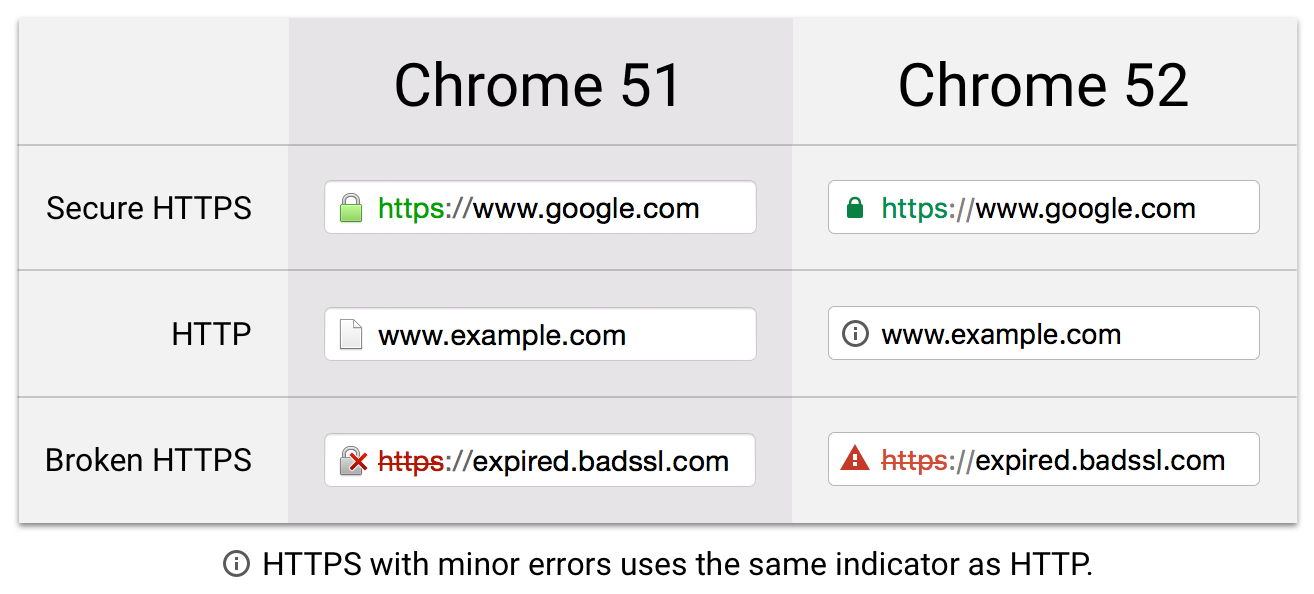
Once the SSL certificate is installed, it’s essential to verify its functionality. Visit your website using the “https://” protocol prefix. A properly installed SSL certificate will display a padlock icon in the browser’s address bar, indicating a secure connection. Additionally, you can use online SSL checker tools to verify the certificate’s validity and check for any errors or warnings.

Congratulations! You have successfully set up an SSL certificate in cPanel. Your website is now secured with an encrypted connection, ensuring the confidentiality and integrity of data transmitted between your visitors and your server.

In conclusion, setting up an SSL certificate in cPanel is a relatively straightforward process that significantly enhances the security and trustworthiness of your website. By following the step-by-step instructions outlined in this guide, you can obtain and install an SSL certificate, providing a secure browsing experience for your visitors and establishing credibility for your online presence.

Understanding the Difference between cPanel and WHM (Web Host Manager)

0

When it comes to managing web hosting services, cPanel and WHM (Web Host Manager) are two widely used and powerful tools. While they are closely related and often used together, it’s important to understand their individual functionalities and how they complement each other. In this article, we will delve into the key differences between cPanel and WHM, shedding light on their unique features and benefits.

What is cPanel?
cPanel is a popular web-based control panel that provides a user-friendly interface for managing various aspects of a website. It offers a comprehensive set of tools and functionalities to simplify website administration tasks. With cPanel, website owners can easily manage files, set up email accounts, create databases, install applications, monitor website statistics, and more. It is designed to be intuitive and accessible even to users with limited technical knowledge.

Key Features of cPanel:

File Management: cPanel’s File Manager enables users to upload, download, and manage files on their website via a web-based interface. It offers a familiar file explorer-like experience, making it simple to organize website content.

Email Management: cPanel allows users to create and manage email accounts associated with their domain. From setting up email forwarding and autoresponders to configuring spam filters, cPanel streamlines email administration tasks.

Database Management: With cPanel’s MySQL Database Wizard, users can effortlessly create and manage databases for their websites. It provides tools for importing, exporting, and optimizing databases, making it convenient for website owners to handle their data.

Application Installation: cPanel offers a wide range of one-click installation options for popular applications like WordPress, Joomla, and Drupal. This feature simplifies the process of installing and managing these applications, even for users without technical expertise.

Website Analytics: cPanel provides detailed statistics and analytics about website performance, including visitor information, bandwidth usage, and error logs. This data helps website owners monitor and optimize their online presence.

What is WHM (Web Host Manager)?
WHM, also known as Web Host Manager, is a powerful server administration tool that works in conjunction with cPanel. It is primarily used by hosting providers and system administrators to manage multiple cPanel accounts on a server. WHM provides a centralized interface for server-level tasks, allowing administrators to efficiently allocate resources, configure security settings, and manage customer accounts.

Key Features of WHM:

Account Management: WHM enables administrators to create and manage individual cPanel accounts for their customers. It provides granular control over account settings, such as disk space allocation, bandwidth limits, and email accounts.

Server Configuration: WHM allows administrators to configure server-wide settings, including security policies, PHP configurations, and DNS settings. It provides a comprehensive range of options to tailor the server environment to specific requirements.

Package Management: WHM facilitates the creation and management of hosting packages, which define resource limits and feature sets for cPanel accounts. This feature allows hosting providers to offer different plans with varying capabilities and pricing.

Security and Access Controls: WHM offers robust security features, such as firewall management, SSL certificate installation, and IP address blacklisting. It also enables administrators to enforce password policies and implement two-factor authentication for enhanced security.

Server Monitoring: WHM provides tools for monitoring server performance, tracking resource usage, and identifying potential issues. This allows administrators to proactively address any concerns and ensure optimal server performance.

While cPanel focuses on website administration and management at the individual account level, WHM extends its capabilities to server-level tasks, making it an indispensable tool for hosting providers and system administrators. Together, cPanel and WHM provide a comprehensive solution for managing web hosting services, empowering website owners and administrators alike. Whether you’re a website owner or a hosting professional, understanding the differences between cPanel and WHM is essential for making informed decisions and effectively managing your online presence.

A Step-by-Step Guide to Creating Email Accounts in cPanel

0

In today’s digital age, having a professional email address is crucial for establishing your online presence and building trust with your audience. cPanel, a powerful web hosting control panel, offers a user-friendly interface that allows you to easily create and manage email accounts for your domain. This step-by-step guide will walk you through the process of creating an email account in cPanel, ensuring you can communicate effectively and professionally with your clients and customers.

Step 1: Accessing cPanel
To get started, log in to your cPanel account using your username and password. If you’re unsure how to access cPanel, contact your hosting provider for assistance. Once logged in, you’ll be greeted with a dashboard that provides access to various features and settings.

Step 2: Locating the Email Accounts Section
In the cPanel dashboard, navigate to the “Email” section. Within this section, you’ll find the “Email Accounts” icon. Click on it to proceed.

Step 3: Creating a New Email Account
Upon entering the “Email Accounts” page, you’ll find an option to “Add Email Account.” Click on this button to start the email account creation process.

Step 4: Domain Selection
In this step, you’ll need to select the domain for which you want to create the email account. If you have multiple domains associated with your cPanel account, choose the appropriate domain from the dropdown menu.

Step 5: Entering Account Details
Now it’s time to enter the account details. Begin by specifying the email address you wish to create. For instance, if you want an email address like “info@yourdomain.com,” simply type “info” in the username field. Choose a strong password for your account, ensuring it meets the security requirements outlined by cPanel.

Step 6: Mailbox Quota
To allocate storage space for your email account, set the mailbox quota. This determines the maximum amount of disk space the account can use to store emails. You can either set a specific quota or select “Unlimited” if you don’t want any storage restrictions.

Step 7: Customizing Additional Settings
cPanel provides additional settings to enhance your email experience. You can choose to enable features like autoresponders, email forwarding, and spam filters. Take some time to explore these options and configure them based on your requirements.

Step 8: Creating the Email Account
Once you’ve entered all the necessary details and customized the settings, click on the “Create Account” button. cPanel will now create the email account for you, and you’ll see a confirmation message upon successful creation.

Step 9: Accessing Your Email Account
Congratulations! You have successfully created an email account in cPanel. To access your new email account, you can either use a webmail client provided by cPanel or configure the account on your preferred email client (such as Outlook or Thunderbird) using the provided email settings.

Setting up email accounts in cPanel is a straightforward process that empowers you to establish professional communication channels for your domain. By following the step-by-step guide outlined above, you can create multiple email accounts, customize settings, and manage your emails efficiently. Remember to regularly monitor and maintain your email accounts to ensure seamless communication with your clients and customers. With cPanel’s user-friendly interface, you’ll be able to effortlessly manage your email accounts and focus on growing your online presence.

What Are The System Requirements For Running Cpanel

0

It is crucial to fulfil the system requirements provided by cPanel Inc. in order to run cPanel efficiently and guarantee peak performance. These specs include a wide range of topics, such as supported operating systems, software dependencies, and hardware specifications. You can offer a dependable and stable environment for hosting websites and controlling server resources via the cPanel control panel by meeting these requirements.

Now let’s examine the system prerequisites needed to execute cPanel:

Hardware details:

Processor: It is advised to use a contemporary multi-core processor with a clock speed of at least 2 GHz. The anticipated workload and the quantity of websites hosted will determine the number of cores.

RAM: While cPanel recommends 4 GB or more for maximum performance, especially when hosting many websites or utilising resource-intensive apps, at least 2 GB of RAM is needed.

Storage: In order to install cPanel and make room for vital system files, databases, and website data, at least 20 GB of free disc space must be available. The precise amount of storage needed will depend on your unique requirements as well as the size of your websites.

Operating Systems Supported:

cPanel is mainly meant to operate on Red Hat Enterprise Linux (RHEL), CloudLinux, and CentOS. These operating systems give cPanel’s features a reliable and secure base.
cPanel supports different Linux distributions, such Ubuntu and Debian, however their installation and configuration may call for extra processes.

Dependencies on Software:

Either Apache or LiteSpeed must be used as the web server software for cPanel. The most popular choice, Apache, offers versatility and compatibility, while LiteSpeed offers excellent speed and efficiency.

PHP: PHP powers dynamic website content in cPanel. It can support PHP 5.6, 7.0, 7.1, 7.2, 7.3, 7.4, and 8.0, among other versions, so you may select the one that works best for your apps.

MySQL or MariaDB: To store website data, the cPanel system needs a relational database management system (RDBMS). Although MariaDB is the preferred option because of its enhanced performance and compatibility, MySQL is also supported.

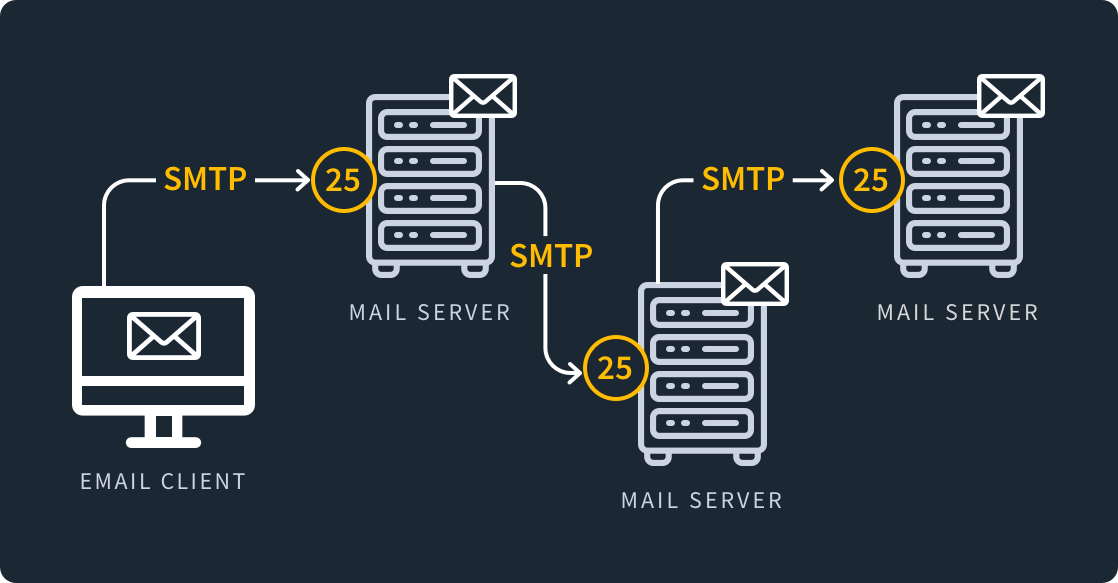
Exim or Postfix: These mail transfer agents (MTAs) are supported by cPanel to handle email services. Exim is the default MTA, while Postfix can be installed as an alternative.

Network and Interconnectivity:

For cPanel to operate, a reliable internet connection is essential. It guarantees that visitors may access websites hosted on your server and makes it possible for you to effectively carry out remote management duties.
It is advised that your server have a static IP address because it makes DNS management easier and enables you to set up secure connections like SSL certificates.

Extra Things to Think About:

Firewall and Security: To safeguard your server and the websites it hosts, you must put in place a strong firewall and other security measures. Access controls and firewall rule management are made possible by cPanel’s capabilities and toolkit.
Frequent Updates: Maintaining the stability and security of your server depends on keeping your cPanel installation up to date with the most recent software releases and security fixes.

You may guarantee a reliable and effective environment for website hosting and cPanel resource management by fulfilling these system prerequisites. The official cPanel documentation and guidelines should always be consulted for the most accurate and current information regarding system requirements.

Facebook Ads vs. Google Ads: Which Should You Be Using?

1. Differences between Google Ads and Facebook Ads

  • Google Ads (Paid Search):
    • Formerly known as Google AdWords, it’s the world’s largest and most popular PPC (pay-per-click) advertising platform.
    • Paid search primarily targets keywords and utilizes text-based ads.
    • Advertisers bid on specific keywords, aiming to display their ads alongside relevant search results.
    • Users are charged when someone clicks on their ad.
    • Google Ads is synonymous with “paid search” due to its widespread use.
    • It’s effective for capturing users actively searching for specific products or services.
  • Facebook Ads (Paid Social):
    • A prime example of “paid social”, Facebook Ads operate within the social network.
    • With the highest number of monthly active users, Facebook offers a competitive advertising landscape.
    • Facebook Ads focus on building brand presence and engaging users.
    • Advertisers can target specific demographics, interests, behaviors, and connections.
    • It’s ideal for creating brand awareness, driving engagement, and reaching users at various stages of the buyer’s journey.

2. Strengths and Advantages

  • Google Ads:
    • Immediate Conversions: Google Ads can lead to immediate conversions or sales, especially for users actively searching for a product or service.
    • Keyword Targeting: Precise keyword targeting allows advertisers to reach relevant audiences.
    • High Intent: Users searching on Google often have high purchase intent.
    • Display Network: Google Ads extends beyond search to include display ads on partner websites.
  • Facebook Ads:
    • Brand Building: Facebook excels at brand building and increasing brand visibility.
    • Granular Targeting: Advertisers can fine-tune their audience based on demographics, interests, and behaviors.
    • Engagement: Facebook Ads encourage user engagement, such as likes, shares, and comments.
    • Retargeting: Remarketing options allow advertisers to re-engage users who have interacted with their brand.

3. Why Use Both Platforms?

  • Complementary Strategies: Rather than viewing them as competitors, consider using both platforms together.
  • Maximize Visibility: Leveraging Google Ads and Facebook Ads simultaneously ensures maximum visibility across different channels.
  • Diverse Audiences: Google captures users actively searching, while Facebook reaches a broader audience.
  • Holistic Approach: Combining paid search and paid social creates a holistic digital marketing strategy.

In summary, Google Ads is excellent for immediate conversions and precise keyword targeting, while Facebook Ads excels in brand building, granular targeting, and engagement