
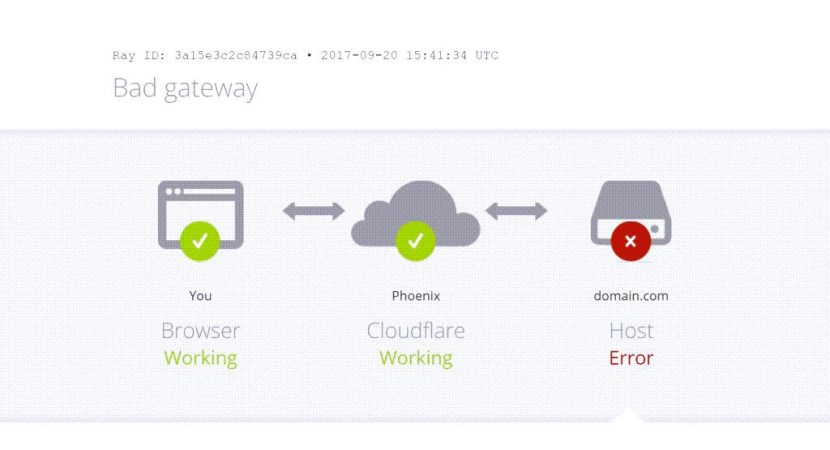
Executive summary
A 502 Bad Gateway error means a server acting as a gateway or proxy received an invalid response from an upstream server. On a cPanel-hosted website, the cause may involve PHP-FPM, the web server, a reverse proxy, application timeouts, or a backend connectivity problem. Identify the failing component before changing server settings.
Quick answer at a glance
| Question | Answer |
|---|---|
| Primary cause | Invalid or unavailable upstream response |
| First action | Check whether the problem affects one site or the entire server |
| Recommended fix | Inspect error logs and verify backend services |
| Time to implement | Depends on the cause and access available |
Step 1: Confirm the scope of the error
Open the website in a private browser window and test it from another network, if possible. Determine whether the problem affects one URL, the entire website, or multiple sites hosted on the same server.
If multiple unrelated websites fail simultaneously, investigate shared infrastructure before modifying an individual website.
Step 2: Check the error logs
In cPanel, open Metrics → Errors if that option is available. For administrators with SSH access, inspect the applicable web-server, PHP-FPM and application logs.
On a server where the relevant log paths are confirmed, commands such as these can help:
tail -n 100 /path/to/error_loggrep -iE 'upstream|timeout|502|connect\(\)' /path/to/error_logReplace the example path with the actual log file. Do not assume every cPanel server uses identical log locations.
Step 3: Investigate the upstream service
Check the following:
-
PHP-FPM: Is the relevant PHP service running, and is its pool correctly configured?
-
Reverse proxy: Can the proxy reach the backend service?
-
Resources: Is the server running out of memory, CPU capacity, or available processes?
-
Application: Did a recent plugin, theme, deployment or configuration change introduce the failure?
-
Network and firewall: Are connections between the proxy and backend being blocked or interrupted?
cPanel identifies proxy misconfiguration, backend communication problems and firewall issues among possible causes of gateway errors.
Step 4: Apply the appropriate fix
Restart a service only after identifying the affected component and confirming that you have administrative authority. If the error began immediately after a deployment or configuration change, test a rollback where safe.
Avoid indiscriminately increasing PHP timeouts or restarting every service. Those actions can hide the underlying issue or interrupt other customers.
Step 5: Verify recovery
Load the affected pages, test the relevant application functions and check the logs again. If the error returns, record the timestamp, affected URLs and associated log entries.
Frequently asked questions
Is a 502 error caused by my browser?
Usually, it is a server communication problem, although intermediary network systems can also contribute. Test from another browser or network to help isolate the cause.
Can Cloudflare cause a 502 error?
A proxy or its upstream origin can be involved in a gateway failure. Determine which system generated the response by checking the response headers, error page and origin logs.
Should I disable security software to fix a 502 error?
Not as a first step. Review security logs and firewall rules, and make only targeted, temporary changes when justified.
Need reliable hosting support? Explore Tremhost shared hosting.
Further reading: cPanel: HTTP Error Codes and Quick Fixes.