



WordPress is one of the most popular content management systems in the world, powering millions of websites across the internet. For many, setting up WordPress can seem daunting, but with tools like Softaculous available in cPanel, the process is greatly simplified. This guide will walk you through the steps to install WordPress using Softaculous in cPanel, followed by how to configure basic WordPress settings to get your site up and running smoothly.
Step-by-Step Guide to Using Softaculous
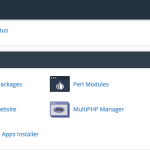
Softaculous is an auto-installer for cPanel that allows users to install web applications quickly with minimal effort. To begin the installation of WordPress, first, log into your cPanel account and scroll to the ‘Software’ section, where you’ll find the Softaculous Apps Installer. Clicking on the Softaculous icon will lead you to a page where you can access a variety of applications. Choose WordPress from the list of available apps to start the installation process.
Once you select WordPress, you will be taken to an overview page where you can initiate the installation by clicking on the ‘Install Now’ button. Softaculous will present you with several fields to fill out, such as the choice of the domain you want to install WordPress on, the directory (leave it blank to install on the domain directly), and the site name and description. It is crucial to ensure these details are correct as they determine how your site is identified on the internet.
After completing the form, scroll down to set up the admin account. It’s important to choose a strong username and password to secure your website from unauthorized access. Additionally, you can select your preferred language and choose whether to install a set of plugins or themes. Once all configurations are set, click on the ‘Install’ button at the bottom of the page. Softaculous will run the installation, and within a few minutes, you should receive a confirmation message with links to your site’s URL and admin area.
Configuring WordPress Settings in cPanel
After successfully installing WordPress through Softaculous, it’s advisable to configure a few essential settings to enhance your site’s functionality and security. Start by logging into your WordPress dashboard using the admin credentials you created during the installation. From the dashboard, navigate to the ‘Settings’ tab where you can configure site-wide settings such as the Site Title, Tagline, and WordPress Address (URL).
Security is a critical aspect of maintaining any website. As such, consider changing the default admin username if you haven’t already done so during installation, and always keep your WordPress version and plugins up to date. Moreover, setting up automatic backups is a wise precaution; this can be done through various WordPress plugins or through additional tools provided in cPanel.
Lastly, optimizing your site’s performance is key to providing a good user experience and improving search engine rankings. This can include setting up caching, compressing images, and ensuring that your website is mobile-friendly. Many of these settings can be adjusted directly from the WordPress dashboard, or through additional plugins that enhance site speed and responsiveness.
Installing WordPress through Softaculous in cPanel simplifies what could otherwise be a complex process. By following the steps outlined above, you can have your WordPress site set up and starting to configure settings in just a few minutes. Remember, the initial setup and configuration are just the beginning. Continuous maintenance and updates are crucial to ensure the security and efficiency of your WordPress site. Enjoy building and customizing your new website to suit your personal or business needs.

