Home Blog Page 410

How to Secure Client Data on Your Reseller Hosting Server

For reseller hosting providers, securing client data is paramount to maintaining trust and ensuring the long-term success of their business. With increasing threats in the digital space, it’s crucial to implement robust security measures to protect sensitive client information. Here’s a comprehensive guide on how to secure client data on your reseller hosting server:

1. Use Strong Authentication Methods

  • Implement Two-Factor Authentication (2FA): Ensure that all accounts, especially those with administrative access, use 2FA to add an extra layer of security against unauthorized access.
  • Strong Password Policies: Enforce policies requiring complex passwords that include a mix of letters, numbers, and special characters. Regularly prompt users to change their passwords.

2. Regular Software Updates

  • Keep Software Up-to-Date: Regular updates are crucial for security. Ensure that the server operating system, cPanel/WHM, and any installed software are always updated to their latest versions to patch security vulnerabilities.
  • Use Patch Management Tools: Tools like Automox or WSUS can help automate the update process, ensuring timely application of security patches.

3. Secure Data Transmissions

  • Implement SSL/TLS Certificates: Use SSL/TLS certificates for all websites hosted on your server to encrypt data transmitted between the server and users’ browsers.
  • Secure File Transfers: Ensure that all file transfers are done through secure protocols such as SFTP or SCP instead of FTP to protect the data in transit.

4. Network Security Enhancements

  • Configure Firewalls: Use a robust firewall to monitor and control incoming and outgoing network traffic based on predetermined security rules.
  • Intrusion Detection Systems (IDS): Implement an IDS to detect and respond to malicious activities and policy violations.

5. Data Backup and Recovery

  • Regular Backups: Implement a regular backup schedule to ensure that all client data is backed up at least daily and stored securely, preferably offsite.
  • Test Restore Processes: Regularly test the restore process to ensure that data can be quickly recovered in the event of data loss or a breach.

6. Isolation Between Hosting Accounts

  • Use Account Isolation: Ensure that each client’s hosting environment is isolated from others to prevent one account from being able to access or affect another in case of a compromise.
  • Implement Container-based Virtualization: Tools like Docker can help in isolating applications within containers, ensuring that resources are not shared and security is maintained.

7. Database Security

  • Encrypt Database Data: Use database encryption to protect sensitive data stored in your databases. This ensures that data is unreadable in the event of unauthorized access.
  • Regular Audits: Conduct regular audits of your database access logs and permissions to ensure that only authorized users have access.

8. Email Security

  • Spam Filters: Implement robust spam filtering to protect your clients from phishing attacks and malware.
  • Email Encryption: Use email encryption tools to protect the contents of emails from being intercepted by unauthorized parties.

9. Educate Your Clients

  • Security Training: Provide your clients with training or resources on best practices for security, such as recognizing phishing attempts and using strong passwords.
  • Regular Security Updates: Keep clients informed about new security measures and potential threats.

10. Regular Security Audits

  • Conduct Security Audits: Regularly perform security audits to assess the effectiveness of your security measures. Identify any vulnerabilities and implement fixes promptly.

Implementing these security measures can help reseller hosting providers protect their clients’ data effectively. It’s essential to stay informed about the latest security threats and continuously update your security practices. For more advanced solutions and tailored security services, providers like Tremhost can offer specialized tools and expertise. For additional information and support, consider visiting Tremhost.com.

How to Monitor and Optimize VPS Performance on a Budget

Maintaining optimal performance of a Virtual Private Server (VPS) while adhering to a budget can be a challenging task. However, with the right tools and strategies, you can effectively monitor and enhance the efficiency of your VPS without significant financial investment. Here’s how to monitor and optimize VPS performance while keeping costs low.

1. Utilize Open-Source Monitoring Tools

  • Prometheus and Grafana: These tools are popular for monitoring VPS performance. Prometheus collects and stores metrics as time-series data, while Grafana provides a powerful visualization tool for analyzing this data.
  • Nagios: An open-source monitoring system that enables organizations to identify and resolve IT infrastructure problems before they affect critical business processes.

2. Implement Performance Enhancements

  • Enable Caching: Use caching mechanisms like Varnish or Memcached to store frequently accessed data in memory, reducing the load on server resources and speeding up response times.
  • Optimize Databases: Regularly check and optimize your database settings. Tools like MySQLTuner can help analyze MySQL performance and provide recommendations.

3. Regularly Update Software

  • Keep Software Updated: Regular updates of the operating system, web server, database server, and any applications running on your VPS can enhance performance and security. Most Linux distributions offer free security updates.

4. Configure Resource Limits Appropriately

  • Adjust Server Settings: Use tools like htop or vmstat to monitor your server’s resource usage. Based on the data, adjust your server’s CPU, memory, and disk I/O limits to better match your needs, balancing performance and cost.

5. Use Lightweight Software Options

  • Opt for Lightweight Alternatives: Instead of using resource-heavy applications, opt for lighter alternatives. For example, use Lighttpd or Nginx instead of Apache for web serving, or SQLite instead of MySQL for less complex databases.

6. Optimize Web Server Configurations

  • Tune Web Servers: Configure your web server settings to handle more traffic with fewer resources. For Nginx and Apache, fine-tune worker processes, keep-alive settings, and the max number of clients.

7. Leverage Content Delivery Networks (CDNs)

  • Implement a CDN: Use a CDN to cache your site’s static content geographically closer to your users. This can significantly decrease server load and improve site speed. Free CDN options like Cloudflare offer basic services without additional costs.

8. Minimize Background Processes

  • Control Cron Jobs: Schedule cron jobs during off-peak hours and ensure only necessary tasks are running in the background. This helps free up resources during high traffic periods.

9. Perform Regular Security Checks

  • Security Scans: Use tools like ClamAV for antivirus scanning and Lynis for security auditing. These tools can help you identify and mitigate security risks that might be affecting performance.

10. Document and Analyze Logs

  • Log Analysis: Tools like GoAccess or Logwatch can analyze server logs to help identify patterns or issues that may be impacting performance. Regularly checking logs can preempt potential problems.

11. Engage with the Community

  • Seek Advice: Online forums and communities (like Stack Overflow, Server Fault, or specific Linux forums) can provide valuable insights and recommendations for optimizing VPS performance on a budget.

By using these strategies, you can effectively monitor and optimize your VPS performance without overspending. Providers like Tremhost often offer affordable solutions and may provide additional tools or support to help manage and optimize your server. For more detailed guidance and resources, visit Tremhost.com.

How to Speed Up WordPress on a Low-Cost VPS (2025)

Running WordPress on a low-cost Virtual Private Server (VPS) can be challenging, especially when it comes to maintaining optimal performance. However, there are several strategies you can implement to enhance the speed and responsiveness of your WordPress site without breaking the bank. Here’s a detailed guide to speeding up WordPress on a budget-friendly VPS in 2025.

1. Optimize Your Server Configuration

  • Upgrade PHP: Ensure you are running the latest stable version of PHP, as newer versions are generally faster and more secure. PHP 8.x has significant performance improvements over earlier versions.
  • Configure Server-Level Caching: Implement caching mechanisms like Varnish or Redis, which can be configured at the server level to reduce the load on your WordPress by storing a copy of the pages in memory.

2. Use a Lightweight WordPress Theme

  • Theme Selection: Choose a theme that is well-coded and optimized for speed. Lightweight themes are designed to load quickly and have fewer images and JavaScript files.
  • Minimalistic Design: Avoid themes cluttered with features you do not need, as they can slow down your website.

3. Implement Caching Plugins

  • Caching Plugins: Use WordPress caching plugins like WP Rocket, W3 Total Cache, or WP Super Cache. These plugins can handle page caching, object caching, and database caching.
  • Configure Properly: Make sure to configure your caching plugin settings according to your specific needs for the best results.

4. Optimize Images

  • Compress Images: Use image optimization plugins like Smush, EWWW Image Optimizer, or ShortPixel to compress your images without losing quality.
  • Lazy Loading: Implement lazy loading to delay loading images until they are actually needed as the user scrolls down the page.

5. Minimize and Combine CSS and JavaScript

  • Minification: Use plugins to minify CSS and JavaScript files, reducing their size and thus load times.
  • Concatenation: Combine multiple CSS and JavaScript files into one to reduce the number of HTTP requests.

6. Database Optimization

  • Regular Cleanup: Use plugins like WP-Optimize to clean up your database by removing unnecessary data like old revisions, spam comments, and transients.
  • Optimize Database Tables: Regularly check and optimize your database tables through phpMyAdmin or a plugin.

7. Use a Content Delivery Network (CDN)

  • Implement a CDN: Use a CDN like Cloudflare, KeyCDN, or StackPath to distribute the load by serving your site’s static content from servers located closer to your visitors.
  • Free CDN Services: Even if you’re on a budget, services like Cloudflare offer free plans that significantly boost performance.

8. Limit External Scripts

  • Reduce Use: Limit the use of external scripts such as font loaders, ads, and social buttons, which can significantly slow down your site.
  • Host Locally: Where possible, host third-party scripts locally on your own server.

9. Regularly Update Everything

  • Keep Updated: Regularly update your WordPress core, themes, and plugins. Updates not only address security flaws but can also introduce performance improvements.

10. Monitor Performance

  • Use Tools: Regularly check your site’s performance with tools like Google PageSpeed Insights, GTmetrix, or Pingdom. These tools can help you identify specific areas that need improvement.

By implementing these strategies, you can significantly enhance the performance of a WordPress site hosted on a low-cost VPS. Providers like Tremhost often offer VPS options that are optimized for WordPress, which can further aid in achieving better performance even on a tight budget. For more tailored solutions and advanced optimizations, visiting Tremhost.com can provide additional resources and expert assistance.

How to Get a cPanel License Cheap (Shared License Guide)

Obtaining a cPanel license at a reduced cost can significantly lower the overhead for managing web hosting services. One effective way to do this is through shared licenses, which can be a more affordable option for those who manage multiple hosting accounts or are just starting out in the hosting business. Here’s a guide on how to get a cPanel license cheaply by taking advantage of shared licensing options.

1. Understand Shared Licensing

A shared cPanel license allows you to use a single license across multiple servers or VPS instances, usually within the same organization or managed by the same reseller. This setup is particularly cost-effective for smaller businesses or those who need to scale their operations without a substantial initial investment.

2. Identify Reputable Providers

The first step is to identify reputable hosting providers or license resellers that offer shared or bulk cPanel licenses. Companies like Tremhost often provide discounted rates for bulk purchases or for resellers, which can include shared licensing options.

3. Compare Prices and Plans

Do your homework by comparing prices and plans from different providers. Look for:

  • Cost-effectiveness: Ensure the plan fits within your budget while meeting your needs.
  • Scalability: Check if the provider allows you to scale your license as your business grows.
  • Support and reliability: Opt for providers known for excellent customer support and reliability.

4. Check for Promotions and Discounts

Keep an eye out for promotions, special discounts, or introductory offers. Hosting providers often run special deals for new customers or during particular times of the year, such as Black Friday or Cyber Monday.

5. Consider Annual Payments

Paying for your cPanel license annually rather than monthly can often result in significant savings. Providers typically offer a discount for long-term commitments, which can help lower the overall cost.

6. Join Hosting Forums and Groups

Engage with online communities, forums, and social media groups focused on web hosting. Members often share the latest deals, discount codes, and tips on purchasing cPanel licenses cheaply.

7. Negotiate with Providers

If you’re planning to buy licenses in bulk or are a repeat customer, don’t hesitate to negotiate with providers. Many are willing to offer better rates to maintain a good business relationship or secure a large order.

8. Look for Bundle Deals

Some providers offer bundle deals that include cPanel licenses with other services like VPS hosting or dedicated servers. These bundles can provide overall cost savings and simplify management by having multiple services under one provider.

9. Review the Licensing Terms Carefully

Before making a purchase, carefully review the terms and conditions associated with the cPanel licenses. Ensure that the shared license arrangement complies with cPanel’s licensing policies and that there are no hidden fees or restrictions that could affect your usage.

10. Evaluate Customer Support

Consider the level of customer support offered by the license provider. Good support can be invaluable, especially if you encounter issues with your cPanel license or need help with configuration and setup.

By following these steps, you can find a cPanel license at a reduced cost, allowing you to manage your hosting environment more affordably without compromising on functionality. Shared licenses are a great way to stretch your budget while ensuring you have access to the tools needed for successful web hosting. For further assistance and to explore cost-effective cPanel licensing options, visiting a provider like Tremhost can be very beneficial.

How to Start a Web Hosting Reseller Business with $100

Starting a web hosting reseller business with a modest budget like $100 can be a challenging yet feasible endeavor if you focus on strategic planning and efficient use of resources. This type of business involves buying hosting services in bulk from a provider and then reselling them to your customers at a markup. Here’s a step-by-step guide to help you launch a web hosting reseller business with minimal initial investment.

1. Choose Your Niche

Identifying a niche is crucial to differentiate your services from competitors. You might focus on specific industries, such as small businesses, bloggers, or niche markets like e-commerce sites or local businesses. Tailoring your offerings to a specific group can help you target marketing efforts and build a loyal customer base.

2. Select a Reseller Hosting Provider

Your choice of hosting provider is critical. Look for providers offering reseller hosting plans within your budget. Providers like Tremhost often have starter reseller packages that include essential features like cPanel, WHM, and technical support.

  • Cost: Ensure the cost of the plan fits within your $100 budget, considering initial setup fees if applicable.
  • Features: Look for plans that include a good mix of storage, bandwidth, and scalability options.
  • Support: Ensure the provider offers excellent customer support, as this will be crucial for you and your clients.

3. Set Up Your Business Basics

  • Business Name and Domain: Choose a business name that reflects your brand, and purchase a domain name. Consider bundle deals that include domain registration and hosting.
  • Website: Use a CMS like WordPress to build your website. Opt for free themes and plugins initially to keep costs down.
  • Billing System: Implement a billing and management system. WHMCS is a popular choice among hosting resellers, and some reseller plans offer it as part of their package.

4. Create Hosting Packages

Design hosting packages you’ll offer to your clients. Set competitive prices but ensure they cover your costs and yield a profit. Consider offering tiered packages, from basic to premium, catering to a range of needs from simple blogs to more robust business sites.

5. Market Your Business

  • Digital Marketing: Use social media platforms to promote your services. Platforms like Facebook, LinkedIn, and Twitter can be effective and are free to use.
  • Content Marketing: Start a blog on your website to attract traffic and establish authority. Focus on topics relevant to your target niche.
  • Network: Reach out to local businesses or online communities that match your target market.

6. Provide Excellent Customer Support

Customer service can set your business apart from larger competitors. Be responsive and helpful, resolving issues promptly. This will help retain customers and encourage referrals.

7. Monitor and Adjust

Regularly review your business performance. Monitor financial metrics like profit margins, customer acquisition costs, and customer satisfaction. Adjust your marketing strategies and hosting packages based on customer feedback and market demands.

8. Reinvest Profits

As your business grows, reinvest your profits to enhance your service offerings, improve marketing efforts, and possibly expand your service capacity.

Starting a web hosting reseller business with a limited budget like $100 requires careful planning and smart marketing but can be a lucrative venture if managed effectively. As you grow, consider exploring additional services you can offer, like domain registration and SSL certificates, to further increase your value to customers. Visit providers like Tremhost.com to explore affordable reseller hosting packages and additional resources that can help you get started.

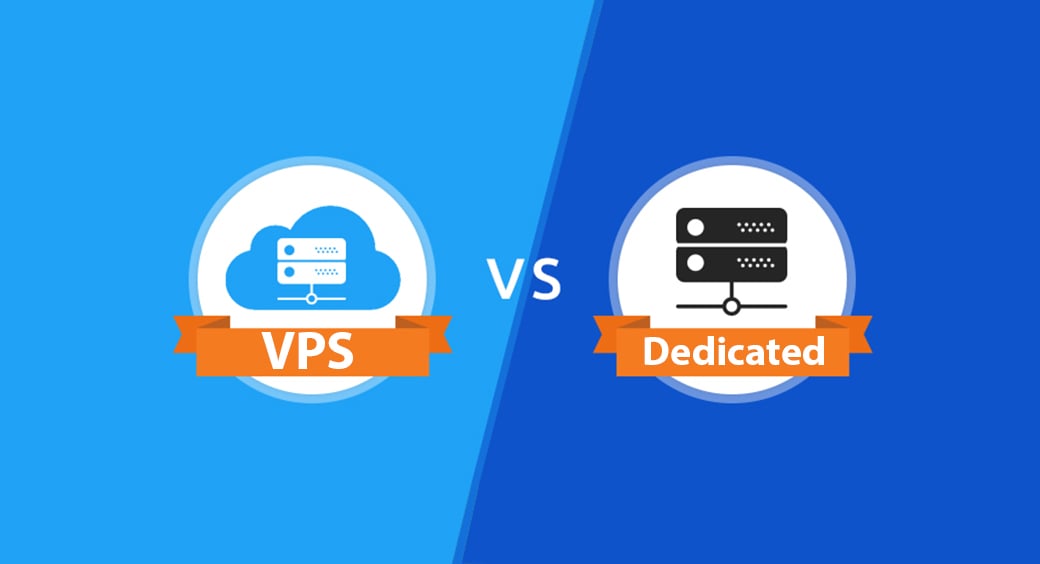
How to Choose Between VPS and Dedicated Server in 2025

In 2025, choosing the right hosting solution between a Virtual Private Server (VPS) and a dedicated server involves considering several factors such as performance requirements, scalability, security needs, and budget constraints. Both options offer distinct advantages, but your choice will depend on the specific needs of your business or project. Here’s a detailed guide to help you make an informed decision, especially for businesses like Tremhost looking to optimize their hosting services.

1. Understand the Key Differences

  • VPS Hosting: A VPS is a virtualized server that shares a single physical server with other VPSs. Each VPS operates independently and has its own allocated resources (CPU, RAM, storage). This setup is cost-effective and offers better scalability and customization than shared hosting.
  • Dedicated Server: A dedicated server provides a physical server exclusively for your use. It offers maximum control, performance, and security because you’re not sharing resources with other users.

2. Assess Your Performance and Resource Needs

  • Traffic Volume: High-traffic sites or applications with intensive data processing requirements might need the robust capabilities of a dedicated server.
  • Resource Intensity: If your applications require extensive CPU, RAM, or I/O operations, a dedicated server might be necessary to ensure optimal performance without the limitations imposed by a shared environment like VPS.

3. Consider Scalability and Flexibility

  • VPS: Offers significant scalability, which is ideal for businesses that anticipate gradual growth. Scaling resources on a VPS can often be done without downtime, making it suitable for startups and small to medium-sized businesses.
  • Dedicated Server: While it provides ample resources, scaling often requires physical hardware changes or migration, which can be more cumbersome and expensive.

4. Evaluate Security Requirements

  • VPS: Offers a moderate level of security. However, the shared nature of the underlying physical server might pose potential vulnerabilities if not properly isolated.
  • Dedicated Server: Provides a higher level of security because you have exclusive access to the server, making it ideal for handling sensitive data or compliance-driven needs.

5. Analyze Cost Implications

  • VPS: Generally more affordable than dedicated servers, making it a cost-effective option for many small to medium-sized enterprises or projects with limited budgets.
  • Dedicated Server: More expensive, reflecting its superior processing power and exclusivity. It’s a worthwhile investment for enterprises requiring high-performance computing and enhanced security.

6. Determine Management and Maintenance Capability

  • VPS: Often comes with managed services depending on the hosting provider, which can be beneficial if you lack technical expertise.
  • Dedicated Server: Management can be either handled by your IT team or outsourced to the hosting provider. Choosing a managed dedicated server can significantly reduce the complexity of server administration.

7. Project Growth and Future-proofing

  • Long-term Planning: Consider how each option fits into your long-term business goals. A dedicated server might offer more stability and reliability for long-term projects.
  • Technology Updates: With rapid technological advancements, ensure whichever option you choose allows you to stay up-to-date with the latest hardware and software.

8. Provider Selection

  • Reputation and Support: Choose a provider like Tremhost, known for reliable support and robust infrastructure. Check reviews and testimonials to gauge user satisfaction.
  • Service Level Agreements (SLAs): Look for comprehensive SLAs that guarantee uptime, support response times, and compensation for service interruptions.

By carefully considering these factors, you can make a well-informed decision between VPS and dedicated server hosting that best suits your needs in 2025. Providers like Tremhost offer both types of hosting and can provide additional guidance and tailored solutions to help optimize your hosting strategy. For more details or to discuss your specific requirements, visit Tremhost.com.

How to Troubleshoot Common VPS Hosting Issues (2025)

How to Troubleshoot Common VPS Hosting Issues (2025)

Virtual Private Servers (VPS) are a popular hosting option due to their balance of cost, control, and performance. However, like any technology, they can encounter issues. Troubleshooting these problems effectively is crucial to maintaining uptime and ensuring your applications run smoothly. Here’s a guide on how to troubleshoot common VPS hosting issues in 2025, useful for anyone managing their own server or for businesses like Tremhost providing hosting services.

1. Server Downtime

Issue: Your VPS is not accessible, and websites or services hosted on it are down. Troubleshooting Steps:

  • Check Network Connectivity: Ensure that the server’s network connection is active. You can do this by pinging your VPS’s IP address from a command line or terminal.
  • Review Server Load: High server load can cause performance issues leading to downtime. Use tools like htop or top to monitor CPU and memory usage.
  • Contact Support: If you’re using a managed VPS service, like those provided by Tremhost, reach out to their support team for help diagnosing the issue.

2. Slow Server Performance

Issue: Websites or applications on your VPS are loading slowly. Troubleshooting Steps:

  • Optimize Server Resources: Check resource usage to identify any bottlenecks. Adjust configurations for Apache, PHP, or MySQL to better suit your usage.
  • Upgrade Resources: If your VPS is consistently at or near resource limits, consider upgrading your plan to include more CPU, RAM, or storage.
  • Analyze Running Processes: Use command line tools to check for any runaway or unnecessary processes that may be consuming excessive resources.

3. Email Delivery Issues

Issue: Problems with sending or receiving emails. Troubleshooting Steps:

  • Check Mail Server Configuration: Ensure that your mail server settings (e.g., SMTP, IMAP) are configured correctly.
  • Review Email Logs: Logs can provide clues about what’s going wrong. Look for error messages related to failed delivery attempts or authentication problems.
  • Verify DNS Settings: Ensure MX records and other DNS settings are correctly configured to facilitate email delivery.

4. Security Breaches

Issue: Signs of unauthorized access or malware on your VPS. Troubleshooting Steps:

  • Scan for Malware: Use security tools to scan your VPS for malware or suspicious files.
  • Check User Logs: Review logs for any unauthorized access attempts or unfamiliar user activity.
  • Update Security Patches: Regularly update your operating system and applications to protect against vulnerabilities.

5. Database Connectivity Issues

Issue: Applications unable to connect to databases hosted on your VPS. Troubleshooting Steps:

  • Verify Database Server Status: Check whether the database service (e.g., MySQL, PostgreSQL) is running and accessible.
  • Review Connection Strings: Ensure that your applications have the correct credentials and connection strings.
  • Examine Database Logs: Look for any errors or warnings that might indicate what’s causing the connectivity issues.

6. Backup and Data Loss

Issue: Problems with backups or data loss. Troubleshooting Steps:

  • Verify Backup Configurations: Ensure that your backup processes are configured correctly and running as scheduled.
  • Test Restore Process: Regularly test restoring data from backups to verify their integrity and ensure you can recover from data loss.
  • Use Reliable Backup Solutions: Consider using professional backup solutions, like those offered by Tremhost, which provide robust options for data protection.

7. SSL/TLS Certificate Errors

Issue: SSL certificate errors or warnings in browsers when accessing websites. Troubleshooting Steps:

  • Check Certificate Validity: Ensure that your SSL certificates are valid and have not expired.
  • Review Installation: Verify that the certificates are installed correctly on your server.
  • Use Automated Tools: Implement tools like Let’s Encrypt for managing SSL certificates, which can automate the renewal and installation process.

By mastering these troubleshooting steps, you can ensure your VPS remains a reliable and efficient hosting platform. For professional support and advanced troubleshooting, consider services from providers like Tremhost, which offer expert assistance and managed VPS solutions. For more detailed support, visit Tremhost.com to access resources tailored to your hosting needs.

How to Set Up a cPanel Dedicated Server: Complete Guide

How to Set Up a cPanel Dedicated Server: Complete Guide

Setting up a cPanel dedicated server involves several steps, from choosing the right hardware to configuring the server software. This guide will provide a comprehensive walkthrough for establishing a cPanel dedicated server, perfect for businesses like Tremhost that require robust and scalable web hosting solutions.

1. Select the Right Hardware

Choosing appropriate hardware is crucial for the performance and reliability of your dedicated server. Consider the following factors:

  • CPU: Opt for a powerful processor that can handle multiple tasks efficiently.
  • RAM: Ensure you have enough memory to run your applications smoothly. Typically, 8 GB of RAM is a good starting point, but more may be necessary depending on your needs.
  • Storage: Decide between HDDs for more storage space and SSDs for faster access speeds. RAID configuration can also provide redundancy and performance improvements.

2. Choose a Hosting Provider

Select a reliable hosting provider that offers dedicated servers with cPanel pre-installed. Providers like Tremhost often provide additional support and maintenance services which can be beneficial for managing your server.

3. Install cPanel

If your server does not come with cPanel pre-installed, you’ll need to install it yourself. Here’s how:

  • Purchase a cPanel license suitable for a dedicated server.
  • Access your server via SSH and update your system to ensure all existing software is up to date.
  • Download the cPanel installation script using a command like:
    curl -o latest -L https://securedownloads.cpanel.net/latest
    
  • Run the installation script by typing:
    sh latest
    

4. Configure Network Settings

Configure the server’s network settings, including assigning a static IP address and setting up proper DNS configuration. This step is critical to ensure that your server is accessible on the internet.

5. Set Up Security Measures

Implement security measures to protect your server:

  • Configure a firewall to limit access to necessary ports and services.
  • Secure SSH access by changing the default port and disabling root login.
  • Set up IPTables or use a configuration tool like ConfigServer Security & Firewall (CSF).

6. Create and Manage Accounts

Once cPanel is installed, use WHM (Web Host Manager) to create and manage user accounts:

  • Log in to WHM and navigate to Account Functions > Create a New Account.
  • Fill out the account details for domain information, resource limits, and other settings.

7. Configure and Optimize Server Settings

Use WHM to configure and optimize your server settings:

  • Adjust PHP and Apache settings to meet your specific application requirements.
  • Optimize MySQL settings for better database performance.
  • Configure backup settings to ensure your data is regularly backed up.

8. Install Additional Software

Depending on your needs, you might want to install additional software like:

  • Softaculous or Fantastico for easy script installations.
  • Additional PHP versions for compatibility with various applications.

9. Monitor Server Performance

Regularly monitor your server performance and address any issues as they arise. Tools like top, htop, and logging utilities can help you keep tabs on resource usage and system health.

10. Maintain and Update Regularly

Keep your server software and all installed applications up to date to protect against vulnerabilities and ensure optimal performance.

By following these steps, you can successfully set up a cPanel dedicated server that is robust, secure, and capable of hosting multiple websites or applications. Providers like Tremhost not only offer dedicated server solutions but also provide expert support to help you manage your server effectively. For more information on dedicated servers and cPanel hosting, visit Tremhost.com.

How to Use Shared Licenses for cPanel to Cut Costs

How to Use Shared Licenses for cPanel to Cut Costs

Using shared licenses for cPanel is a strategic approach to reduce costs while managing multiple hosting accounts efficiently. cPanel, one of the leading web hosting control panels, allows for easy site management but can be costly when operating several servers. Shared or bulk licensing is an effective solution to manage expenses without sacrificing functionality. Here’s a guide on how to utilize shared licenses for cPanel to cut costs, ideal for small to medium-sized businesses and web hosting providers.

1. Understand Shared Licensing

Shared licensing involves purchasing cPanel licenses in bulk or as part of a reseller package, which typically comes at a reduced cost per license. This approach is beneficial for hosting providers or businesses that manage multiple servers and want to streamline their operations economically.

2. Evaluate Your Needs

Assess the number of servers or VPS instances that require cPanel. Understanding your scale of operations helps determine whether a shared licensing model is cost-effective for your situation. For companies like Tremhost, providing web hosting services, the number of cPanel installations can be significant, making shared licenses a viable option.

3. Choose a Licensed Reseller

Purchase your cPanel licenses through a certified reseller. Resellers often offer discounts on bulk purchases that are not available directly from the cPanel company. Ensure the reseller is reputable and provides genuine licenses.

  • Advantages of resellers: Besides cost savings, resellers can provide additional support and might offer bundled services like WHMCS for managing clients.

4. Consider Bundled Packages

Some hosting providers offer bundled packages that include server space and a shared cPanel license. This can be more cost-effective than purchasing them separately. Providers like Tremhost may offer competitive bundles that include server maintenance and management, adding further value.

5. Review License Terms and Conditions

Before proceeding, thoroughly review the terms and conditions associated with the shared licenses. Ensure they meet your operational needs and comply with cPanel’s licensing policies. Be wary of any restrictions that might affect how you deploy and use cPanel on your servers.

6. Implement Cost-Efficient Server Architecture

Optimize your server architecture to make the most of shared licenses. Consolidate smaller servers or migrate multiple independent cPanel instances into fewer, more robust servers. This approach can reduce the total number of licenses you need while maintaining performance.

7. Monitor Usage and Compliance

Regularly monitor your use of cPanel licenses to ensure compliance with the licensing agreement and to adjust as your needs change. Effective management can prevent unnecessary expenses due to non-compliance or over-purchasing of licenses.

8. Educate Your Team

Ensure that your team is knowledgeable about the licensing rules and how to manage cPanel installations efficiently. Proper training can prevent misuse and help maximize the benefits of shared licensing.

9. Negotiate with Providers

Don’t hesitate to negotiate with license providers for better rates, especially as your business grows or your needs change. Established relationships and a good purchase history can leverage better deals and further cost reductions.

10. Leverage Community Feedback and Support

Engage with online forums and communities related to web hosting. Feedback from other users can provide insights into the best practices for managing cPanel licenses and selecting resellers.

By adopting shared licenses for cPanel, businesses like Tremhost can significantly reduce their operational costs. This approach not only ensures that you are maximizing your financial resources but also maintaining high standards of service for your clients. For more details on obtaining and managing cPanel shared licenses, consider visiting platforms like Tremhost.com, where tailored solutions and expert advice are readily available.

How to Master WHM & cPanel on a VPS: Beginner Tutorial

How to Master WHM & cPanel on a VPS: Beginner Tutorial

Mastering WHM (Web Host Manager) and cPanel on a Virtual Private Server (VPS) is crucial for anyone looking to manage web hosting services effectively. WHM provides administrative access to the back end of cPanel, allowing you to manage multiple hosting environments efficiently. This beginner tutorial will guide you through the basics of using WHM and cPanel on a VPS, highlighting how you can leverage these tools to manage your hosting environment with ease, especially on platforms like Tremhost.

1. Understand the Basics of WHM and cPanel

WHM is the control panel for managing the server as a whole, while cPanel is used to manage individual hosting accounts on the server:

  • WHM allows you to create and manage cPanel accounts, set server-wide configurations, and customize the hosting environment.
  • cPanel provides a user interface for website owners to manage their own hosting accounts, including website files, databases, emails, and more.

2. Accessing WHM

To start using WHM on your VPS:

  • Obtain your WHM login credentials, which should be provided by your hosting provider, such as Tremhost, upon setting up your VPS.
  • Access WHM by entering https://yourserverip:2087 in your web browser. Replace yourserverip with your actual server IP address.
  • Log in using your username (typically ‘root’) and password.

3. Creating cPanel Accounts

Once logged into WHM:

  • Navigate to “Account Functions” and select “Create a New Account.”
  • Fill in the domain information, choose a username and password, and set the package limits (disk space, bandwidth, email accounts, etc.).
  • Click “Create” to establish a new cPanel account for your domain.

4. Setting Up Hosting Packages

To streamline the process of creating accounts, set up hosting packages:

  • Go to “Packages” and select “Add a Package.”
  • Define the resources (disk space, bandwidth, email accounts, etc.) and features (SSL, FTP, backups) that each package will include.
  • Save the package to use these settings for future cPanel account creations.

5. Managing DNS Zones

DNS management is crucial for directing traffic to the correct server:

  • In WHM, go to “DNS Functions” and select “Edit DNS Zone.”
  • Select the domain you want to manage and configure the DNS records as needed (A, CNAME, MX records).
  • This setup is essential for ensuring that your domain names resolve correctly to your server.

6. Securing Your Server

Security is a top priority:

  • Use “Security Center” in WHM to configure security settings like password strength and firewall configurations.
  • Consider setting up “CSF (ConfigServer Security & Firewall)” for enhanced security measures.

7. Monitoring Server Health

Keep an eye on your server’s performance:

  • Utilize “System Health” tools in WHM to monitor server load and resource usage.
  • Address any issues that might be causing slow performance or downtime.

8. Regular Updates and Backups

Maintain your server’s health:

  • Regularly update your server software via WHM to protect against vulnerabilities.
  • Use “Backup” features in WHM to create and manage backups of your server and cPanel accounts.

9. Exploring Advanced Features

As you become more comfortable with WHM and cPanel, explore advanced features like email routing, SSL/TLS management, and Apache configuration.

By following these steps, you can master the use of WHM and cPanel on your VPS, enhancing your ability to manage web hosting environments effectively. Providers like Tremhost offer robust VPS solutions with WHM and cPanel integration, making it easier for beginners to get started. For more detailed guidance and personalized solutions, consider visiting Tremhost.com, where you can find additional resources and expert support.