Home Blog Page 406

How to Install a LAMP Stack on Your VPS (2025 Guide)

How to Install a LAMP Stack on Your VPS (2025 Guide)

A LAMP stack is a group of open-source software typically used to get web servers up and running. The acronym stands for Linux, Apache, MySQL, and PHP. Here is a step-by-step guide to installing a LAMP stack on your Virtual Private Server (VPS) as of 2025:

Step 1: Access Your VPS

  • SSH into Your VPS: Use an SSH client to connect to your VPS. You will need your server’s IP address, SSH port, and root credentials.
    ssh root@your_server_ip
    

Step 2: Update Your System

  • Update Package Lists: Before installing any software, it’s a good practice to update your package lists.
    sudo apt update
    
  • Upgrade Packages: Optionally, you can upgrade all your system software to the latest versions.
    sudo apt upgrade
    

Step 3: Install Apache

  • Install Apache2: Apache is the most widely used web server software.
    sudo apt install apache2
    
  • Adjust Firewall: Ensure that your firewall allows HTTP and HTTPS traffic.
    sudo ufw allow in "Apache Full"
    

Step 4: Install MySQL (MariaDB)

  • Install MySQL: As of 2025, MariaDB is often preferred over MySQL due to its open-source nature, but both function similarly.
    sudo apt install mariadb-server
    
  • Secure MySQL: Run the mysql_secure_installation script to secure your database server.
    sudo mysql_secure_installation
    

    Follow the prompts to set a root password, remove anonymous users, restrict root user access to the local machine, and remove the test database.

Step 5: Install PHP

  • Install PHP: PHP is a server-side scripting language designed for web development.
    sudo apt install php libapache2-mod-php php-mysql
    
  • PHP Modules: Install additional PHP modules based on your needs.
    sudo apt install php-cli php-fpm php-json php-common php-mysql php-zip php-gd php-mbstring php-curl php-xml php-pear php-bcmath
    

Step 6: Test Apache

  • Check Apache: Ensure Apache is running.
    sudo systemctl status apache2
    
  • Access Default Page: Open your web browser and navigate to http://your_server_ip/. You should see the default Apache2 Ubuntu Default Page.

Step 7: Test PHP

  • Create PHP File: Create a simple PHP file to test PHP processing on your Apache server.
    echo "<?php phpinfo(); ?>" | sudo tee /var/www/html/info.php
    
  • Access PHP Page: In your web browser, go to http://your_server_ip/info.php. You should see a page displaying information about your PHP configuration.

Step 8: Configure MySQL (MariaDB)

  • Login to MySQL: Log into the MySQL shell.
    sudo mysql
    
  • Create Database and User: Optionally, you can create a database and a user for your applications.
    CREATE DATABASE exampledb;
    CREATE USER 'exampleuser'@'localhost' IDENTIFIED BY 'password';
    GRANT ALL PRIVILEGES ON exampledb.* TO 'exampleuser'@'localhost';
    FLUSH PRIVILEGES;
    EXIT;
    

Step 9: Secure Your System

  • Regular Updates: Keep your system secure by regularly updating all software.
  • Backup Configurations: Regularly back up your configurations and databases.

Step 10: Additional Configurations

  • Tune Apache and PHP: Adjust configurations in Apache and PHP to optimize performance and security based on your specific needs.

Installing a LAMP stack on your VPS equips you with the essential software needed to host dynamic websites and web applications. This setup forms the backbone for many popular CMSes like WordPress, Drupal, and Joomla, and is known for its robustness, flexibility, and customization capabilities.

How to Monitor Your Website’s Uptime (Cheap & Easy Methods)

Monitoring your website’s uptime is crucial to ensure that your site is consistently accessible to users. It helps in identifying downtime issues, which can significantly impact user experience and SEO rankings. Here are some cheap and easy methods to monitor your website’s uptime effectively:

1. Use Free Uptime Monitoring Tools

Several online services offer free uptime monitoring and alert you via email or other methods if your website goes down. Here are a few popular ones:

  • UptimeRobot: Offers a free plan that includes 5-minute monitoring intervals for up to 50 monitors.
  • StatusCake: Provides a free plan with 5-minute checks and alerts via email.
  • Freshping by Freshworks: Allows you to monitor 50 websites at 1-minute intervals for free.

2. Set Up Google Analytics Alerts

Google Analytics can’t monitor your server’s uptime directly, but it can alert you to sharp declines in traffic, which might be indicative of downtime.

  • Create a Custom Alert: In Google Analytics, go to Admin > View > Custom Alerts. Set up an alert to notify you when daily sessions fall below a certain threshold that you consider normal.

3. Utilize Website Hosting Provider Tools

Some web hosting providers offer built-in monitoring tools that can alert you to issues with your site, including uptime problems.

  • Check Hosting Account: Log into your hosting control panel to see if they offer uptime monitoring as part of their service package.
  • Enable Notifications: If available, enable these notifications so you can be alerted of any downtime or performance issues immediately.

4. Employ Simple DIY Scripts

If you’re technically inclined, you can set up a basic script to ping your website at regular intervals and email you if it fails to respond.

  • Cron Job: Set up a cron job on a separate server to periodically make an HTTP request to your website. If it fails or returns an unexpected response, the script can trigger an alert to your email.
  • Python or PHP Scripts: Write a simple script in Python or PHP that checks the HTTP status code of your website. Schedule this script to run at regular intervals via a cron job.

5. Use Cloud-Based Monitoring Services

Cloud services like AWS CloudWatch or Microsoft Azure Monitor provide capabilities for monitoring web applications and can send alerts when your website is down.

  • AWS CloudWatch: Can monitor AWS resources like EC2 instances and trigger notifications through Amazon SNS when your website is unreachable.
  • Azure Monitor: Offers detailed performance and uptime monitoring for websites hosted on Azure, with alerts via email or SMS.

6. Integrate with Slack or Other Communication Tools

Some monitoring services offer integration with Slack, Microsoft Teams, or other communication tools, enabling real-time alerts to be sent directly to your team’s communication channels.

  • Integration Options: Check if the monitoring tool you choose supports integration with your team communication platform to streamline alerts.

7. Regularly Review Logs and Reports

  • Analytical Review: Most uptime monitoring tools provide detailed logs and reports. Regularly review these to identify any patterns or recurring downtime issues.
  • Take Proactive Steps: Use the insights gained from logs to address and mitigate underlying causes of downtime.

By implementing these methods, you can ensure robust monitoring of your website’s uptime without incurring significant costs. This proactive approach allows you to quickly respond to downtime, minimizing its impact on your users and your business’s reputation.

How to Troubleshoot DNS Issues with Your Web Hosting

dns

DNS (Domain Name System) issues can cause your website to become inaccessible or not function as expected. Troubleshooting DNS problems is crucial for ensuring your website remains online and available to your users. Here are steps to diagnose and resolve common DNS issues related to web hosting:

1. Verify Domain Registration

  • Check Domain Status: Ensure that your domain is registered and has not expired. You can use tools like WHOIS to check the registration status of your domain.

2. Confirm DNS Configuration

  • Nameserver Settings: Check that your domain’s nameserver settings are correctly pointed to your hosting provider’s nameservers. This information is typically available in your domain registrar’s control panel.
  • DNS Records: Log into your hosting control panel or DNS management tool and verify that all DNS records are correctly set up. Key records to check include:
    • A Record: Points your domain to the IP address of your hosting server.
    • CNAME Record: Used for subdomains and should point to your main domain name.
    • MX Records: Ensures that emails are correctly routed to your mail servers.
    • TXT Records: Often used for verification processes and email spam prevention.

3. Check for DNS Propagation

  • Propagation Time: After making changes to your DNS records, it can take anywhere from a few minutes to 48 hours for changes to propagate worldwide. Use online tools like WhatsmyDNS.net to check the propagation status of your DNS records globally.
  • Flush DNS Cache: Sometimes, old DNS information can be cached on your local machine or network. You can flush your DNS cache by running ipconfig /flushdns on Windows or dscacheutil -flushcache on macOS in the command line.

4. Use Diagnostic Tools

  • Ping and Traceroute: Use ping to check connectivity to your server’s IP address and traceroute to determine the path data takes to reach the server. These tools can help identify connectivity issues or delays.
  • DNS Checkers: Tools like MXToolbox can help you diagnose DNS configurations and record issues, providing insights into what may be misconfigured or causing problems.

5. Examine TTL Values

  • TTL Settings: Review the TTL (Time to Live) settings for your DNS records. If TTL values are set very high, it might take longer for DNS changes to propagate. Consider lowering TTL temporarily before making further DNS changes to speed up propagation.

6. Check for DNS Server Issues

  • Hosting Provider’s DNS: Occasionally, the issue might be with your hosting provider’s DNS servers. Check your hosting provider’s status page or contact their support to determine if there is a known issue with their DNS services.

7. Test with Different Networks

  • Different ISP: DNS issues can sometimes be related to a specific Internet Service Provider (ISP). Try accessing your site from a different network (e.g., using mobile data instead of your home WiFi) to see if the issue persists across different networks.

8. Contact Support

  • Reach Out for Help: If after these steps, you still face DNS issues, contact your web hosting provider or a network specialist for further assistance. Provide them with all relevant information and any findings from your troubleshooting steps.

9. Document and Monitor

  • Keep Records: Document any changes you make to DNS settings and the outcomes of your troubleshooting efforts. This can be helpful for future reference or if additional support is needed.
  • Ongoing Monitoring: Consider setting up DNS monitoring tools to alert you to future DNS failures or unusual activities.

By methodically following these steps, you can diagnose and likely resolve most DNS issues related to your web hosting, ensuring your website’s accessibility and performance are maintained.

How to Set Up Email Accounts on Your cPanel VPS

Setting up email accounts on your cPanel VPS is a straightforward process that can help you manage communications efficiently. Here’s a step-by-step guide on how to configure email accounts via cPanel on your Virtual Private Server (VPS):

Step 1: Log into cPanel

First, access your cPanel dashboard. You typically do this by visiting http://yourdomain.com/cpanel or http://yourIPaddress:2083, and then enter your username and password.

Step 2: Navigate to the Email Section

Once you’re logged into cPanel, look for the “Email” section. This section contains various options related to email management.

Step 3: Create a New Email Account

  • Access Email Accounts: Click on the “Email Accounts” icon within the Email section. This will take you to a page where you can manage all email accounts associated with your domains.
  • Add Email Account: You will see an option to “Create” or “Add Email Account.” Click this button to start setting up a new email account.
  • Fill in the Details:
    • Email: Enter the desired email username and select the domain from the dropdown menu if you have multiple domains.
    • Password: Create a strong password or use the “Generate” button to create one automatically. Ensure you save this password in a secure location.
    • Mailbox Quota: Set the quota for the mailbox if you want to limit the amount of disk space the email can use. Alternatively, you can select “Unlimited” if you do not wish to impose any limits.

Step 4: Configure Email Client

After creating the email account, you might want to set it up in an email client such as Microsoft Outlook, Apple Mail, or Mozilla Thunderbird.

  • Access Email Configuration: Go back to the “Email Accounts” page, find the newly created email account, and click on “Connect Devices” or “Set Up Mail Client” next to the account.
  • Choose Protocol: Select the protocol you wish to use (IMAP is recommended as it syncs the email across all devices and keeps the mail on the server).
  • Manual Settings: The page will provide you with manual settings including incoming and outgoing server names, port numbers, and encryption methods. Use these details to configure your email client manually.

Step 5: Test the Email Account

  • Send a Test Email: From your new email account, send a test email to another email address to ensure it is sending emails correctly.
  • Receive a Test Email: Send an email from a different email address to your new account to check its receiving capability.

Step 6: Manage Spam Filters

cPanel provides options like “Spam Filters” and “Email Filters” where you can manage settings to handle unwanted emails effectively.

  • Spam Filters: Navigate to this section to enable or configure Apache SpamAssassin, a mail filter to identify spam.
  • Email Filters: Set up rules to automatically manage incoming mail based on your preferences.

Step 7: Additional Features

Explore other email features in cPanel such as:

  • Email Forwarders: Set up forwarding rules to send copies of incoming emails to another address.
  • Autoresponders: Configure auto-reply messages for incoming emails, useful for notifying senders when you are away or unavailable.

By following these steps, you can effectively set up and manage email accounts on your cPanel VPS, enhancing your business’s communication capabilities with a professional touch. Make sure to regularly maintain and monitor your email settings to adapt to any changes in your communication needs.

How to Install a Free SSL Certificate on cPanel (Let’s Encrypt Guide)

How to Install a Free SSL Certificate on cPanel Using Let’s Encrypt

Installing a free SSL certificate from Let’s Encrypt on a cPanel-managed hosting can significantly enhance your website’s security by encrypting data transferred between your server and your visitors. Here’s a step-by-step guide on how to set this up:

1. Check for AutoSSL

Before manually installing Let’s Encrypt, check if your hosting provider offers AutoSSL (cPanel’s built-in SSL management feature) which automatically installs and renews Let’s Encrypt SSL certificates for all domains configured in your account.

  • Log into cPanel: Access your hosting dashboard.
  • Find the ‘SSL/TLS Status’: This tool is often found under the ‘Security’ section.
  • Check AutoSSL: If enabled, your domains should be covered automatically. If not, or if you prefer to use Let’s Encrypt directly, proceed with the following steps.

2. Enable Let’s Encrypt with AutoSSL

If your host supports AutoSSL but hasn’t enabled Let’s Encrypt:

  • Access WHM (Web Host Manager): You’ll need root access to WHM to change this setting.
  • Navigate to ‘Manage AutoSSL’: Usually found under the ‘SSL/TLS’ section.
  • Select Provider: Choose ‘Let’s Encrypt’ as the provider and agree to the terms of service.
  • Enable AutoSSL: Apply AutoSSL to your domains. WHM will automatically install and periodically renew the SSL certificates.

3. Manual Installation of Let’s Encrypt

If AutoSSL isn’t available or you prefer a more manual approach:

  • Access SSH: Connect to your server via SSH.
  • Install Certbot: Certbot is a Let’s Encrypt client that simplifies the process of obtaining and installing SSL certificates. Install Certbot by running:
    sudo yum install certbot python2-certbot-apache  # For CentOS/RHEL
    sudo apt-get install certbot python-certbot-apache  # For Debian/Ubuntu
    
  • Generate Certificate: Execute Certbot to generate the SSL certificate:
    sudo certbot --apache -d yourdomain.com -d www.yourdomain.com
    

    Replace yourdomain.com with your actual domain name.

4. Manual Configuration in cPanel

If you installed the SSL certificate via Certbot without cPanel/WHM integration:

  • Log into cPanel: Go to the SSL/TLS manager.
  • Install and Manage SSL: Find the section to manage SSL sites.
  • Install SSL Certificate: Copy and paste the certificate (CRT), private key (KEY), and CA bundle (CABUNDLE) into the appropriate fields for your domain. These files are typically located in /etc/letsencrypt/live/yourdomain.com/.

5. Verify Installation

  • SSL Check: Use an online tool like SSL Labs’ SSL Test to check if the SSL certificate is installed correctly and functioning as expected.
  • Browser Padlock: Visit your website and ensure that browsers show a secure padlock icon, indicating that SSL is working properly.

6. Setup Automatic Renewal

Let’s Encrypt certificates are valid for 90 days, so setting up automatic renewal is crucial:

  • Cron Job for Renewal: Add a cron job to run the renewal command periodically:
    0 2 * * * /usr/bin/certbot renew --quiet
    

    This command attempts to renew any expiring certificates at 2:00 AM daily.

By following these steps, you can successfully install a free SSL certificate from Let’s Encrypt on your cPanel server, enhancing your website’s security and trustworthiness without incurring additional costs.

How to Build a Scalable Hosting Environment on a Budget VPS

Creating a scalable hosting environment on a budget Virtual Private Server (VPS) involves careful planning, optimization, and leveraging the right technologies. Here’s how to achieve scalability without breaking the bank:

1. Choose the Right VPS Provider

  • Resource Scalability: Opt for a VPS provider that offers easy scalability options. This allows you to increase CPU, RAM, and storage resources as your needs grow without migrating to a new server.
  • Cost-Effectiveness: Compare different providers and plans to find one that offers the best balance between cost, performance, and scalability. Consider providers that offer burstable resources during traffic spikes.

2. Optimize Server Configuration

  • Operating System: Choose a lightweight operating system, such as Ubuntu Server or CentOS, which can be stripped down to the essentials to save on system resources.
  • Web Server Software: Use efficient web server software. For instance, Nginx is known for its performance and low resource consumption compared to Apache, especially under scale.

3. Implement Advanced Caching Mechanisms

  • Content Delivery Network (CDN): Implement a CDN to offload the delivery of static resources like images, CSS, and JavaScript files. This reduces the load on your VPS and improves user experience by decreasing load times.
  • Caching Tools: Use caching tools like Varnish for HTTP caching and Redis or Memcached for object and database caching. These tools can significantly improve the response time and reduce the load on the server.

4. Utilize Cloud and Hybrid Solutions

  • Hybrid Hosting: Consider a hybrid approach where critical components run on the VPS, and additional scalable resources like storage or databases are handled by cloud services. This can be cost-effective and allow you to scale specific aspects of your hosting environment.
  • Microservices Architecture: Where possible, use a microservices architecture to decentralize services and applications. This allows you to scale individual components independently in the cloud, reducing the load on your VPS.

5. Database Optimization

  • Database Management: Regularly optimize your database by performing tasks like indexing, regular clean-ups of old data, and using efficient queries. Consider using a separate database server if your database load becomes too high for a single server setup.
  • Replication and Load Balancing: Implement database replication and load balancing to distribute the load across multiple servers or services, improving performance and redundancy.

6. Automate Monitoring and Scaling

  • Monitoring Tools: Use tools like Nagios, Zabbix, or Prometheus to monitor your server’s performance and resource utilization continuously.
  • Auto-Scaling: Set up scripts or use third-party services that can automatically add resources or optimize configurations based on traffic and load metrics.

7. Regular Performance Testing

  • Stress Testing: Regularly perform stress tests and load testing to identify potential bottlenecks and performance issues as you scale. This helps you understand how your server handles increased loads.
  • Performance Tuning: Based on testing results, continually tune and optimize your server settings, code, and configurations to handle greater loads effectively.

8. Leverage Virtualization Technologies

  • Containers: Use containerization technologies like Docker for deploying applications. Containers consume fewer resources than traditional virtual machines and allow for rapid provisioning and scaling.

By following these strategies, you can build a scalable hosting environment on a budget VPS, ready to handle increased loads and growth without necessitating a significant initial investment. This approach ensures that your infrastructure can adapt to changing demands efficiently and cost-effectively.

How to Protect Customer Data on a Reseller Hosting Server

xr:d:DAFosUopFPw:7,j:4563668907569743637,t:23071509

Ensuring the protection of customer data on a reseller hosting server is crucial for maintaining trust, complying with legal and regulatory requirements, and preventing security breaches. Here are strategies to effectively secure customer data on your reseller hosting server:

1. Implement Strong Access Controls

  • Use Strong Passwords: Enforce strong password policies for all accounts on the server. Passwords should include a mix of upper and lower case letters, numbers, and symbols.
  • Two-Factor Authentication (2FA): Implement two-factor authentication for accessing the hosting control panel and any other critical systems to add an extra layer of security.

2. Secure File Transfers

  • Use Secure Protocols: Ensure that all file transfers are done using secure protocols such as SFTP (Secure File Transfer Protocol) or FTPS (File Transfer Protocol Secure) instead of plain FTP to protect data in transit.

3. Regularly Update Software

  • Apply Updates and Patches: Keep all software on the server, including the operating system, control panel software like cPanel/WHM, and applications, up-to-date with the latest security patches and updates. This helps protect against vulnerabilities.

4. Utilize Network Security Measures

  • Firewalls: Configure and maintain a robust firewall to monitor and control incoming and outgoing network traffic based on predetermined security rules.
  • Intrusion Detection Systems (IDS): Implement an IDS to detect and alert on suspicious activities or potential security breaches.

5. Data Encryption

  • Encrypt Sensitive Data: Use encryption to protect sensitive data stored on the server. Ensure that databases storing customer information are encrypted.
  • SSL Certificates: Use SSL/TLS certificates to secure data transmissions between the server and clients’ browsers, particularly for any web applications hosted on the server.

6. Isolate Customer Accounts

  • Account Isolation: Use account isolation techniques to ensure that each hosting account is segregated and cannot interfere with or access data from other accounts on the server.

7. Regular Backups

  • Automated Backups: Set up automated backups to regularly backup customer data and system configurations. Store backups in multiple locations, and ensure at least one copy is off-site for disaster recovery purposes.
  • Backup Encryption: Encrypt backup data to protect it during storage and transit.

8. Monitor Server Activity

  • Logging and Monitoring: Implement comprehensive logging and monitoring to keep track of all activities on the server. Use monitoring tools to detect unusual patterns that could indicate a security threat.
  • Audit Trails: Maintain audit trails for actions performed by users or administrators that affect data or system configurations.

9. Secure Web Applications

  • Web Application Firewalls (WAF): Deploy a WAF to protect hosted web applications from common vulnerabilities and attacks, such as SQL injection, cross-site scripting (XSS), and cross-site request forgery (CSRF).
  • Regular Vulnerability Scanning: Conduct regular vulnerability scans of web applications and remediate any vulnerabilities identified.

10. Compliance and Legal Considerations

  • Stay Informed: Keep up-to-date with legal and regulatory requirements regarding data protection, such as GDPR, HIPAA, or others relevant to the geographical location of your customers or your business.
  • Privacy Policy and Terms of Service: Ensure that your reseller hosting business has a clear and compliant privacy policy and terms of service that outline how customer data is handled and protected.

By implementing these security measures, you can significantly enhance the protection of customer data on your reseller hosting server. This not only helps in complying with data protection regulations but also builds customer trust and confidence in your services.

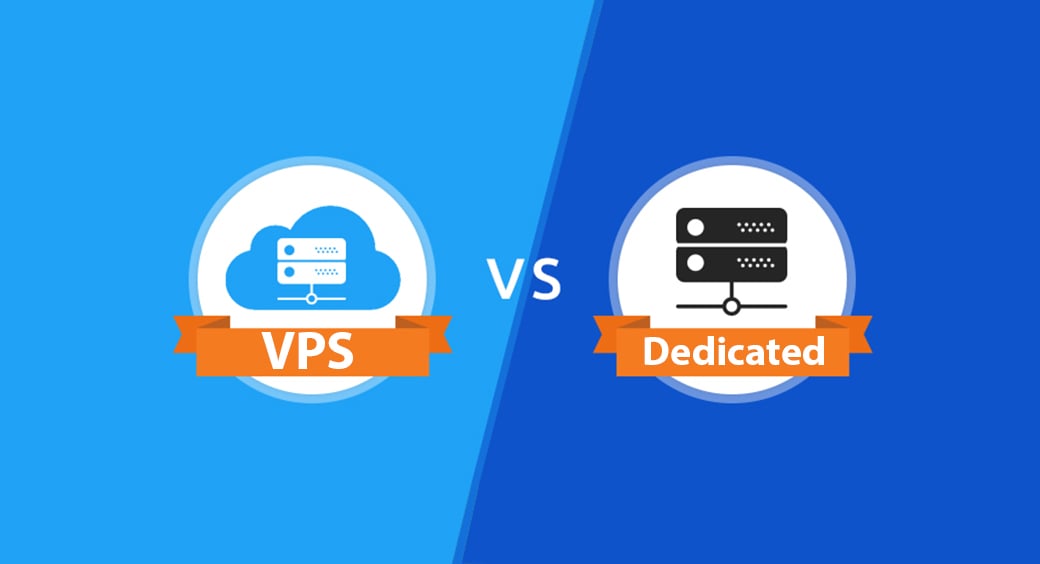
How to Determine If You Need a VPS or a Dedicated Server

Choosing the right type of hosting between a Virtual Private Server (VPS) and a dedicated server depends on several factors including your website’s requirements, budget, and expected growth. Here’s how you can determine which option is best suited for your needs:

1. Assess Your Resource Requirements

  • Traffic Volume: Evaluate the amount of traffic your website currently receives and anticipate future growth. High-traffic sites, especially those experiencing rapid growth, may require the robust capabilities of a dedicated server.
  • Resource Usage: Consider the resources required by your applications. Complex databases, extensive backend processing, and large amounts of media (videos, images) will need more CPU, RAM, and storage. If your site consistently uses a high amount of resources and demands stability, a dedicated server might be necessary.

2. Consider Performance and Reliability

  • Performance Needs: If your website must handle high-performance applications or you require consistent and high-speed performance, a dedicated server provides the necessary resources without the variability that can come with a VPS, as a VPS still involves sharing physical server hardware with other VPS instances.
  • Reliability and Uptime: For businesses where uptime is critical (e.g., e-commerce platforms), a dedicated server’s reliability is beneficial due to dedicated hardware resources, which can minimize the risk of downtime.

3. Examine Security Requirements

  • Sensitive Data Handling: If your website handles sensitive information (like personal data, credit card information), a dedicated server offers a more secure environment because you are not sharing the server with any other clients, reducing the vulnerability to breaches.
  • Compliance Needs: For industries that are regulated and require certain standards for data security (like HIPAA in healthcare or PCI DSS for payment data), dedicated servers provide a controlled environment that is easier to secure and audit.

4. Analyze Scalability Needs

  • Scalability: While both VPS and dedicated servers are scalable, the scalability of a VPS is generally easier and quicker to manage as resource adjustments can be made virtually without needing physical hardware changes. Dedicated servers can also be scaled but may require additional physical hardware which can be more costly and time-consuming.

5. Budget Considerations

  • Cost Efficiency: VPS hosting generally offers a middle-ground cost. It’s more expensive than shared hosting but significantly cheaper than renting an entire dedicated server. If budget constraints are a significant factor and your current resource demands are moderate, a VPS might be more appropriate.
  • Long-term Investment: While dedicated servers are more expensive, they can be a worthwhile investment for high-traffic, resource-heavy sites, offering long-term benefits in performance and stability.

6. Technical Skills

  • Server Management: Both VPS and dedicated servers require some level of technical skill, but managing a dedicated server may require a deeper knowledge due to the complexity and control it offers. Consider whether you have access to the necessary skills, either in-house or through managed hosting services, which can handle server maintenance for you.

7. Customization Needs

  • Software and Control: If you need to install custom or specialized software on your server, or require specific configurations, a dedicated server provides you with full root access and control over the server environment, unlike a VPS, which might have limitations due to its virtual nature and shared host system.

By carefully considering each of these factors, you can make an informed decision on whether a VPS or a dedicated server is the right hosting solution for your specific needs. It’s important to weigh the pros and cons of each based on your technical requirements, security needs, performance expectations, budget constraints, and long-term business goals.

How to Troubleshoot Common cPanel Errors on Your VPS

How to Troubleshoot Common cPanel Errors on Your VPS

When managing a Virtual Private Server (VPS) with cPanel, you may occasionally encounter errors. Effective troubleshooting can help you resolve these issues quickly and maintain the stability and performance of your server. Here are some strategies to troubleshoot common cPanel errors on your VPS:

1. Internal Server Errors (500 Error)

  • Check Error Logs: The first step in troubleshooting any server issue, particularly 500 errors, is to check the Apache and PHP error logs. You can find these in /usr/local/apache/logs/error_log and /usr/local/cpanel/logs/error_log.
  • File Permissions: Incorrect file permissions can often cause 500 errors. Ensure that files are set to 644 and directories to 755.
  • .htaccess Issues: Corrupt or misconfigured .htaccess files can also lead to 500 errors. Temporarily rename your .htaccess file (e.g., to .htaccess.bak) to see if this resolves the issue.

2. Database Connection Errors

  • Database Credentials: Verify that the database username, password, and hostname in your application’s configuration file (like wp-config.php for WordPress) are correct.
  • User Privileges: Check that the database user has the correct privileges. This can be done via cPanel’s MySQL Databases section.
  • Server Overload: High server load can sometimes cause intermittent database connection issues. Monitor your server’s resource usage to ensure it’s not overloaded.

3. Email Delivery Issues

  • Mail Queue Manager: Use WHM’s Mail Queue Manager to check for any undelivered emails and identify the cause of the delivery issues.
  • Check MX Records: Ensure that your domain’s MX records are correctly set up in the DNS zone editor in cPanel.
  • SPF and DKIM Records: Verify that SPF and DKIM records are correctly configured to improve email deliverability and prevent emails from being marked as spam.

4. DNS Issues

  • DNS Configuration: Check the DNS zone settings in cPanel’s Zone Editor to ensure that A, CNAME, and MX records are properly configured.
  • Propagation Time: Remember that DNS changes can take up to 48 hours to propagate fully. Use tools like dig or nslookup to verify DNS configurations.

5. SSL/TLS Certificate Errors

  • AutoSSL: If using AutoSSL, check the AutoSSL log in cPanel for any issues during the certificate issuance process.
  • Manual Installation Checks: For manually installed certificates, ensure that the certificate matches the private key and that the CA bundle is correctly installed.

6. WHM/cPanel Access Issues

  • Root Password: If you’re unable to log into WHM, you may need to reset the root password via your VPS control panel provided by your hosting service.
  • Firewall Settings: Ensure that your IP isn’t blocked by the firewall. You can check and manage this through WHM’s Host Access Control and ConfigServer Security & Firewall (if installed).

7. Performance Issues

  • Resource Usage: Check resource usage via WHM’s “Show Current CPU Usage” and “Show Current Disk Usage.” Excessive usage can indicate the need for optimization or an upgrade in resources.
  • Optimize Apache and MySQL: Use WHM’s optimization features to adjust Apache and MySQL settings for better performance.

8. Regular Maintenance and Monitoring

  • Updates: Keep cPanel, WHM, and all server software up to date to avoid issues caused by bugs in older versions.
  • Backups: Ensure that regular backups are being performed and stored in a remote location. This allows you to restore the previous state if a severe problem occurs.

By systematically addressing these common areas, you can effectively troubleshoot and resolve many of the typical issues encountered with cPanel on a VPS. Regular monitoring and preventative maintenance can also help minimize the occurrence of these errors.

How to Integrate WHMCS with Your Reseller Hosting Business

Integrating WHMCS (Web Host Manager Complete Solution) with your reseller hosting business is a strategic move to streamline operations, automate billing, and enhance customer management. WHMCS is a powerful tool that can manage and automate many aspects of a hosting business. Here’s how you can integrate WHMCS into your reseller hosting operations effectively:

1. Purchase and Install WHMCS

  • License Purchase: Buy a WHMCS license from either WHMCS directly or through a reseller that offers discounts. Some hosting providers also offer WHMCS as part of their reseller packages.
  • Installation: You can install WHMCS directly on your hosting account. Most providers offer an easy one-click installation process via their control panel, or you can manually install it by downloading the latest version from the WHMCS website and following their installation guide.

2. Configure WHMCS for Your Hosting

  • Initial Setup Wizard: When you first access your WHMCS admin panel, the setup wizard will guide you through the basic configuration, including system URLs, database setup, and administrative contact details.
  • Payment Gateways: Configure payment gateways to accept payments. WHMCS supports a wide range of payment processors like PayPal, Stripe, and credit card processing. This setup involves entering API keys and configuring payment settings according to your preferences.

3. Connect WHMCS to Your Reseller Account

  • Server Configuration: Integrate WHMCS with your reseller hosting account by adding your server in the WHMCS admin panel under ‘Setup’ > ‘Products/Services’ > ‘Servers’. You’ll need to input your server’s details, including the API credentials, IP address, and type of control panel (e.g., cPanel/WHM).
  • WHM API Access: Ensure that your hosting account’s WHM panel is set up to allow API access, which WHMCS uses to communicate with the server for account creation, suspension, and other functions.

4. Set Up Hosting Products and Services

  • Create Products: In WHMCS, set up your hosting plans as products. Navigate to ‘Setup’ > ‘Products/Services’ > ‘Products/Services’ and create new products. Here, you’ll define the product name, description, pricing, and link each product to the server and hosting package previously set up in WHM.
  • Automate Provisioning: Configure WHMCS to automatically provision hosting accounts upon payment. Set up the module and server settings within each product configuration to automate this process.

5. Customize the Client Area

  • Branding: Customize the client area to match your company’s branding. This can be done through WHMCS’s theme management system where you can adjust colors, logos, and layouts.
  • Custom Templates: You can create custom templates or modify existing ones to enhance the client interface’s functionality and aesthetic appeal.

6. Implement Support Systems

  • Support Tickets: Configure the support ticket system to handle customer inquiries and issues. WHMCS provides tools for managing support tickets, including department management, ticket assignments, and escalation rules.
  • Knowledge Base: Develop and populate a knowledge base within WHMCS to provide clients with self-help resources and reduce the number of support tickets.

7. Ensure Security

  • Secure WHMCS: Implement security measures such as SSL encryption for your client area, use two-factor authentication for admin and client logins, and regularly update WHMCS to protect against vulnerabilities.

8. Monitor and Optimize

  • Analytics and Reporting: Use WHMCS’s built-in reporting features to monitor business performance, track income, and manage expenditures. Regularly review these reports to identify trends and areas for improvement.

Integrating WHMCS with your reseller hosting business not only automates many aspects of the business but also provides a professional interface for your clients. By following these steps, you can ensure a smooth integration of WHMCS, resulting in an efficient, scalable, and client-friendly hosting business.