



Softaculous is a popular auto-installer for cPanel, DirectAdmin, and other web hosting panels, offering a quick and seamless way to install a wide range of applications with just a few clicks. From content management systems like WordPress to e-commerce platforms like Magento, Softaculous automates the installation process, reducing the complexity typically associated with manual software installation. This article provides a clear, step-by-step guide on how to use Softaculous to install applications, along with tips on configuring settings after installation to ensure your application runs smoothly.
Step-by-Step Guide to Using Softaculous
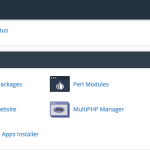
To begin using Softaculous for application installation, first log into your web hosting control panel where Softaculous is installed. Typically, you’ll find the Softaculous icon under the "Software" section of your control panel. Clicking on this icon will open the Softaculous dashboard, displaying various applications available for installation. Browse through the categories or use the search function to find the application you wish to install. Once selected, proceed by clicking on the application’s name, which will take you to its overview and installation page.
On the installation page, you will see an ‘Install Now’ button. Click this button to start the configuration process. Here, you’ll need to fill in necessary details such as domain name, directory (if you want to install it in a sub-folder), database name, and site settings including site name and description. Some applications might ask for additional settings specific to their functionality. Ensure all the information is correct as this will determine the setup of your application.
After configuring all settings, scroll down and click on the ‘Install’ button at the bottom of the page. Softaculous will now begin installing the application, which may take a few minutes. During this process, Softaculous creates the database, installs the necessary files, and configures the application based on the provided settings. Once the installation is complete, Softaculous will display a success message along with links to your site and its administrative area, allowing you to manage your new application.
Configuring Settings After Installation
Once the installation is complete, it’s essential to configure your application to enhance security and functionality. Start by logging into the administrative area of your application using the credentials set during installation. The first step is typically to configure site settings such as time zone, user permissions, and SEO options. It’s also a good opportunity to change the admin password to something very secure and unique, as default passwords can be a security risk.
Next, review and configure email settings. Most applications require email functionality for notifications, user registrations, or password resets. Ensure that your application is correctly configured to send emails by setting up SMTP details under the application’s email settings. This may involve specifying SMTP host, port, and authentication details, which ensure emails from your application are delivered reliably and are not marked as spam.
Lastly, explore any plugins, extensions, or additional themes that could enhance your application. Many applications supported by Softaculous have a rich ecosystem of add-ons that can extend functionality or alter the appearance of your site. Installing security plugins, SEO tools, or custom themes can make a significant difference in how well your application serves your needs. Always ensure that any add-ons installed are compatible with the version of your application to avoid issues.
Installing applications using Softaculous is straightforward, efficient, and removes the technical barriers typically associated with software installations. By following the outlined steps, anyone can deploy a new application quickly and start configuring it to suit their specific requirements. Remember, the initial setup and configuration play critical roles in the performance and security of your application. Regularly update your application and any installed add-ons to maintain a secure and efficient online presence. With Softaculous, the power of web applications is just a few clicks away, empowering users to leverage the potential of their web hosting environment fully.

