



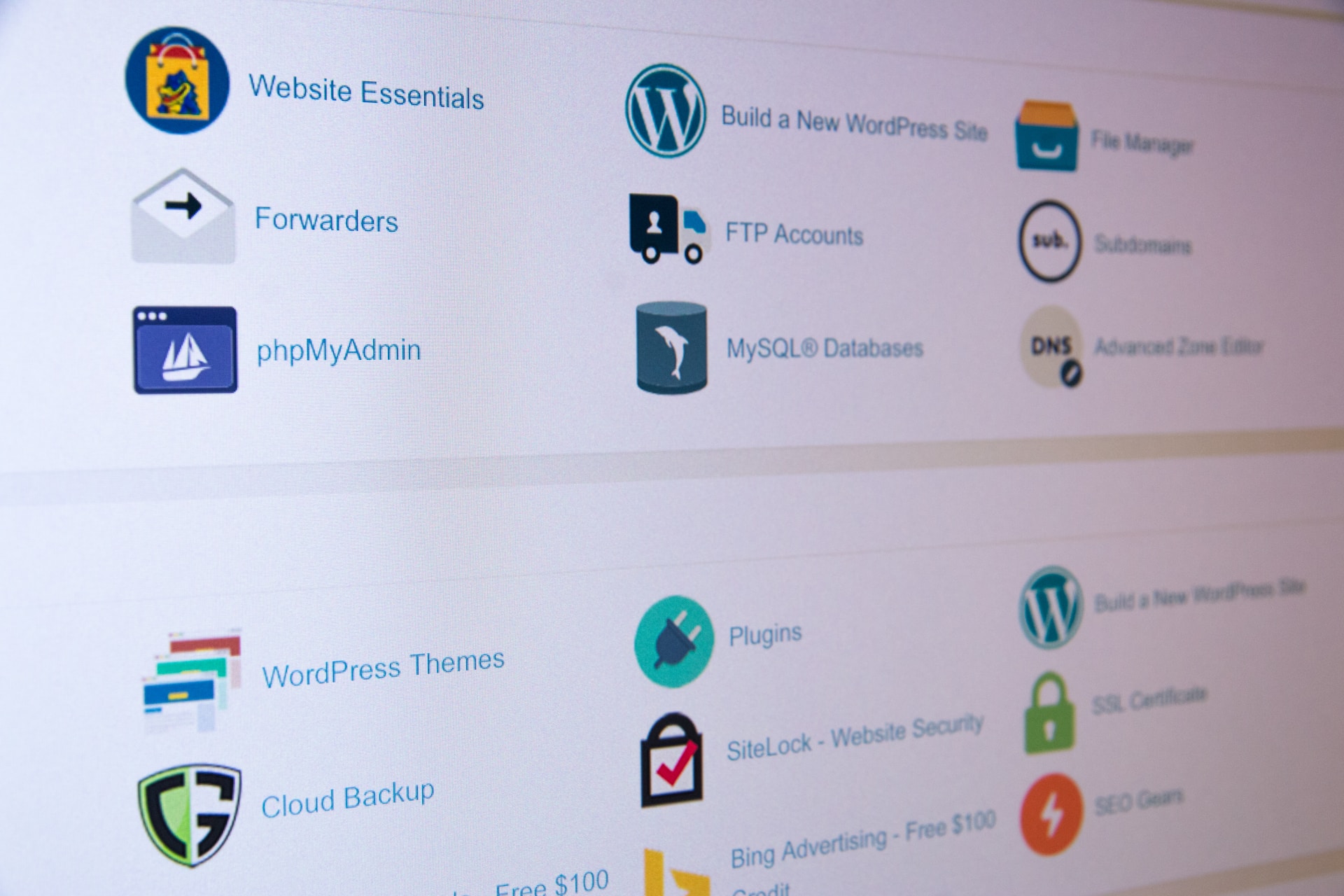

To access cPanel on your web hosting account, follow these general steps:
Open your preferred web browser.
In the address bar, enter the URL provided by your web hosting provider, typically in the format: https://yourdomain.com/cpanel or https://youripaddress/cpanel. Alternatively, you can try https://cpanel.yourdomain.com.
Press Enter to load the cPanel login page.
Enter your cPanel username and password. These credentials are usually provided to you by your web hosting provider when you sign up for a hosting account. If you don’t have the login details, reach out to your hosting provider’s support team for assistance.
After entering your username and password, click on the “Log in” or “Sign in” button.
If the provided credentials are correct, you will be redirected to the cPanel dashboard.
Note: In some cases, the cPanel login page may be accessed through a different URL or a specific login portal provided by your hosting provider. If you’re unsure about the correct URL or encountering any issues, it’s recommended to consult your hosting provider’s documentation or contact their support team for specific instructions.
Once you have successfully logged in to cPanel, you will have access to the various tools and features it offers, allowing you to manage your website, domains, email accounts, databases, security settings, and more. The exact layout and organization of cPanel may vary slightly depending on your hosting provider and the version of cPanel they are using, but the core functionality remains consistent across most installations.
Remember to keep your cPanel login credentials secure and avoid sharing them with unauthorized individuals to maintain the security of your hosting account.