Home Blog Page 34

What Is a Domain Name? Understanding the Internet’s Addressing System

0

Imagine trying to call your friends if everyone could only be reached by memorizing a 10-digit phone number and there were no contact names. Finding the right person would become difficult, especially as the number of contacts grew.

The internet faced a similar challenge in its early years.

Computers communicate using numerical IP addresses, but numbers are difficult for people to remember. To solve this problem, the Domain Name System (DNS) introduced domain names—human-readable names that represent websites and online services.

Today, domain names have become one of the most recognizable parts of the internet. They identify businesses, governments, schools, charities, personal brands, and online communities. They also form the foundation of websites, business email addresses, and many cloud-based services.

Whether you’re creating your first website or managing a large online business, understanding domain names is an essential part of understanding how the internet works.

What Is a Domain Name?

A domain name is a human-readable address that identifies a website or other internet resource.

Instead of remembering an IP address such as:

203.0.113.25

users can simply type:

example.com

Behind the scenes, DNS translates the domain name into the correct IP address so that computers can communicate.

Domain names exist to make the internet easier for people to use without changing the way computers communicate.

Why Do Domain Names Exist?

Computers work best with numbers.

People work best with words.

Domain names bridge this gap by providing memorable addresses while allowing computers to continue using IP addresses internally.

Without domain names:

  • Websites would be difficult to remember.
  • Businesses would struggle to establish recognizable brands.
  • Email addresses would become impractical.
  • Internet navigation would be significantly more complex.

The Structure of a Domain Name

A domain name is made up of several parts.

Consider the following example:

blog.example.com

This domain consists of:

Part Description
blog Subdomain
example Second-Level Domain (SLD)
.com Top-Level Domain (TLD)

Each part serves a different purpose within the DNS hierarchy.

Top-Level Domains (TLDs)

The Top-Level Domain (TLD) is the last portion of a domain name.

Examples include:

  • .com
  • .org
  • .net
  • .edu
  • .gov
  • .io
  • .app
  • .online
  • .store

Country-code TLDs (ccTLDs) include:

  • .uk
  • .ca
  • .de
  • .au
  • .jp
  • .zw

Each TLD is managed according to policies established by its registry.

Second-Level Domains (SLDs)

The second-level domain is the unique name chosen by the domain owner.

For example:

example.com

In this case:

example is the Second-Level Domain.

This is typically where businesses establish their online identity.

What Is a Subdomain?

A subdomain creates a subdivision of an existing domain.

Examples include:

blog.example.com

shop.example.com

support.example.com

Subdomains allow organizations to separate different sections of a website without purchasing additional domains.

Domain Names vs URLs

These terms are often confused.

They are not the same thing.

Example URL:

https://www.example.com/blog/article.html
Component Example
Protocol https://
Subdomain www
Domain Name example.com
Path /blog/article.html

A domain name is only one part of a complete URL.

Domain Names vs Websites

A domain name is not a website.

Instead:

  • The domain name is the address.
  • The website is the content stored on a web server.

Think of a domain as the street address of a business.

The building itself represents the website.

How Domain Names Work

When you type a domain name into your browser:

  1. Your browser requests the domain.
  2. DNS translates the domain into an IP address.
  3. The browser connects to the hosting server.
  4. The server sends the requested webpage.
  5. The browser displays the content.

This process usually completes within milliseconds.

Choosing a Good Domain Name

A strong domain name should be:

  • Easy to remember.
  • Easy to spell.
  • Relevant to the brand.
  • Short whenever possible.
  • Easy to pronounce.
  • Free of unnecessary numbers or symbols.

A well-chosen domain contributes to brand recognition and user trust.

Common Domain Extensions

Extension Typical Use
.com Commercial organizations
.org Non-profit organizations
.net Technology and networking
.edu Educational institutions
.gov Government organizations
.io Technology companies and startups
.app Applications and software
.store Online retail businesses

While many extensions are available, the best choice depends on your goals, audience, and branding strategy.

Common Misconceptions

Myth: Buying a Domain Includes Web Hosting

False.

Registering a domain reserves the name, but website files must still be hosted on a web server.

Myth: Every Business Needs a .com Domain

Not necessarily.

While .com remains popular, many businesses successfully use other extensions that align with their brand or industry.

Myth: A Domain Name Makes a Website Secure

False.

Website security depends on technologies such as HTTPS, SSL/TLS certificates, secure hosting, and good security practices—not the domain name itself.

Best Practices

Register Domains Early

Popular domain names are registered quickly. If you find a name that fits your project, registering it early can help secure your online identity.

Keep Contact Information Current

Accurate registration details ensure you can manage renewals, ownership verification, and important notifications.

Enable Domain Renewal Reminders

Allowing a domain to expire can result in website and email outages. Enable reminders or automatic renewal whenever appropriate.

Frequently Asked Questions

Can I own more than one domain name?

Yes.

Many organizations register multiple domains to protect their brand, target different markets, or support different products and services.

Do I need a website to register a domain?

No.

A domain can be registered before a website is created.

Can I move a domain to another registrar?

Yes.

Most domains can be transferred between accredited registrars, subject to applicable policies and transfer requirements.

Can one website use multiple domain names?

Yes.

Organizations often configure multiple domains to direct visitors to the same website or to support multilingual and regional experiences.

Lesson Summary

A domain name is the human-readable address that allows people to locate websites and internet services without remembering numerical IP addresses.

Working together with DNS, domain names provide a simple, memorable way to access websites while enabling businesses and individuals to establish recognizable online identities.

Understanding domain names is an essential step toward learning web hosting, website management, and internet infrastructure.

Knowledge Check

1. What is the primary purpose of a domain name?

A. Store website files

B. Replace web hosting

C. Provide a human-readable address for internet resources

D. Encrypt internet traffic

Answer: C


2. Which part of “blog.example.com” is the Top-Level Domain?

A. blog

B. example

C. .com

D. www

Answer: C

Key Takeaways

  • Domain names make internet resources easy for people to find and remember.
  • DNS translates domain names into IP addresses.
  • A domain name is different from a website and a URL.
  • Domains are composed of subdomains, second-level domains, and top-level domains.
  • Choosing a clear and memorable domain supports branding and usability.

What Are Nameservers? Understanding How Domains Find Their DNS Records

0

Registering a domain name is only the first step in making a website accessible on the internet. Before visitors can reach your website or send email to your domain, the internet needs to know which DNS servers are responsible for your domain.

This is the role of nameservers.

Nameservers direct DNS queries to the authoritative DNS servers that store your domain’s DNS records. Without them, browsers and applications would have no reliable way to discover where your website, email services, or other internet resources are located.

Although nameservers are often confused with DNS records, they perform a different function. Rather than storing the IP address of your website, nameservers tell the internet where to look for the DNS information associated with your domain.

Understanding nameservers is essential for anyone managing domains, migrating websites, changing hosting providers, or configuring cloud services.

What Is a Nameserver?

A nameserver is a specialized DNS server responsible for answering DNS queries about a domain.

It hosts the authoritative DNS zone containing records such as:

  • A Records
  • AAAA Records
  • MX Records
  • TXT Records
  • CNAME Records
  • CAA Records

When someone searches for your website, DNS ultimately reaches your domain’s authoritative nameserver to obtain the correct information.

Why Nameservers Are Important

Without nameservers, the DNS system would not know where your domain’s records are stored.

Think of a nameserver as the receptionist in a large office building.

The receptionist does not perform every task but knows exactly which department can help you.

Similarly, nameservers direct DNS requests to the correct source of information.

How Nameservers Work

Suppose someone enters:

www.example.com

The lookup process works like this:

  1. The browser requests the domain.
  2. A recursive resolver begins the lookup.
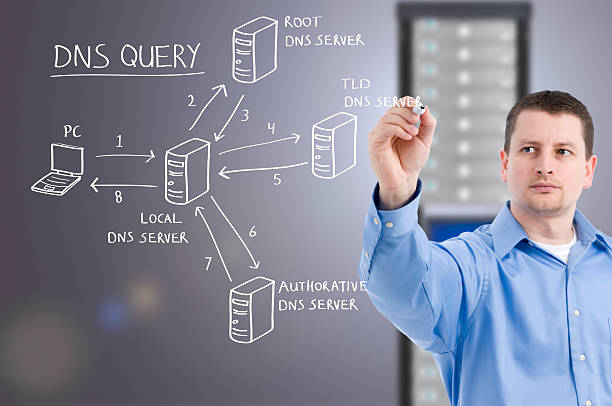
  3. The root DNS server identifies the appropriate Top-Level Domain (TLD) server.
  4. The TLD server responds with the domain’s authoritative nameservers.
  5. The resolver contacts one of those nameservers.
  6. The nameserver returns the requested DNS record.
  7. The browser connects to the destination server.

The nameserver acts as the authoritative source for your domain’s DNS information.

Understanding DNS Delegation

DNS delegation is the process of assigning responsibility for a domain’s DNS records to specific nameservers.

When you register a domain, your registrar stores the nameservers associated with that domain.

For example:

example.com

↓

ns1.hostingprovider.com

ns2.hostingprovider.com

Whenever someone looks up example.com, DNS knows which servers contain the official records.

Primary and Secondary Nameservers

Most domains use at least two nameservers.

Example:

ns1.examplehost.com

ns2.examplehost.com

This provides redundancy.

If one nameserver becomes unavailable, another can continue responding to DNS requests.

This improves reliability and availability.

Nameservers vs DNS Records

These terms are often confused, but they perform different roles.

Nameservers DNS Records
Tell the internet where DNS information is stored Store the actual DNS information
Usually managed at the domain registrar Managed within the DNS zone
Rarely changed Updated whenever services change
Point to authoritative DNS servers Point to websites, email, and other services

A simple way to think about it:

  • Nameservers answer the question: “Who manages this domain?”
  • DNS records answer the question: “Where should this service go?”

When Would You Change Nameservers?

Most website owners rarely change nameservers.

However, common situations include:

Migrating to a New Hosting Provider

A hosting company may provide new authoritative nameservers.

Using a Third-Party DNS Provider

Organizations sometimes use dedicated DNS providers for advanced performance or security features.

Moving DNS Management

Businesses may transfer DNS management between providers while keeping the same hosting platform.

Enterprise Infrastructure Changes

Large organizations occasionally redesign DNS architecture to improve scalability or resilience.

What Happens When You Change Nameservers?

Changing nameservers updates the delegation information stored by the domain registrar.

After the update:

  1. The registrar publishes the new nameservers.
  2. Recursive resolvers gradually recognize the change.
  3. DNS propagation occurs.
  4. Future lookups retrieve records from the new authoritative nameservers.

Because delegation changes are cached, nameserver updates may take time to become visible worldwide.

Best Practices for Managing Nameservers

Use Multiple Nameservers

Always configure at least two authoritative nameservers to improve reliability.

Keep DNS Information Synchronized

If multiple nameservers are used, ensure they contain identical DNS records.

Verify Before Changing Nameservers

Changing nameservers without migrating the required DNS records can make websites, email, and other services unavailable.

Document Your Configuration

Maintain accurate records of:

  • Current nameservers
  • DNS provider
  • Registrar settings
  • DNS zone backups

Documentation simplifies future migrations and troubleshooting

Common Misconceptions

Myth: Nameservers Store Websites

False.

Website files are stored on web servers, not nameservers.

Myth: Changing Nameservers Changes Hosting Automatically

False.

Changing nameservers only changes where DNS information is managed.

Website files remain on the hosting server unless they are migrated separately.

Myth: Every Domain Uses Only One Nameserver

False.

Most domains use at least two authoritative nameservers for redundancy.

Frequently Asked Questions

How many nameservers should a domain have?

Most domains use at least two nameservers to improve reliability.

Can I change my nameservers?

Yes.

Nameservers are managed through your domain registrar and can usually be updated through the registrar’s control panel.

Do nameserver changes affect email?

Yes.

If the new nameservers do not contain the correct MX records and other required DNS records, email services may stop functioning until they are properly configured.

Are nameservers the same as DNS records?

No.

Nameservers tell the internet where DNS records are managed, while DNS records define how individual services such as websites and email should operate.

Lesson Summary

Nameservers are a critical part of the Domain Name System.

They identify the authoritative DNS servers responsible for managing a domain’s DNS records and enable browsers, email systems, and other internet services to locate the correct information.

Understanding how nameservers work is essential for website migrations, DNS management, and maintaining reliable online services.

Knowledge Check

1. What is the primary role of a nameserver?

A. Store website files

B. Process HTTP requests

C. Identify the authoritative DNS server for a domain

D. Register domain names

Answer: C


2. Which statement best describes the difference between nameservers and DNS records?

A. They perform the same function.

B. Nameservers locate DNS records, while DNS records define service information.

C. DNS records locate nameservers.

D. Nameservers replace web hosting.

Answer: B


Key Takeaways

  • Nameservers identify where a domain’s DNS records are managed.
  • DNS delegation allows the internet to locate authoritative DNS servers.
  • Most domains use multiple nameservers for redundancy.
  • Changing nameservers does not automatically move website or email services.
  • Proper planning is essential before updating nameserver settings.

DNS Caching Explained – How the Internet Speeds Up Website Lookups

0

Imagine if every time you opened a website, your computer had to ask the entire internet where that website was located. Every browser tab, every image, every application, and every online service would trigger a complete DNS lookup from the beginning.

The internet would still work—but it would be significantly slower and far less efficient.

To solve this challenge, the Domain Name System relies heavily on caching.

DNS caching allows devices and servers to temporarily remember the IP addresses of recently visited websites. Instead of repeating the entire lookup process for every request, cached information can be reused until it expires.

This simple idea dramatically reduces network traffic, lowers latency, decreases the workload on DNS infrastructure, and improves the browsing experience for billions of internet users every day.

In this lesson, you’ll learn how DNS caching works, where cached records are stored, why caching is essential, and how it affects website administration.

What Is DNS Caching?

DNS caching is the temporary storage of DNS query results.

When a DNS resolver successfully translates a domain name into an IP address, that result can be stored for a defined period.

Future requests for the same domain can then use the cached information instead of performing another complete DNS lookup.

The result is faster responses and fewer requests to authoritative DNS servers.

Why DNS Caching Exists

Without caching, every DNS request would require communication with multiple DNS servers.

For a single website visit, that could involve:

  • A recursive resolver
  • A root name server
  • A Top-Level Domain (TLD) server
  • An authoritative name server

Repeating this process for billions of requests every day would place enormous strain on global DNS infrastructure.

Caching significantly reduces this workload while improving responsiveness.

Where DNS Information Is Cached

DNS information is stored at several levels across the internet.

Each layer contributes to overall performance.

Browser Cache

Modern web browsers maintain their own DNS cache.

When you revisit a website, the browser may already know its IP address and can connect immediately without requesting another DNS lookup.

Operating System Cache

Operating systems such as Windows, macOS, and Linux also maintain DNS caches.

Applications running on the device can often reuse this information without contacting external DNS servers.

Home and Office Routers

Many routers cache DNS responses for devices connected to the local network.

This benefits every device using the same router.

Recursive DNS Resolvers

Internet Service Providers (ISPs) and public DNS providers maintain large caches that serve millions of users.

Popular websites benefit significantly because their DNS records are requested frequently.

The DNS Caching Process

A simplified DNS lookup with caching works as follows:

User Requests Website
        │
        â–¼
Browser Cache?
        │
   Yes ─────────► Use Cached Record
        │
        No
        â–¼
Operating System Cache?
        │
   Yes ─────────► Use Cached Record
        │
        No
        â–¼
Router Cache?
        │
   Yes ─────────► Use Cached Record
        │
        No
        â–¼
Recursive DNS Resolver
        │
        â–¼
Authoritative DNS Server
        │
        â–¼
Return IP Address
        │
        â–¼
Store in Cache

Each successful lookup populates one or more caches, reducing the need for future queries.

Understanding Time to Live (TTL)

Every DNS record includes a Time to Live (TTL) value.

TTL specifies how long a cached record remains valid before a new lookup is required.

For example:

TTL Cache Duration
300 5 Minutes
1800 30 Minutes
3600 1 Hour
86400 24 Hours

When the TTL expires, the cache discards the stored record and requests fresh information from the authoritative DNS server.

Benefits of DNS Caching

DNS caching provides several important advantages.

Faster Website Loading

Cached DNS information reduces the time required to locate website servers.

Lower Network Traffic

Repeated DNS queries are avoided, reducing unnecessary internet traffic.

Reduced Server Load

Authoritative DNS servers receive fewer requests, improving scalability and reliability.

Improved User Experience

Faster DNS resolution contributes to shorter page load times and smoother browsing.

Challenges of DNS Caching

Although caching improves performance, it can occasionally create confusion.

Delayed DNS Updates

When DNS records change, cached information may continue to be used until the TTL expires.

Troubleshooting Difficulties

Different users may receive different DNS responses depending on which caches have refreshed.

Stale Information

Incorrect cached records can temporarily direct users to outdated services.

When Should DNS Cache Be Cleared?

Most users rarely need to clear their DNS cache.

However, it may help when:

  • A website has recently migrated.
  • DNS records have been updated.
  • Incorrect DNS information is being used.
  • Troubleshooting website connectivity.

Clearing the local cache forces the system to request fresh DNS information.

Common Misconceptions

Myth: DNS Caching Is a Bug

False.

Caching is an intentional feature that improves internet performance.

Myth: Clearing DNS Cache Speeds Up the Internet

Not usually.

In many cases, clearing the cache temporarily slows DNS lookups because cached information must be retrieved again.

Myth: Every DNS Lookup Starts from the Root Server

False.

Because of caching, many lookups never need to contact root or authoritative servers.

Best Practices

Use Appropriate TTL Values

Short TTL values are useful before planned DNS changes.

Longer TTL values reduce query volume for stable services.

Avoid Unnecessary Cache Clearing

Caches improve performance. Clearing them should be reserved for troubleshooting or after major DNS updates.

Plan DNS Changes Carefully

Understanding how caching works helps minimize downtime and unexpected behavior during migrations.

Frequently Asked Questions

How long does DNS remain cached?

It depends on the record’s TTL and the caching policies of the browser, operating system, router, or DNS resolver.

Can different users receive different DNS results?

Yes.

If their caches contain different information, they may temporarily receive different responses until caches refresh.

Does DNS caching improve website speed?

Yes.

By reducing the number of DNS lookups required, caching decreases latency and contributes to faster website loading.

Is DNS caching secure?

DNS caching is generally safe, but organizations should protect DNS infrastructure against attacks such as cache poisoning through proper security measures and trusted DNS services.

Lesson Summary

DNS caching is one of the internet’s most important performance optimizations.

By storing recently resolved DNS information at multiple levels, caching reduces network traffic, improves response times, and lowers the workload placed on DNS infrastructure.

Understanding where DNS records are cached and how TTL influences cache behavior is essential for troubleshooting DNS issues and managing websites effectively.

Knowledge Check

1. What is the primary purpose of DNS caching?

A. Encrypt internet traffic

B. Store website files

C. Reduce repeated DNS lookups and improve performance

D. Register domain names

Answer: C


2. What determines how long a DNS record remains cached?

A. Browser Version

B. Internet Speed

C. Time to Live (TTL)

D. Domain Extension

Answer: C

Key Takeaways

  • DNS caching stores previously resolved DNS information.
  • Caching occurs in browsers, operating systems, routers, and recursive DNS resolvers.
  • TTL controls how long cached records remain valid.
  • DNS caching improves performance and reduces infrastructure load.
  • Understanding caching simplifies DNS troubleshooting and website management.

DNS Propagation Explained – Why DNS Changes Take Time

0

You’ve updated your domain’s DNS records. Perhaps you’ve pointed your website to a new hosting provider, changed your email service, or updated an A record with a new server address.

You save the changes and refresh your browser.

Nothing happens.

A few minutes later, someone else says the website is working perfectly, while another colleague still sees the old version.

What is happening?

The answer is DNS propagation.

DNS propagation is the period during which DNS changes spread across the internet. During this time, different users and DNS servers may temporarily receive different answers when requesting the same domain.

Although propagation is often described as the internet “updating,” the reality is more nuanced. The delay is primarily caused by cached DNS information stored by browsers, operating systems, internet service providers, and recursive DNS resolvers.

Understanding propagation helps website owners avoid unnecessary troubleshooting and set realistic expectations whenever DNS changes are made.

What Is DNS Propagation?

DNS propagation is the time required for updated DNS information to be recognized across the internet.

When you modify a DNS record, the authoritative DNS server immediately stores the new information.

However, many other systems may still have cached copies of the previous records.

Until those cached records expire, different users may continue receiving the old information.

Why DNS Changes Are Not Instant

One of the most common misconceptions is that DNS changes must “travel” around the internet.

In reality, the authoritative DNS server is updated immediately.

The delay occurs because other systems continue using cached data until its expiration time.

These systems include:

  • Web browsers
  • Operating systems
  • Home routers
  • Corporate networks
  • Internet Service Providers (ISPs)
  • Public recursive DNS resolvers

Each cache updates independently, which explains why different people may experience different results.

Understanding DNS Caching

Caching is one of the reasons the internet performs so efficiently.

Instead of requesting DNS information every time a website is visited, devices temporarily store DNS responses.

Benefits of caching include:

  • Faster website loading
  • Reduced DNS traffic
  • Lower server workload
  • Improved reliability

The downside is that outdated information may remain in cache until it expires.

What Is TTL (Time to Live)?

Every DNS record includes a value known as Time to Live (TTL).

TTL tells caching systems how long they should keep a DNS record before requesting an updated version.

For example:

TTL Value Cache Duration
300 seconds 5 minutes
1800 seconds 30 minutes
3600 seconds 1 hour
86400 seconds 24 hours

A shorter TTL allows DNS changes to be recognized more quickly but increases the number of DNS queries made to the authoritative server.

Longer TTL values reduce DNS traffic but may delay the visibility of updates.

What Happens During DNS Propagation?

Consider this example:

  1. Your website currently points to Server A.
  2. You update the A record to point to Server B.
  3. The authoritative DNS server immediately stores the new address.
  4. Some recursive DNS servers continue serving the cached address for Server A.
  5. As cached records expire, those servers request the updated information.
  6. Eventually, all users begin reaching Server B.

This process can take anywhere from a few minutes to several hours, depending on cache expiration and resolver behavior.

Factors That Affect DNS Propagation

Several factors influence how quickly DNS changes become visible.

TTL Settings

Lower TTL values generally result in faster propagation.

ISP Caching Policies

Some Internet Service Providers refresh cached DNS information more frequently than others.

Browser Cache

Your browser may continue using a cached DNS entry even after external DNS servers have updated.

Operating System Cache

Most operating systems maintain their own DNS cache to improve performance.

Recursive DNS Resolver Behavior

Public DNS services and enterprise resolvers each have their own caching policies.

Common DNS Propagation Scenarios

You may encounter situations such as:

  • Your website loads correctly on your phone but not on your computer.
  • Colleagues in another country see the updated website first.
  • Email begins working before the website updates.
  • One browser shows the new version while another shows the old version.

These situations are normal during propagation.

How to Check DNS Propagation

You can monitor propagation by:

  • Using online DNS lookup tools.
  • Querying public DNS resolvers.
  • Comparing responses from different geographic regions.
  • Clearing your local DNS cache if necessary.

Remember that online propagation checkers report what different DNS servers see—not necessarily what every individual user sees.

Common Misconceptions

Myth: DNS Propagation Always Takes 48 Hours

False.

While “24 to 48 hours” is a common guideline, many DNS updates become visible within minutes or a few hours, especially when lower TTL values are used.

Myth: DNS Changes Spread Like Software Updates

False.

The authoritative DNS server updates immediately.

Propagation delays occur because cached information expires at different times.

Myth: Refreshing the Browser Forces DNS Updates

False.

Refreshing reloads the webpage but does not necessarily bypass DNS caches.

Best Practices

Lower TTL Before Planned Changes

If possible, reduce the TTL several hours or a day before migrating services. This helps caches expire sooner after the update.

Avoid Repeated DNS Changes

Frequent modifications during propagation can create confusion and make troubleshooting more difficult.

Be Patient

Propagation is a normal part of DNS operation. Allow sufficient time before assuming something has gone wrong.

Frequently Asked Questions

How long does DNS propagation usually take?

Many updates become visible within a few minutes to several hours. In some cases, cached records may persist for up to 48 hours.

Can I speed up DNS propagation?

You cannot force external DNS servers to refresh their caches, but lowering TTL values before making planned changes can reduce propagation time.

Why do different people see different websites?

Their devices or DNS resolvers may still be using cached records while others have already retrieved the updated information.

Does changing nameservers take longer than editing a DNS record?

It can. Changing nameservers often involves updating delegation records and may require additional time before all recursive resolvers recognize the new configuration.

Lesson Summary

DNS propagation is the process by which updated DNS information becomes visible across the internet.

Although authoritative DNS servers update immediately, cached DNS records stored by browsers, operating systems, ISPs, and recursive resolvers continue to be used until they expire.

Understanding caching, TTL values, and resolver behavior helps explain why DNS changes sometimes appear inconsistent during the transition period.

Knowledge Check

1. What is the primary reason DNS propagation takes time?

A. The internet copies DNS records worldwide.

B. Cached DNS records expire at different times.

C. DNS servers only update once per day.

D. Browsers block DNS changes.

Answer: B


2. What does TTL stand for?

A. Total Transfer Limit

B. Time to Live

C. Temporary Traffic Layer

D. Transmission Time Level

Answer: B

Key Takeaways

  • DNS propagation is primarily caused by caching.
  • Authoritative DNS servers update immediately.
  • TTL determines how long DNS records remain cached.
  • Different users may see different DNS results during propagation.
  • Proper planning can reduce disruption during DNS changes.

Understanding DNS – How the Internet Finds Websites

0

Imagine trying to browse the internet if every website had to be accessed using a long numerical address instead of a memorable name. Instead of typing example.com, you would need to remember a sequence of numbers such as 203.0.113.25. While computers are designed to communicate using numerical addresses, humans naturally find names much easier to remember.

The Domain Name System (DNS) bridges this gap. Often referred to as the internet’s “phone book” or “address directory,” DNS translates human-friendly domain names into IP addresses that computers use to communicate.

Every time you visit a website, send an email, stream online content, or use many cloud-based applications, DNS plays a vital role behind the scenes. Most users never notice it because the process happens in milliseconds, yet without DNS the modern internet would be extremely difficult to use.

In this lesson, you’ll learn what DNS is, why it exists, how DNS lookups work, the different types of DNS servers, and why understanding DNS is essential for anyone working with websites or networking.

Why DNS Exists

Computers communicate using IP addresses because they are precise and easy for machines to process.

People, however, prefer descriptive names.

Consider these examples:

Domain Name IP Address
example.com 203.0.113.25
university.edu 198.51.100.42
company.net 192.0.2.18

Remembering names is far simpler than remembering numerical addresses.

DNS allows users to work with names while computers continue using IP addresses behind the scenes.

What Is DNS?

The Domain Name System is a globally distributed database that translates domain names into IP addresses.

Rather than storing all internet addresses in one location, DNS distributes this information across thousands of servers worldwide.

This distributed design provides:

  • High availability
  • Scalability
  • Reliability
  • Fault tolerance
  • Fast responses

If one DNS server becomes unavailable, others can continue answering requests.

How a DNS Lookup Works

Whenever you enter a website address into your browser, several systems work together to locate the correct server.

Step 1: You Enter a Domain Name

For example:

www.example.com

At this point, your browser knows the website’s name but not its IP address.

Step 2: Browser Cache

The browser first checks whether it has recently visited the website.

If the address is already stored locally, no additional lookup is required.

Step 3: Operating System Cache

If the browser has no record, your computer checks its own DNS cache.

Operating systems temporarily store recently resolved addresses to improve performance.

Step 4: Recursive Resolver

If no cached record exists, the request is sent to a recursive DNS resolver.

This server is usually operated by:

  • Your Internet Service Provider (ISP)
  • A public DNS provider
  • Your organization

The resolver performs the search on your behalf.

Step 5: Root Name Server

The recursive resolver contacts one of the internet’s root name servers.

The root server does not know the final IP address, but it knows where to find the correct Top-Level Domain (TLD) server.

Step 6: Top-Level Domain (TLD) Server

The TLD server manages domains ending in extensions such as:

  • .com
  • .org
  • .net
  • .edu
  • .io
  • .co

It directs the resolver to the domain’s authoritative name server.

Step 7: Authoritative Name Server

The authoritative server stores the official DNS records for the domain.

It returns the correct IP address to the recursive resolver.

Step 8: The Browser Connects

The resolver sends the IP address back to your browser.

Your browser can now connect directly to the web server and begin loading the website.

The DNS Lookup Process

User
   │
   â–¼
Browser Cache
   │
   â–¼
Operating System Cache
   │
   â–¼
Recursive DNS Resolver
   │
   â–¼
Root Name Server
   │
   â–¼
Top-Level Domain Server
   │
   â–¼
Authoritative Name Server
   │
   â–¼
Web Server

Although this looks complex, the process typically completes in just a few milliseconds.

Types of DNS Servers

Understanding the different DNS servers makes troubleshooting much easier.

Recursive Resolver

Accepts DNS queries from users and searches for answers on their behalf.

Root Name Server

Directs requests toward the appropriate Top-Level Domain server.

Top-Level Domain Server

Knows which authoritative server manages a particular domain extension.

Authoritative Name Server

Stores the official DNS records for a domain and provides the final answer.

Why DNS Is Distributed

Imagine if every website lookup depended on one server.

If that server failed, much of the internet would become inaccessible.

DNS avoids this problem by distributing information across many servers worldwide.

Benefits include:

  • Faster lookups
  • Improved reliability
  • Better redundancy
  • Greater scalability
  • Higher availability

This distributed architecture is one reason the internet remains resilient even during localized failures.

DNS Caching

To improve speed, DNS information is temporarily stored at several levels.

Caching may occur in:

  • Web browsers
  • Operating systems
  • Routers
  • Recursive resolvers

Caching reduces unnecessary lookups and speeds up website loading.

However, it also means that DNS changes may not appear immediately.

Common DNS Problems

DNS issues are among the most common causes of website connectivity problems.

Typical examples include:

  • Incorrect DNS records
  • Expired domain names
  • Misconfigured nameservers
  • Corrupted local cache
  • DNS propagation delays

Understanding the lookup process makes these issues easier to diagnose.

Common Misconceptions

Myth: DNS Stores Websites

False.

DNS stores information about where websites can be found, not the websites themselves.

Myth: DNS Is Only Used for Websites

False.

DNS also supports:

  • Email delivery
  • Cloud services
  • APIs
  • Voice over IP (VoIP)
  • Many other internet applications

Myth: DNS Changes Are Instant

False.

DNS changes require time to propagate because cached information must expire before updated records are used.

Best Practices

Use Reliable DNS Providers

A dependable DNS service contributes to faster responses and improved availability.

Document DNS Changes

Maintain clear records of DNS modifications to simplify troubleshooting.

Learn Basic DNS Records

Understanding common records such as A, AAAA, CNAME, MX, and TXT makes website management significantly easier.

Frequently Asked Questions

Does every website use DNS?

Almost every publicly accessible website relies on DNS to translate domain names into IP addresses.

Can I browse the internet without DNS?

Technically, yes—if you know the exact IP address of the server. In practice, DNS is what makes the internet convenient and easy to use.

Why is DNS sometimes called the internet’s phone book?

Because it maps human-readable names to numerical addresses, much like a phone directory maps names to phone numbers.

What happens if DNS fails?

If DNS cannot resolve a domain name, your browser cannot locate the server, even if the website itself is online.

Lesson Summary

The Domain Name System is one of the internet’s most important services. It translates domain names into IP addresses, allowing people to browse the web using memorable names instead of numerical addresses.

Its distributed architecture, caching mechanisms, and hierarchical structure make DNS both scalable and highly reliable. Understanding how DNS works is a fundamental skill for anyone interested in websites, networking, or cloud technologies.

Knowledge Check

1. What is the primary purpose of DNS?

A. Encrypt internet traffic

B. Translate domain names into IP addresses

C. Store website files

D. Register websites

Answer: B


2. Which DNS server stores the official records for a domain?

A. Browser Cache

B. Recursive Resolver

C. Authoritative Name Server

D. Root Name Server

Answer: C


Key Takeaways

  • DNS translates domain names into IP addresses.
  • DNS uses a hierarchical and distributed architecture.
  • Browsers and operating systems use caching to speed up lookups.
  • Multiple DNS server types work together to resolve requests.
  • Understanding DNS simplifies website management and troubleshooting

IPv4 vs IPv6 – Understanding the Evolution of Internet Addressing

0

Every website you visit, email you send, and online service you use depends on Internet Protocol (IP) addresses. These addresses allow devices to identify one another and exchange information across networks. Without them, the internet as we know it could not function.

For decades, the world relied on Internet Protocol Version 4 (IPv4). When it was introduced in the early 1980s, it offered billions of unique addresses—far more than anyone believed would ever be needed. However, the rapid growth of smartphones, cloud computing, smart home devices, and the Internet of Things (IoT) eventually exhausted the available IPv4 address space.

To support the continued expansion of the internet, the Internet Engineering Task Force (IETF) developed Internet Protocol Version 6 (IPv6). IPv6 not only provides a vastly larger address space but also introduces improvements in efficiency, scalability, and network design.

In this lesson, we’ll compare IPv4 and IPv6, examine their strengths and limitations, and explain why both protocols continue to coexist today.

What Is IPv4?

IPv4 is the fourth version of the Internet Protocol and remains the most widely deployed addressing system on the internet.

An IPv4 address consists of four decimal numbers separated by periods.

Example:

192.168.1.25

Each section ranges from 0 to 255, creating approximately 4.3 billion unique addresses.

While this seemed enormous when IPv4 was introduced, the growth of internet-connected devices has far exceeded early expectations.

What Is IPv6?

IPv6 is the successor to IPv4.

Instead of four decimal numbers, IPv6 uses eight groups of hexadecimal values separated by colons.

Example:

2001:0db8:85a3:0000:0000:8a2e:0370:7334

IPv6 supports approximately 340 undecillion addresses (340 followed by 36 zeros), making address exhaustion practically impossible for the foreseeable future.

Its design also includes improvements that simplify routing and support the continued growth of the global internet.

Why Was IPv6 Created?

The primary reason was the shortage of available IPv4 addresses.

As internet usage expanded, billions of additional devices required unique network identities, including:

  • Smartphones
  • Tablets
  • Smart TVs
  • Security cameras
  • Industrial equipment
  • Vehicles
  • Smart home devices
  • Cloud infrastructure

Although technologies such as Network Address Translation (NAT) extended the lifespan of IPv4, they could not eliminate the underlying limitation of a finite address space.

IPv6 was designed to provide enough addresses for future generations of internet-connected devices.

Key Differences Between IPv4 and IPv6

Feature IPv4 IPv6
Address Length 32-bit 128-bit
Address Format Decimal Hexadecimal
Number of Addresses ~4.3 Billion ~340 Undecillion
Header Complexity More Complex Simplified
NAT Requirement Common Usually Not Required
Built-in Security Support Limited Designed with IPsec Support
Auto Configuration Limited Improved

Although both protocols perform the same basic function, IPv6 introduces several architectural improvements that make large-scale networking more efficient.

Understanding Address Formats

IPv4 Example

203.0.113.25

Easy for humans to read but limited in the total number of available addresses.

IPv6 Example

2001:db8:85a3::8a2e:370:7334

Longer and more complex, but capable of supporting an almost unlimited number of devices.

IPv6 also allows address compression, reducing the need to write every group in full.

Advantages of IPv4

Despite its age, IPv4 remains widely used because:

  • Nearly every network supports it.
  • Most applications were originally designed for it.
  • It is familiar to network administrators.
  • Legacy hardware often depends on it.

Its widespread compatibility ensures it will remain an important part of the internet for years to come.

Advantages of IPv6

IPv6 was designed with long-term growth in mind.

Benefits include:

Virtually Unlimited Address Space

IPv6 provides enough addresses to support future technological expansion for decades.

Improved Routing Efficiency

Simplified packet headers allow routers to process traffic more efficiently.

Better Support for Modern Networks

IPv6 accommodates cloud computing, IoT, and large-scale enterprise environments more effectively than IPv4.

Stateless Address Autoconfiguration (SLAAC)

Many devices can automatically configure their own IPv6 addresses without requiring manual setup.

Improved Multicast Support

IPv6 handles multicast traffic more efficiently, reducing unnecessary network transmissions.

Why IPv4 Still Exists

Although IPv6 is the future, replacing IPv4 globally is a gradual process.

Reasons include:

  • Legacy hardware
  • Older software
  • Existing infrastructure
  • Cost of migration
  • Compatibility requirements

As a result, many networks operate in dual-stack mode, supporting both IPv4 and IPv6 simultaneously.

What Is Dual Stack?

Dual stack is a networking approach where devices and servers communicate using both IPv4 and IPv6.

This allows organizations to adopt IPv6 while maintaining compatibility with systems that still rely on IPv4.

Many modern hosting providers and enterprise networks use this approach during the transition period.

Common Misconceptions

Myth: IPv6 Is Faster Than IPv4

Not necessarily.

Performance depends on many factors, including network configuration, routing, server infrastructure, and internet service providers.

Myth: IPv4 Will Disappear Soon

False.

IPv4 will continue operating alongside IPv6 for many years because of its widespread deployment.

Myth: IPv6 Is Only for Large Companies

False.

Individuals, small businesses, educational institutions, and cloud platforms increasingly use IPv6.

Best Practices

Design for IPv6 Compatibility

When deploying new systems, ensure applications and infrastructure support IPv6.

Monitor Both Protocols

Organizations using dual-stack environments should monitor IPv4 and IPv6 connectivity to ensure consistent performance.

Keep Network Documentation Updated

Document address assignments, DNS records, and routing configurations for both protocols to simplify management and troubleshooting.

Frequently Asked Questions

Will IPv6 replace IPv4 completely?

Eventually, IPv6 is expected to become the dominant protocol. However, IPv4 will likely remain in use for many years during the transition.

Can IPv4 and IPv6 work together?

Yes.

Many modern networks operate in dual-stack mode, allowing devices to communicate using either protocol.

Does IPv6 improve security?

IPv6 was designed with support for IPsec, but security still depends on proper network configuration, updates, firewalls, and good operational practices.

Do websites support IPv6?

Many major websites and hosting providers already support IPv6, while also maintaining IPv4 compatibility.

Lesson Summary

IPv4 laid the foundation for the modern internet, but its limited address space made a successor necessary.

IPv6 provides the scalability needed to support billions of additional devices while improving network efficiency and simplifying future growth.

Today, both protocols continue to coexist, ensuring compatibility while the internet gradually transitions toward broader IPv6 adoption.

Knowledge Check

1. Which protocol provides a much larger address space?

A. IPv2

B. IPv3

C. IPv4

D. IPv6

Answer: D


2. Why was IPv6 developed?

A. To replace DNS

B. To improve web design

C. To solve IPv4 address exhaustion and support future internet growth

D. To replace HTTP

Answer: C


Key Takeaways

  • IPv4 and IPv6 both enable communication across the internet.
  • IPv4 remains widely used but has a limited address space.
  • IPv6 supports an enormous number of unique addresses and modern networking requirements.
  • Many organizations currently use both protocols through dual-stack deployments.
  • Understanding both versions is essential for anyone learning networking or managing online infrastructure.

What Is an IP Address? A Complete Guide to Internet Addressing

0

Every device connected to the internet needs a way to identify itself and communicate with other devices. Whether you’re browsing a website, sending an email, streaming a movie, or joining a video conference, your device exchanges information with countless systems across the internet.

To make this possible, every connected device is assigned a unique identifier known as an Internet Protocol (IP) address.

An IP address is fundamental to how the internet operates. It allows data to be routed to the correct destination, ensuring that the information you request reaches your device and that your responses find their way back to the appropriate server.

Although most people interact with domain names such as example.com, computers communicate using IP addresses. The Domain Name System (DNS) acts as a translator between these human-friendly names and the numerical addresses used by networking equipment.

In this lesson, you’ll learn what IP addresses are, how they work, the different types of IP addresses, and why they play such an important role in modern networking.

What Is an IP Address?

An Internet Protocol (IP) address is a numerical label assigned to a device connected to a network that uses the Internet Protocol for communication.

Its primary functions are to:

  • Identify devices on a network.
  • Enable communication between devices.
  • Route data to the correct destination.

Without IP addresses, computers would have no reliable way of sending or receiving information across the internet.

Think of an IP address as the postal address of a house. Just as a mailing address tells a courier where to deliver a package, an IP address tells internet infrastructure where to deliver digital information.

How IP Addresses Work

Whenever you access a website, your device sends a request across the internet.

That request includes:

  • The source IP address (your device).
  • The destination IP address (the website’s server).

Networking equipment such as routers uses these addresses to determine the most efficient path for the data to travel.

Once the server processes your request, it sends the response back to your IP address.

This exchange takes place in milliseconds and occurs every time you interact with an online service.

IPv4 Addresses

IPv4 is the fourth version of the Internet Protocol and remains the most widely used addressing system.

An IPv4 address consists of four numbers separated by periods.

Example:

192.168.1.100

Each section ranges from 0 to 255, creating approximately 4.3 billion possible addresses.

When IPv4 was introduced, this number seemed more than sufficient. However, the rapid growth of the internet and the increasing number of connected devices have exhausted most available IPv4 addresses.

IPv6 Addresses

To overcome IPv4 limitations, IPv6 was developed.

An IPv6 address uses hexadecimal numbers separated by colons.

Example:

2001:0db8:85a3:0000:0000:8a2e:0370:7334

IPv6 supports an almost unlimited number of unique addresses, ensuring that future devices can continue to connect to the internet without address shortages.

In addition to expanded address capacity, IPv6 offers improvements in routing efficiency, network configuration, and security support.

Public and Private IP Addresses

Not every IP address is visible on the public internet.

Public IP Addresses

A public IP address is assigned by an Internet Service Provider (ISP) and is reachable from the internet.

This is the address websites and online services see when your device connects to them.

Private IP Addresses

Private IP addresses are used within local networks such as homes, schools, and businesses.

Examples include:

  • 192.168.x.x
  • 10.x.x.x
  • 172.16.x.x to 172.31.x.x

Private addresses allow multiple devices to communicate internally without requiring each one to have its own public IP address.

Static vs Dynamic IP Addresses

IP addresses can also be categorized based on how they are assigned.

Static IP Addresses

A static IP address remains the same over time.

These are commonly used for:

  • Business servers
  • Web hosting
  • Email servers
  • Remote access services

Because the address does not change, static IPs provide consistent accessibility.

Dynamic IP Addresses

A dynamic IP address is assigned automatically by your ISP and may change periodically.

Most residential internet connections use dynamic IP addresses because they are easier to manage and make efficient use of available address space.

How Routers Use IP Addresses

Routers are responsible for forwarding data between networks.

When a router receives a packet of information, it examines the destination IP address and determines the next best route toward its destination.

This process happens continuously across the internet, allowing billions of devices to communicate efficiently.

The Relationship Between DNS and IP Addresses

Humans prefer memorable names such as:

www.example.com

Computers require numerical addresses such as:

203.0.113.25

DNS bridges this gap by translating domain names into IP addresses.

Without DNS, users would need to remember the IP address of every website they wanted to visit.

Common Uses of IP Addresses

IP addresses enable many internet services, including:

  • Website hosting
  • Email communication
  • Online gaming
  • Cloud computing
  • Video conferencing
  • File transfers
  • Internet of Things (IoT) devices
  • Remote administration

Every connected service depends on reliable IP addressing.

Common Misconceptions

Myth: An IP Address Reveals Your Exact Home Address

Not necessarily.

An IP address may indicate a general geographic region but does not reveal a precise street address.

Myth: Every Device Has a Permanent IP Address

Many devices receive dynamic IP addresses that change over time.

Myth: IPv6 Has Completely Replaced IPv4

Not yet.

Both protocols continue to operate together across much of today’s internet.

Best Practices

Understand Your Network

Knowing whether you use static or dynamic addressing can simplify troubleshooting and remote access.

Protect Network Devices

IP addresses identify devices, but security depends on strong authentication, firewalls, encryption, and software updates.

Learn Basic Networking Concepts

Understanding IP addresses provides a solid foundation for learning about DNS, routing, cloud infrastructure, and cybersecurity.

Frequently Asked Questions

Can two devices have the same IP address?

On the public internet, no. Every public IP address must be unique.

Within separate private networks, however, the same private IP addresses can be reused safely.

How do I find my IP address?

Most operating systems include network settings that display local IP addresses, while numerous online tools can display your public IP address.

Why do websites use domain names instead of IP addresses?

Domain names are much easier for people to remember, while DNS translates them into the IP addresses computers require.

Does changing my IP address improve security?

Changing an IP address alone does not provide comprehensive security. Good cybersecurity also requires strong passwords, software updates, firewalls, encryption, and secure network practices.

Lesson Summary

An IP address is one of the fundamental building blocks of the internet.

It uniquely identifies devices, enables communication, and allows networking equipment to deliver information accurately across local and global networks.

Understanding how IP addresses work provides a strong foundation for learning about DNS, routing, hosting, cloud computing, and cybersecurity.

Knowledge Check

1. What is the primary purpose of an IP address?

A. Store websites

B. Identify devices and route data

C. Encrypt internet traffic

D. Register domain names

Answer: B


2. Which version of the Internet Protocol supports a vastly larger address space?

A. IPv3

B. IPv4

C. IPv5

D. IPv6

Answer: D

Key Takeaways

  • Every internet-connected device requires an IP address.
  • IP addresses identify devices and enable data routing.
  • IPv4 remains widely used, while IPv6 provides long-term scalability.
  • Public and private IP addresses serve different purposes.
  • DNS translates domain names into IP addresses, making the internet easier to use.

What Happens When You Type a Website Address into Your Browser?

0

Typing a website address into your browser feels almost effortless. Whether you’re visiting an online store, checking your email, or reading an article, the page often appears within seconds—or even fractions of a second.

Behind that simple action, however, is one of the most sophisticated processes in modern computing.

Your browser communicates with DNS servers, internet service providers, routers, data centers, web servers, databases, and content delivery networks before assembling the webpage you eventually see on your screen.

The remarkable part is that all of this usually happens so quickly that you never notice it.

In this lesson, we’ll follow every step of that journey and explain the technologies involved in language that’s easy to understand.

Step 1: You Enter a Domain Name

Imagine you type:

www.tremhost.com

Your browser recognizes that you’re requesting a website.

At this point it only knows the name.

It does not know where the website actually lives.

Think of this like knowing someone’s name but not their home address.

To find the website, your browser needs help.

Step 2: Your Browser Checks Its Memory

Before asking anyone else, your browser asks itself:

“Have I visited this website recently?”

If the answer is yes, it may already know the website’s IP address.

Using this stored information saves time.

This is called browser caching.

Step 3: Your Computer Checks Its Cache

If the browser doesn’t know the answer, your operating system checks its own DNS cache.

Many websites you’ve visited recently remain stored temporarily.

If found, the process becomes even faster.

Step 4: Your Router Gets Involved

If your computer doesn’t know the answer either, the request leaves your local network.

Your router forwards the request to your Internet Service Provider (ISP).

From there, it reaches a DNS resolver.

Step 5: DNS Starts Searching

The DNS resolver begins looking for the correct IP address.

It asks several servers:

  • Root DNS Servers
  • Top-Level Domain Servers
  • Authoritative Name Servers

Eventually, it receives something similar to:

www.tremhost.com

↓

203.0.113.50

Now the browser knows exactly where the website lives.

Step 6: A Secure Connection Is Created

Before loading the website, your browser checks whether it supports HTTPS.

If it does, an encrypted TLS connection is established.

During this stage:

  • SSL certificates are verified.
  • Encryption keys are exchanged.
  • Secure communication begins.

This protects passwords, payment information, and personal data.

Step 7: The Browser Sends a Request

Your browser sends something called an HTTP request.

It basically says:

“I’d like the homepage, please.”

The request contains information such as:

  • Browser type
  • Device information
  • Accepted languages
  • Cookies
  • Requested page

Step 8: The Server Starts Working

The hosting server receives the request.

Depending on the website, it might:

  • Read HTML files
  • Query databases
  • Generate WordPress pages
  • Check login sessions
  • Retrieve products
  • Process shopping carts

This all happens before anything appears on your screen.

Step 9: The Server Sends Everything Back

The response usually includes:

  • HTML
  • CSS
  • JavaScript
  • Images
  • Fonts
  • Videos
  • Icons

Large websites may send hundreds of files.

Step 10: The Browser Builds the Website

Your browser now becomes a construction worker.

It reads:

HTML

↓

Structure

CSS

↓

Design

JavaScript

↓

Interactivity

Images

↓

Visual Content

Fonts

↓

Typography

Everything is assembled into the webpage you see.

Step 11: Additional Requests Begin

Modern websites don’t stop after loading one page.

Your browser immediately requests:

  • Logos
  • Advertisements
  • Analytics
  • Videos
  • APIs
  • Social media widgets
  • Tracking scripts

A single webpage can easily generate over 100 separate requests.

Step 12: Caching Makes Future Visits Faster

Many downloaded files are stored on your device.

The next time you visit the website:

  • Images may already exist.
  • CSS may already exist.
  • JavaScript may already exist.

The result is a much faster experience.

Visual Journey

You

↓

Browser

↓

Browser Cache

↓

Operating System

↓

Router

↓

Internet Provider

↓

DNS

↓

Web Hosting Server

↓

Database

↓

Website Files

↓

Browser Rendering

↓

Finished Website

Why This Matters

Understanding this process helps explain why websites become slow.

Problems can occur at almost any step:

  • Slow DNS
  • Poor hosting
  • Large images
  • Slow databases
  • Bad code
  • Network congestion

Knowing where delays happen makes troubleshooting much easier.

Real-World Example

Imagine ordering a pizza.

The restaurant must:

Receive your order.

↓

Confirm payment.

↓

Prepare the pizza.

↓

Bake it.

↓

Package it.

↓

Find your address.

↓

Deliver it.

Websites work in a surprisingly similar way.

The better every step is optimized, the faster the final result.

Lesson Summary

When you type a website address:

  1. Your browser checks its cache.
  2. DNS finds the IP address.
  3. A secure connection is established.
  4. The server processes your request.
  5. Files are downloaded.
  6. The browser renders the page.
  7. Caching prepares future visits.

All of this usually happens within a second or two.

Quiz

Question 1

What does DNS do?

A. Stores websites

B. Finds IP addresses

C. Creates websites

D. Encrypts passwords

Answer:

B

Question 2

Why does HTTPS matter?

A. It changes colors.

B. It encrypts communication.

C. It stores databases.

D. It creates backups.

Answer:

B

Key Takeaways

✔ Every webpage involves dozens of technologies working together.

✔ DNS is the internet’s address book.

✔ HTTPS secures communication.

✔ Hosting stores your website.

✔ Browsers assemble webpages from many different files.

✔ Caching improves speed.

Continue Learning

Next lessons:

  • Lesson 2: What Is an IP Address?
  • Lesson 3: IPv4 vs IPv6
  • Lesson 4: What Is DNS?
  • Lesson 5: What Is Web Hosting?
  • Lesson 6: How SSL Certificates Work
  • Lesson 7: How Email Travels Across the Internet
  • Lesson 8: What Is a CDN?
  • Lesson 9: Understanding Servers
  • Lesson 10: How Websites Become Fast

Build Your Website with Tremhost

Every lesson in Tremhost Academy is designed to help you understand the technology behind the web. When you’re ready to put that knowledge into practice, Tremhost provides the hosting, domains, SSL certificates, business email, and scalable infrastructure you need to build a fast, secure, and reliable website.

Learning and building go hand in hand and we’re here to support both.

How the Internet Works: A Complete Beginner’s Guide

0

Every day, billions of people browse websites, watch videos, send emails, shop online, attend virtual meetings, and use cloud applications. Most of these activities happen so quickly that it’s easy to forget the incredible technology working behind the scenes.

The internet is often described as a “network of networks.” Rather than being one giant computer or a single service, it is a vast global system connecting billions of devices through cables, wireless networks, satellites, routers, switches, servers, and data centers. Every click, search, message, and download depends on these systems working together in milliseconds.

Understanding how the internet works isn’t just useful for developers or IT professionals. Business owners, students, marketers, website administrators, and anyone building an online presence can make better decisions when they understand the journey information takes from one computer to another.

In this guide, we’ll follow that journey step by step—from typing a website address into your browser to seeing a fully loaded webpage on your screen.

What Is the Internet?

The internet is a worldwide network that allows computers and other devices to communicate using standardized protocols.

Instead of every computer connecting directly to every other computer, networks are linked together through internet service providers (ISPs), internet exchange points, and backbone infrastructure.

This design allows information to travel efficiently across cities, countries, and continents.

Think of the internet as a global transportation system. Roads connect neighborhoods, highways connect cities, and international routes connect countries. In the same way, the internet connects local networks into one enormous communication system.

The Main Building Blocks of the Internet

Although the internet is incredibly complex, most online activities rely on a few essential components working together.

These include:

  • Devices (computers, phones, tablets)
  • Web browsers
  • Internet Service Providers (ISPs)
  • Domain names
  • DNS servers
  • IP addresses
  • Web hosting servers
  • Data centers
  • Routers and switches
  • CDNs
  • Security protocols such as HTTPS

Each component has a specific role in delivering websites and online services.

Step 1: You Type a Website Address

Imagine you enter:

www.example.com

into your browser.

At this point, your browser knows the website’s name—but not where it is physically located.

To find it, the browser begins a process known as a DNS lookup.

Step 2: DNS Finds the Website

The Domain Name System translates the domain name into an IP address.

For example:

www.example.com
↓

203.0.113.15

This IP address identifies the server hosting the website.

Without DNS, every website visitor would need to remember numerical addresses instead of simple names.

Step 3: Your Browser Connects to the Server

Using the IP address, your browser sends a request across the internet.

That request travels through multiple networking devices, including:

  • Routers
  • Internet providers
  • Regional networks
  • International backbone connections
  • Data centers

Although this journey may cover thousands of kilometers, it often completes in well under a second.

Step 4: The Server Processes the Request

The web server receives your request and determines what information you need.

Depending on the website, it may:

  • Load HTML pages.
  • Query a database.
  • Generate dynamic content.
  • Authenticate your account.
  • Retrieve product information.
  • Process application logic.

The server prepares a response and sends it back.

Step 5: Files Begin Downloading

The browser receives the response and starts downloading:

  • HTML
  • CSS
  • JavaScript
  • Images
  • Fonts
  • Videos
  • Icons

A modern webpage often contains dozens—or even hundreds—of individual files.

Step 6: The Browser Builds the Page

Your browser doesn’t simply display files as they arrive.

It combines HTML, CSS, JavaScript, images, and fonts into the webpage you see on your screen.

This rendering process happens incredibly quickly, creating the interactive websites we’re familiar with today.

Where Web Hosting Fits In

Every website needs a place where its files are stored.

This is the role of web hosting.

Hosting providers maintain powerful servers connected to the internet around the clock, allowing websites to remain available whenever visitors request them.

Without hosting, websites would not be accessible online.

The Role of Data Centers

Most hosting servers operate inside professionally managed data centers.

These facilities provide:

  • High-speed internet connectivity
  • Redundant power supplies
  • Advanced cooling systems
  • Physical security
  • Fire protection
  • Backup generators
  • Environmental monitoring

Data centers ensure websites remain available even when unexpected events occur.

Why HTTPS Matters

Before information is exchanged, many websites establish an encrypted HTTPS connection.

Encryption protects information such as:

  • Passwords
  • Payment details
  • Contact forms
  • Personal information

This secure communication helps protect visitors while building trust.

How CDNs Improve Performance

If a website serves visitors around the world, downloading every file from one location may introduce delays.

A Content Delivery Network stores copies of static content on servers located in multiple regions.

Visitors receive content from nearby locations, reducing latency and improving loading times.

Why Website Speed Matters

Fast websites create better experiences.

Performance influences:

  • Search engine optimization
  • Conversion rates
  • Customer satisfaction
  • Bounce rates
  • User engagement

Website speed depends on many factors, including hosting quality, optimization, caching, and network performance.

Common Internet Misconceptions

Myth: The Internet Is the Same as the Web

False.

The internet is the global infrastructure.

The World Wide Web is one of the many services that operate on it.

Myth: Websites Exist Inside Browsers

False.

Browsers simply request and display content stored on remote servers.

Myth: Faster Internet Solves Every Speed Problem

False.

A slow website may still perform poorly even on a fast internet connection if the server or application is not optimized.

Myth: Websites Are Stored in the Cloud

Partly true.

Cloud infrastructure still relies on physical servers located in data centers around the world.

The Journey of a Webpage

User
↓

Browser
↓

Internet Provider

↓

DNS Lookup

↓

Web Server

↓

Database (if needed)

↓

Website Files

↓

Browser Rendering

↓

Completed Webpage

Understanding this journey helps explain why technologies such as DNS, HTTPS, CDNs, caching, and high-performance hosting are all important.

Expert Tips

Learn the Foundations

Understanding basic internet concepts makes it easier to troubleshoot websites and communicate with developers or hosting providers.

Optimize Every Layer

Website performance depends on many components working together.

Improving one layer while ignoring others often produces limited results.

Think Globally

If your audience is international, consider hosting, CDN configuration, and performance optimization from the perspective of visitors around the world.

Frequently Asked Questions

Is the internet owned by one company?

No.

The internet consists of many independently operated networks that communicate using common standards.

How long does it take to load a website?

Many websites begin loading within milliseconds, although total loading time depends on network conditions, server performance, and website optimization.

Does every website use DNS?

Almost all publicly accessible websites rely on DNS to translate domain names into IP addresses.

Can I build a website without understanding networking?

Yes.

However, understanding these concepts helps you make better decisions as your website grows.

Internet Basics Checklist

Before launching a website, make sure you understand:

✅ Domain names.

✅ DNS.

✅ Web hosting.

✅ HTTPS.

✅ SSL certificates.

✅ Backups.

✅ Website speed.

✅ Basic cybersecurity.

These fundamentals provide a strong foundation for managing an online presence.

Why Tremhost Focuses on the Whole Picture

A successful website depends on more than just hosting. It requires reliable infrastructure, secure communication, efficient DNS management, fast storage, optimized web servers, and technologies that work together to deliver a smooth experience for visitors.

Tremhost builds its hosting platform around these principles, combining enterprise NVMe SSD storage, LiteSpeed Enterprise Web Server, free SSL certificates, CloudLinux account isolation, and scalable infrastructure to help businesses create fast, secure, and dependable websites.

Whether you’re launching your first blog or managing a growing business, understanding how the internet works empowers you to make informed decisions about your digital presence.

Key Takeaways

  • The internet is a global network connecting billions of devices.
  • DNS translates domain names into IP addresses.
  • Web hosting stores website files on servers.
  • HTTPS secures communication between browsers and servers.
  • CDNs improve speed by delivering content from locations closer to users.
  • Understanding the internet helps website owners make smarter technical and business decisions.

Final Thoughts

The internet may seem invisible, but every webpage you visit is the result of countless technologies working together in harmony. From the moment you type a domain name into your browser to the instant a page appears on your screen, data travels through an extraordinary network of systems designed for speed, reliability, and security.

By understanding these fundamentals, you’re better equipped to build faster websites, troubleshoot common issues, communicate with technical teams, and make informed decisions about hosting, security, and performance.

Whether you’re creating a personal blog, launching an online business, or managing enterprise applications, a solid understanding of how the internet works is one of the most valuable skills you can develop.

Ready to Build Your Place on the Internet?

Every great website starts with a strong foundation. Tremhost provides reliable hosting, domain registration, SSL certificates, business email, and scalable infrastructure to help individuals and businesses establish a fast, secure, and professional online presence.

Wherever your online journey begins, Tremhost is ready to help you build it.

What Is a CDN? How Content Delivery Networks Make Websites Faster

0

The internet allows anyone to access your website from almost anywhere in the world. While that global reach creates incredible opportunities, it also introduces a challenge: physical distance. The farther a visitor is from your web server, the longer it can take for data to travel between them and your website.

For a visitor located close to your server, pages may load almost instantly. Someone thousands of kilometers away, however, could experience slower loading times simply because the data has farther to travel. As businesses increasingly serve customers across countries and continents, reducing this delay has become essential.

A Content Delivery Network (CDN) addresses this problem by distributing copies of your website’s static content across a global network of servers. Instead of every visitor connecting to a single origin server, they receive content from a server located much closer to them. The result is faster loading times, improved reliability, and a better experience for users regardless of where they are.

In this guide, you’ll learn how CDNs work, why they’re important, how they improve website performance and security, and when your website should start using one.

What Is a CDN?

A Content Delivery Network (CDN) is a distributed network of servers located in multiple geographic regions.

Its purpose is simple: deliver website content from the server closest to each visitor.

Rather than downloading every file directly from your origin hosting server, visitors receive cached copies of static content from nearby CDN locations, reducing latency and improving performance.

Common files served through a CDN include:

  • Images
  • CSS files
  • JavaScript
  • Fonts
  • Videos
  • Downloadable documents

This reduces the workload on your primary hosting server while improving loading speeds for visitors worldwide.

How Does a CDN Work?

When someone visits your website, the process typically works like this:

Step 1: Visitor Requests a Webpage

A browser requests your website.

Step 2: DNS Routes the Request

Depending on your CDN configuration, the request is directed to the nearest CDN edge location.

Step 3: Cached Content Is Checked

If the requested file already exists in the CDN cache, it is delivered immediately.

Step 4: Origin Server Is Contacted (If Needed)

If the content isn’t cached, the CDN retrieves it from your origin server, delivers it to the visitor, and stores a copy for future requests.

Step 5: Future Visitors Benefit

The next visitor requesting the same content receives it directly from the CDN edge server.

This entire process is designed to happen automatically and transparently.

Why Website Speed Matters

Website speed influences almost every aspect of online success.

A faster website can contribute to:

  • Better user experience
  • Lower bounce rates
  • Higher engagement
  • Improved conversion rates
  • Better Core Web Vitals
  • Stronger search engine visibility

While a CDN is not the only factor affecting speed, it can significantly reduce latency for global audiences.

Benefits of Using a CDN

Faster Global Performance

Visitors receive content from servers located closer to them, reducing delays caused by distance.

This is especially valuable for international businesses with customers in multiple regions.

Reduced Server Load

By serving cached files, the CDN decreases the number of requests reaching your hosting server.

This allows your server to focus on dynamic content and application processing.

Improved Website Availability

If your origin server experiences temporary issues, some CDN providers can continue serving cached content.

This helps improve resilience during traffic spikes or minor outages.

Better Security

Many modern CDNs include security features such as:

  • DDoS mitigation
  • Web Application Firewalls (WAF)
  • Bot management
  • Rate limiting
  • Traffic filtering

These features help protect websites against common online threats.

Improved Scalability

A CDN makes it easier to handle sudden increases in visitor traffic.

Rather than one server responding to every request, traffic is distributed across many edge locations.

What Content Should Be Cached?

CDNs work best for static resources.

Examples include:

  • Images
  • Videos
  • CSS
  • JavaScript
  • PDF files
  • Fonts
  • Logos

Dynamic content, such as shopping carts or personalized dashboards, is usually handled differently depending on the CDN configuration.

CDN vs Traditional Hosting

Feature Traditional Hosting CDN
Primary Purpose Hosts website Delivers cached content
Global Performance Depends on server location Optimized worldwide
Server Load Higher Lower
DDoS Protection Limited Often included
Scalability Server dependent Excellent
Static File Delivery Single location Multiple edge locations

A CDN complements your hosting—it does not replace it.

Does Every Website Need a CDN?

Not necessarily.

A CDN is especially beneficial if your website:

  • Receives international visitors.
  • Contains many images or videos.
  • Experiences traffic spikes.
  • Operates an online store.
  • Serves downloadable files.
  • Prioritizes fast page loading.

Smaller local websites may benefit less, although many still gain improved performance and security.

Common CDN Myths

Myth: A CDN Replaces Hosting

False.

Your website still needs an origin hosting server.

The CDN works alongside your hosting environment.

Myth: CDNs Are Only for Large Companies

False.

Many CDN services are affordable or even offer free plans suitable for small businesses.

Myth: CDNs Only Improve Speed

False.

Modern CDNs also enhance security, availability, and scalability.

Myth: A CDN Automatically Fixes Every Speed Problem

False.

Poorly optimized images, excessive plugins, or slow databases can still reduce website performance.

A CDN should be part of a broader optimization strategy.

Common CDN Mistakes

Avoid these common issues:

  • Caching dynamic content incorrectly.
  • Forgetting to purge the cache after updates.
  • Ignoring cache-control headers.
  • Using outdated SSL settings.
  • Not testing website performance after implementation.

Proper configuration ensures you receive the full benefits of a CDN.

Expert Tips

Optimize Before Adding a CDN

Compress images, minimize scripts, and improve server performance first.

A CDN amplifies good optimization—it does not replace it.

Monitor Cache Performance

Regularly review cache hit rates to ensure your CDN is serving content efficiently.

Choose a Global Network

If your audience spans multiple countries, select a CDN with edge locations close to your target regions.

Frequently Asked Questions

Is a CDN only useful for large websites?

No.

Small and medium-sized websites can also benefit, particularly if they serve visitors from different geographic locations.

Will a CDN improve SEO?

A CDN can contribute indirectly by improving loading speeds and user experience, both of which support technical SEO.

Can I use a CDN with WordPress?

Yes.

Most CDN providers integrate easily with WordPress through plugins or DNS configuration.

Does a CDN improve website security?

Many CDN providers include features such as DDoS protection, web application firewalls, and traffic filtering, which strengthen overall website security.

CDN Readiness Checklist

Before implementing a CDN:

✅ Optimize images.

✅ Enable HTTPS.

✅ Configure caching policies.

✅ Test website performance.

✅ Verify DNS settings.

✅ Review SSL configuration.

✅ Monitor cache behavior after deployment.

Why Tremhost Supports High-Performance Websites

Fast websites begin with reliable hosting, but global performance often benefits from an additional delivery layer.

Tremhost’s hosting platform is designed to work seamlessly with CDN technologies, providing enterprise NVMe SSD storage, LiteSpeed Enterprise Web Server, CloudLinux account isolation, free SSL certificates, and infrastructure that complements modern content delivery strategies.

Whether your visitors are local or distributed around the world, combining quality hosting with a properly configured CDN helps deliver a faster, more reliable browsing experience.

Key Takeaways

  • A CDN delivers cached website content from servers closer to visitors.
  • CDNs improve website speed, scalability, and availability.
  • They reduce the workload on origin hosting servers.
  • Many CDNs include built-in security features.
  • A CDN complements your hosting rather than replacing it.

Final Thoughts

As websites reach audiences across cities, countries, and continents, delivering fast and consistent performance becomes increasingly important. A Content Delivery Network helps overcome the limitations of physical distance by bringing website content closer to users, reducing latency and improving reliability.

While a CDN is not a substitute for quality hosting or good website optimization, it is a valuable addition to a modern web infrastructure. Combined with fast hosting, efficient code, optimized media, and strong security practices, a CDN helps create the responsive online experience visitors expect.

Ready to Build a Faster Global Website?

Whether you’re launching a personal blog, an online store, or a business website serving customers around the world, Tremhost provides high-performance hosting that works seamlessly with modern CDN technologies. Pair reliable infrastructure with intelligent content delivery to create a website that’s fast, secure, and ready to grow.