Home Blog Page 283

How to use CloudLinux to improve shared hosting

How to Use CloudLinux to Improve Shared Hosting

CloudLinux is a specialized operating system designed to enhance the stability, security, and performance of shared hosting environments. By isolating resources and protecting users from each other, CloudLinux helps ensure that one account’s resource usage doesn’t negatively affect others. Here’s how to use CloudLinux to improve shared hosting:


1. Understand the Benefits of CloudLinux

  • Resource Isolation:
    CloudLinux uses Lightweight Virtual Environment (LVE) technology to allocate specific CPU, memory, and I/O limits for each user, preventing a single account from hogging resources.
  • Enhanced Security:
    With CageFS, CloudLinux isolates users in their own virtualized file system, reducing the risk of cross-account file access and improving overall security.
  • Improved Stability:
    By containing the impact of heavy traffic or poorly written scripts, CloudLinux ensures that issues on one account don’t lead to server-wide downtime.
  • Better Performance Metrics:
    CloudLinux provides detailed insights into resource usage, enabling administrators to optimize hosting plans and improve user satisfaction.

2. Install and Configure CloudLinux

a. Installation

  • Upgrade Your OS:
    Convert your existing CentOS, AlmaLinux, or CloudLinux-compatible operating system to CloudLinux using the conversion script provided by CloudLinux.
  • Obtain a License:
    Purchase a CloudLinux license, as it’s required to activate the OS. Follow the instructions from CloudLinux to complete the installation process.

b. Post-Installation Configuration

  • LVE Manager:
    Use LVE Manager in WHM to set limits on CPU, memory, and I/O for each hosting account. Customize resource allocation based on your hosting plan.
  • CageFS:
    Enable CageFS to isolate user accounts. This provides a secure virtualized file system for each user, preventing them from accessing sensitive system files or other users’ data.
  • SecureLinks:
    Configure SecureLinks to prevent symbolic link abuse, which further strengthens security.

3. Optimize Resource Allocation

  • Set LVE Limits:
    Fine-tune the LVE limits for each account based on typical usage. For example, set CPU and memory limits that prevent one user from overwhelming the server.
  • Monitor Performance:
    Regularly review performance metrics and logs available through LVE Manager. Adjust limits as needed to balance server performance and user needs.

4. Enhance Security and Stability

  • Regular Updates:
    Keep CloudLinux and its components updated to benefit from the latest security patches and performance improvements.
  • Configure CageFS Options:
    Customize CageFS settings to restrict access further and enhance security. Regularly review security policies and apply best practices.
  • Integrate with WHM/cPanel:
    CloudLinux integrates seamlessly with cPanel/WHM. Use the provided plugins and management tools to oversee resource usage, set limits, and monitor security alerts.

5. Educate Your Users

  • Inform Your Clients:
    Explain the benefits of CloudLinux to your users. Let them know that their websites will perform better and be more secure because of resource isolation and enhanced security measures.
  • Provide Usage Guidelines:
    Offer best practices on resource usage and optimization, helping users understand how to manage their websites within the limits set by CloudLinux.

Final Thoughts

Using CloudLinux in a shared hosting environment can significantly improve server stability, security, and overall performance. By isolating resources with LVE, securing user accounts with CageFS, and optimizing settings through WHM, you can provide a more robust and reliable hosting experience for all users.

Ready to improve your shared hosting performance? Implement CloudLinux on your server and start enjoying the benefits of enhanced resource management, increased security, and better overall stability.
How to optimize your database on cPanel hosting

How to Optimize Your Database on cPanel Hosting

Optimizing your database is crucial for improving website performance, reducing load times, and ensuring smooth operation. If you’re using cPanel hosting, you have several tools at your disposal to streamline and optimize your databases. Follow these steps to optimize your database effectively:


1. Use phpMyAdmin for Database Optimization

a. Access phpMyAdmin

  • Log in to cPanel:
    Go to your cPanel dashboard (e.g., yourdomain.com/cpanel).
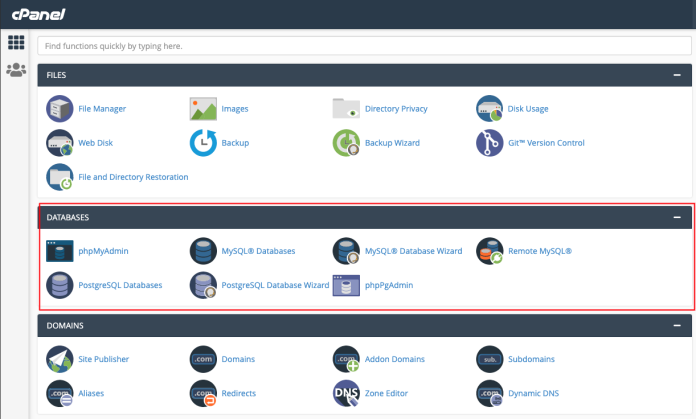
  • Open phpMyAdmin:
    Find the phpMyAdmin icon under the Databases section and click on it.

b. Select Your Database

  • Choose Your Database:
    In phpMyAdmin, select the database you want to optimize from the left-hand sidebar.

c. Optimize Tables

  • Select All Tables:
    Check the box at the top of the table list to select all tables in your database.
  • Optimize Tables:
    Scroll down to the With selected: dropdown menu and choose Optimize table.

    • This action runs the OPTIMIZE TABLE SQL command on each selected table, which can defragment the table and reclaim unused space.

2. Use cPanel’s Built-In Database Optimization Tool

Some hosting providers offer built-in tools to optimize databases directly from cPanel:

  • Database Optimization Tool:
    Check if your cPanel dashboard includes a Database Optimization or similar tool under the Databases section.
  • Follow Prompts:
    Use the tool to scan and optimize your databases automatically.

3. Regular Maintenance Practices

a. Schedule Regular Backups

  • Automate Backups:
    Set up automated backups through cPanel to safeguard your data before running optimization tasks.
  • Test Restores:
    Regularly test your backups to ensure data integrity.

b. Clean Up Unused Data

  • Remove Unnecessary Data:
    Delete old revisions, spam comments, and unused tables from your database to reduce bloat.
  • Optimize Queries:
    Review and optimize your website’s database queries. Efficient queries can reduce server load and speed up performance.

4. Monitor Database Performance

  • Use Monitoring Tools:
    Tools like cPanel’s Resource Usage and third-party monitoring services can help you track database performance.
  • Regular Audits:
    Periodically audit your database for inefficiencies and run the optimization processes regularly.

Final Thoughts

Optimizing your database on cPanel hosting is an ongoing process that involves using phpMyAdmin to run optimization commands, leveraging any built-in cPanel tools, and following best practices for regular maintenance. By keeping your database clean and efficient, you can significantly improve website performance and ensure a smooth user experience.

Ready to boost your website’s speed and efficiency? Log in to your cPanel, access phpMyAdmin or your database optimization tool, and start optimizing your database today!

How to fix database connection errors on WordPress

How to Fix Database Connection Errors on WordPress

Database connection errors can prevent your WordPress site from loading properly and are often caused by issues with your database credentials or server configuration. Here’s a step-by-step guide to help you diagnose and resolve these errors:


1. Check Your Configuration File

  • wp-config.php:
    Open your wp-config.php file and verify the following details:

    • Database Name: Ensure the value for DB_NAME matches your database.
    • Database User: Confirm the username in DB_USER is correct.
    • Database Password: Verify that DB_PASSWORD is correct.
    • Database Host: Typically, DB_HOST is localhost, but if your database is on a different server, update it accordingly.

2. Verify Database Server Status

  • Server Running:
    Ensure your database server (MySQL/MariaDB) is running. You can do this via your hosting control panel or by running a command in SSH:

    sudo systemctl status mysql
    
  • Restart the Service:
    If the service isn’t running, restart it:

    sudo systemctl restart mysql
    

3. Test Database Connection

  • Using phpMyAdmin:
    Log in to phpMyAdmin with the credentials in wp-config.php to verify that you can access your database.
  • Command Line Test:
    You can also test the connection from the command line:

    mysql -u your_db_user -p
    

    Then, enter the password specified in wp-config.php. If you can log in, the credentials are likely correct.


4. Check for Corrupted Database

  • Repair Database:
    Sometimes, the database may be corrupted. WordPress includes a repair feature. Add the following line to your wp-config.php file:

    define('WP_ALLOW_REPAIR', true);
    

    Then visit:

    http://yourdomain.com/wp-admin/maint/repair.php
    

    Follow the instructions to repair and optimize the database. Once complete, remove the line from your configuration file.


5. Verify Database User Privileges

  • User Permissions:
    Ensure that the database user specified in wp-config.php has the proper privileges to access the database. You can check and update privileges via phpMyAdmin or by running SQL commands:

    GRANT ALL PRIVILEGES ON your_db_name.* TO 'your_db_user'@'localhost';
    FLUSH PRIVILEGES;
    

6. Check for Server Issues or Updates

  • Hosting Provider:
    Sometimes, the issue might be due to server-side problems or maintenance on your hosting provider’s end. Check with your provider for any known issues.
  • Recent Changes:
    Consider whether recent changes (updates, migrations, or configuration modifications) might have affected the database connection.

Final Thoughts

Database connection errors in WordPress are typically due to misconfigured credentials, a non-responsive database server, or corrupted tables. By carefully reviewing your wp-config.php file, verifying your database server’s status, testing your connection, and repairing any corruption, you can often resolve the issue and get your site back online.

If you continue to experience problems after following these steps, contact your hosting provider for further assistance. With a methodical approach, you can pinpoint the problem and restore your WordPress site to full functionality.

Ready to fix your database connection error? Start with these steps and enjoy a smoothly running website once again!

How to troubleshoot email not sending in cPanel

How to Troubleshoot Email Not Sending in cPanel

When your email isn’t sending from a cPanel account, it can be due to a variety of issues ranging from misconfigurations to server limitations. Follow these steps to diagnose and resolve the problem:


1. Verify Email Account Settings

  • Correct Credentials:
    Ensure that the email account username and password are entered correctly in your email client or webmail interface.
  • Outgoing Server Settings (SMTP):
    Double-check the SMTP settings such as the server name, port (commonly 465 for SSL, 587 for TLS, or 25 for non-encrypted), and authentication methods.

2. Check DNS and MX Records

  • MX Records:
    Confirm that your domain’s MX records point to the correct mail server. Incorrect MX records can prevent emails from routing properly.
  • SPF, DKIM, and DMARC:
    Verify that these authentication records are correctly set up to help prevent your emails from being marked as spam or rejected by receiving servers.

3. Examine Email Logs

  • Access Logs via cPanel:
    In cPanel, check the Email Delivery Reports or Mail Queue Manager to see if there are any errors or if emails are being held up.
  • Review Exim Logs:
    If you have SSH access, examine the Exim logs (usually found in /var/log/exim_mainlog) for error messages that might indicate why emails aren’t sending.

4. Test with Webmail

  • Send a Test Email:
    Use cPanel’s webmail (such as Roundcube) to send a test email. If webmail can send emails but your email client can’t, the issue may lie with your email client configuration.

5. Check Server and Email Limits

  • Email Sending Limits:
    Some hosting providers enforce limits on the number of emails sent per hour or per day. Verify with your hosting provider if you’ve exceeded these limits.
  • Server Resources:
    Ensure your server isn’t overloaded, as high CPU or memory usage can affect email processing.

6. Review Spam Filters and Blacklists

  • Spam Filters:
    Check if the emails are being blocked by spam filters on your server or by the recipient’s email service.
  • Blacklist Checks:
    Ensure your server’s IP hasn’t been blacklisted by checking services like MXToolbox. Being on a blacklist can prevent emails from being delivered.

7. Update and Restart Services

  • Restart Mail Service:
    Sometimes, simply restarting the mail server (Exim) can resolve temporary issues. You can do this via WHM or SSH:

    sudo systemctl restart exim
    
  • Update cPanel:
    Make sure your cPanel and its components are up-to-date with the latest patches and updates.

Final Thoughts

Troubleshooting email issues in cPanel involves checking account configurations, DNS and authentication records, server logs, and potential limits or blacklists. By methodically reviewing each area, you can often pinpoint the cause and implement the appropriate fix.

If problems persist after following these steps, consider reaching out to your hosting provider’s support team for further assistance. They can provide additional insights specific to your server’s setup.

Ready to get your emails back on track? Start by verifying your settings and logs, and you’ll be well on your way to resolving your email sending issues.

How to Fix DNS Issues for Your Domain

How to Fix DNS Issues for Your Domain

DNS issues can prevent your website from being accessible or cause erratic behavior. Follow these steps to diagnose and resolve common DNS problems:


1. Verify Your DNS Records

  • Check A, CNAME, MX, and TXT Records:
    Use online tools like DNS Checker to verify that your domain’s DNS records are correctly configured and propagating worldwide.
  • Review Nameservers:
    Ensure that your domain is using the correct nameservers provided by your hosting provider or DNS service. If you recently changed hosts, update your nameservers at your registrar.

2. Confirm Domain Registration Status

  • Renewal and Expiry:
    Log into your domain registrar’s account to confirm that your domain registration is active and not expired.
  • WHOIS Lookup:
    Perform a WHOIS lookup to ensure the contact information and domain status are up-to-date.

3. Check DNS Propagation

  • Time to Live (TTL) Settings:
    Understand that DNS changes can take anywhere from a few minutes to 48 hours to propagate. If you’ve recently made changes, allow some time for propagation.
  • Clear Local DNS Cache:
    Flush your local DNS cache on your computer:

    • Windows: Open Command Prompt and run:
      ipconfig /flushdns
      
    • macOS: Open Terminal and run:
      sudo killall -HUP mDNSResponder
      
    • Linux: Depending on your distribution, you might restart the network service or flush the cache with:
      sudo systemd-resolve --flush-caches
      

4. Troubleshoot Nameserver Issues

  • Update Nameservers:
    If you’ve changed hosting providers, update your nameservers in your domain registrar’s control panel to reflect the new settings.
  • Propagation Check:
    Use multiple DNS lookup tools to confirm that the new nameservers are recognized globally.
  • Registrar Support:
    If nameserver changes aren’t propagating as expected, contact your domain registrar for assistance.

5. Review Hosting and DNS Provider Settings

  • DNS Zone Editor:
    Log in to your hosting control panel (such as cPanel) and review the DNS zone settings. Ensure there are no misconfigurations or conflicting records.
  • Custom DNS Services:
    If you use a third-party DNS provider (e.g., Cloudflare, Amazon Route 53), verify that the settings there match your intended configuration.

6. Contact Support if Issues Persist

  • Hosting Provider:
    Reach out to your hosting provider’s support team if the problem appears to be on the server side.
  • Registrar or DNS Provider:
    If your domain still faces DNS issues, contact your domain registrar or DNS service provider for further troubleshooting and assistance.

Final Thoughts

Fixing DNS issues often involves verifying your DNS records, checking nameserver configurations, ensuring domain registration is active, and allowing time for propagation. By systematically reviewing these areas and using available tools, you can quickly identify and resolve DNS problems, ensuring your website remains accessible and reliable.

Ready to fix your DNS issues? Start by checking your records and nameservers, then work through these troubleshooting steps to get your domain back on track!

How to recover from a website crash

How to Recover from a Website Crash

Experiencing a website crash can be stressful, but with a systematic approach, you can diagnose the issue, restore functionality, and implement measures to prevent future crashes. Follow these steps to recover from a website crash effectively:


1. Assess the Situation

  • Check for Outages:
    Verify if the issue is isolated to your site or part of a broader hosting outage by checking your hosting provider’s status page or online outage trackers.
  • Determine the Impact:
    Identify which parts of your site are affected—whether it’s the entire website, specific pages, or backend systems like the database.

2. Diagnose the Cause

  • Review Error Logs:
    Access your server’s error logs (found in your hosting control panel or via SSH) to look for clues about the crash. Common logs include Apache/Nginx error logs and PHP error logs.
  • Identify Recent Changes:
    Consider any recent updates or changes to your site (e.g., new plugins, updates, code changes) that might have triggered the crash.
  • Check Resource Usage:
    Use server monitoring tools to assess if high CPU, memory, or disk usage contributed to the crash.

3. Restore from Backup

  • Locate Your Latest Backup:
    Identify the most recent backup of your website files and databases. If you’re using a control panel like cPanel, check the backup section.
  • Perform a Restore:
    Restore your website files and database from the backup. Follow your hosting provider’s instructions or use built-in backup restoration tools.
  • Test the Site:
    After restoration, thoroughly test your website to ensure that functionality is back to normal and that the crash-related issues have been resolved.

4. Address the Root Cause

  • Fix Code or Plugin Issues:
    If a recent update or plugin is identified as the cause, revert to the previous version or disable the problematic component.
  • Optimize Server Resources:
    Consider upgrading your hosting plan, optimizing your code, or implementing caching mechanisms to prevent resource overload.
  • Security Check:
    Ensure the crash wasn’t caused by a security breach. Run security scans to check for malware or unauthorized changes, and update your security protocols as needed.

5. Implement Preventative Measures

  • Regular Backups:
    Set up automated backups to ensure you always have a recent restore point.
  • Monitoring and Alerts:
    Use monitoring tools to track server performance and receive alerts if resource usage spikes or errors occur.
  • Optimize and Update:
    Regularly update your software, plugins, and server configurations to maintain stability and security.
  • Load Testing:
    Conduct periodic load testing to ensure your server can handle peak traffic and identify potential bottlenecks before they lead to crashes.

Final Thoughts

Recovering from a website crash requires a calm, methodical approach: assess the damage, diagnose the root cause, restore from backups, and implement changes to prevent future issues. By following these steps, you can minimize downtime and maintain a reliable, high-performing website.

Ready to get your site back online and stronger than ever? Start with a thorough assessment, restore from backup, and work on resolving the underlying issues to secure your website’s future.

How to set up automated backups for your server

How to Set Up Automated Backups for Your Server

Automated backups are essential to safeguard your data and ensure you can recover quickly in case of a disaster. Here’s a step-by-step guide to setting up automated backups for your server:


1. Decide What to Back Up

  • Files and Directories:
    Identify critical data, website files, configuration files, and user data that need to be backed up.
  • Databases:
    Include databases (e.g., MySQL/MariaDB) in your backup routine. You can export these regularly.

2. Choose a Backup Method and Tool

  • Custom Scripts with Cron:
    Write shell scripts using commands like tar, rsync, or mysqldump and schedule them with cron jobs.
  • Backup Software:
    Consider tools like rsnapshot, Duplicity, or Bacula for more advanced, incremental backups.
  • Control Panel Solutions:
    If you’re using cPanel or a similar control panel, leverage its built-in backup features to schedule regular backups.

3. Set Up a Backup Script (Example for a LAMP Server)

a. Create a Backup Script

  1. Create a Script File:
    Create a file, for example /root/backup.sh:

    #!/bin/bash
    # Variables
    BACKUP_DIR="/backup"
    WEB_DIR="/var/www"
    DB_USER="your_db_user"
    DB_PASS="your_db_password"
    DATE=$(date +%F)
    
    # Create backup directory if it doesn't exist
    mkdir -p ${BACKUP_DIR}/${DATE}
    
    # Backup website files
    tar -czf ${BACKUP_DIR}/${DATE}/web_backup.tar.gz ${WEB_DIR}
    
    # Backup MySQL databases
    mysqldump -u ${DB_USER} -p${DB_PASS} --all-databases | gzip > ${BACKUP_DIR}/${DATE}/db_backup.sql.gz
    
  2. Make the Script Executable:
    chmod +x /root/backup.sh
    

b. Test the Script

  • Run the script manually to ensure it creates backups in your specified directory:
    /root/backup.sh
    

4. Schedule the Backup Script with Cron

  • Open Crontab:
    crontab -e
    
  • Schedule a Daily Backup:
    Add the following line to run the backup script every day at 2:00 AM:

    0 2 * * * /root/backup.sh >> /root/backup.log 2>&1
    

    This logs output to /root/backup.log for troubleshooting.


5. Secure and Store Your Backups

  • Offsite Storage:
    Consider copying your backups to an offsite location or cloud storage service (e.g., AWS S3, Google Cloud Storage) to protect against server hardware failures.
  • Encryption:
    If your backups contain sensitive data, encrypt them using tools like gpg before transferring them offsite.

6. Monitor and Verify Backups

  • Log Files:
    Regularly review your backup logs (/root/backup.log) to ensure backups are running as expected.
  • Test Restores:
    Periodically perform test restores to verify that your backup files are intact and can be successfully restored.

Final Thoughts

Automating backups is a proactive step toward maintaining data integrity and ensuring quick recovery from unexpected events. By setting up a reliable backup script, scheduling it with cron, securing your backups, and regularly testing them, you create a robust safety net for your server.

Ready to protect your data? Set up your automated backup system today and enjoy peace of mind knowing your server is secure and your data is safe.

How to deploy a website from Git on your server

How to Deploy a Website from Git on Your Server

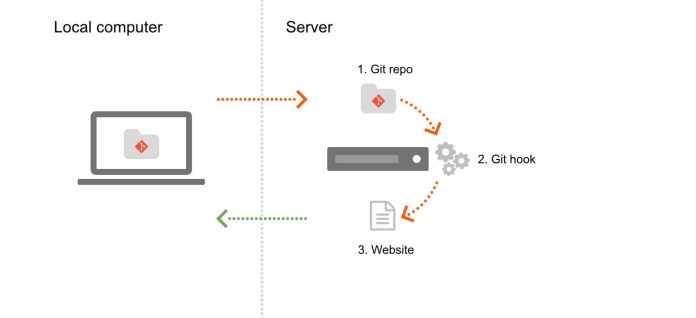
Deploying your website directly from a Git repository can streamline updates and version control. Follow these steps to deploy your website on your server:


1. Prepare Your Server

  • Install Git:
    Ensure Git is installed on your server. On Ubuntu/Debian:

    sudo apt update && sudo apt install git -y
    

    On CentOS/AlmaLinux:

    sudo yum install git -y
    
  • Set Up Your Web Directory:
    Decide where your website files will live (e.g., /var/www/yourwebsite). Create the directory if it doesn’t exist:

    sudo mkdir -p /var/www/yourwebsite
    sudo chown -R $USER:$USER /var/www/yourwebsite
    

2. Clone Your Git Repository

  • Navigate to Your Web Directory:
    Change to your website directory:

    cd /var/www/yourwebsite
    
  • Clone the Repository:
    Clone your Git repository into the directory:

    git clone https://github.com/yourusername/yourrepository.git .
    

    Replace the URL with your repository’s URL. The dot (.) at the end clones the contents into the current directory.


3. Set Up Deployment Options

a. Manual Deployment

  • Pull Updates:
    Whenever you update your repository, log in to your server, navigate to your web directory, and run:

    git pull origin main
    

    Adjust the branch name (main or master) as needed.

b. Automated Deployment (Optional)

  • Using Webhooks:
    Set up a webhook in your Git repository (on platforms like GitHub or GitLab) to trigger a deployment script on your server.
  • Create a Deployment Script:
    Create a simple script (e.g., deploy.sh) in your web directory:

    #!/bin/bash
    cd /var/www/yourwebsite || exit
    git pull origin main
    # Add any additional commands, like clearing cache or restarting services
    

    Make it executable:

    chmod +x deploy.sh
    
  • Configure a Listener:
    Use a tool like a simple PHP script or a continuous integration service to trigger the deploy.sh script when a webhook is received.

4. Configure Your Web Server

  • Set Up Virtual Hosts/Server Blocks:
    Ensure your web server (Apache or Nginx) is configured to serve files from /var/www/yourwebsite.
    For Apache, you might create a virtual host file:

    <VirtualHost *:80>
        ServerName yourdomain.com
        DocumentRoot /var/www/yourwebsite
    
        <Directory /var/www/yourwebsite>
            AllowOverride All
            Require all granted
        </Directory>
    
        ErrorLog ${APACHE_LOG_DIR}/yourwebsite_error.log
        CustomLog ${APACHE_LOG_DIR}/yourwebsite_access.log combined
    </VirtualHost>
    

    Enable the site and restart your web server.


5. Secure Your Deployment

  • Set Appropriate Permissions:
    Ensure that your web server user (e.g., www-data for Apache on Ubuntu) can read the files:

    sudo chown -R www-data:www-data /var/www/yourwebsite
    sudo find /var/www/yourwebsite -type d -exec chmod 755 {} \;
    sudo find /var/www/yourwebsite -type f -exec chmod 644 {} \;
    
  • Protect Sensitive Files:
    Make sure your .git directory isn’t accessible from the web. For Apache, you can add this to your .htaccess:

    RedirectMatch 404 /\.git
    

Final Thoughts

Deploying your website from Git on your server not only streamlines your development process but also provides a robust method to manage code versions and updates. Whether you choose manual pulls or automate the process with webhooks, this approach keeps your deployment efficient and organized.

Ready to deploy your website? Set up your server, clone your repository, and configure your web server to enjoy a seamless, Git-driven deployment process!

How to install a web application on a VPS

How to Install a Web Application on a VPS

Installing a web application on a VPS gives you full control over your environment and can lead to better performance and customization. The following guide outlines the key steps to set up your VPS, install the necessary software, deploy your web application, and secure your server.


1. Prepare Your VPS

a. Choose and Set Up Your VPS

  • Select a VPS Provider:
    Choose a reliable VPS provider that meets your resource needs (CPU, RAM, storage, etc.).
  • Access Your VPS via SSH:
    Use an SSH client to log in as the root user:

    ssh root@your-vps-ip
    
  • Update Your System:
    Keep your server up-to-date by running:

    sudo apt update && sudo apt upgrade -y    # For Ubuntu/Debian
    sudo yum update -y                        # For CentOS/AlmaLinux
    

2. Set Up Your Server Environment

a. Install a Web Server

  • LAMP (Linux, Apache, MySQL/MariaDB, PHP):
    For Ubuntu/Debian:

    sudo apt install apache2 mysql-server php php-mysql -y
    

    For CentOS/AlmaLinux:

    sudo yum install httpd mariadb-server php php-mysql -y
    sudo systemctl start httpd && sudo systemctl enable httpd
    sudo systemctl start mariadb && sudo systemctl enable mariadb
    
  • LEMP (Linux, Nginx, MySQL/MariaDB, PHP):
    Replace Apache with Nginx if preferred.

b. Install Additional Software

  • Programming Languages/Frameworks:
    If your web application requires specific languages or frameworks (e.g., Node.js, Python, Ruby), install the necessary runtime and package managers.
  • Database Setup:
    Secure your database server and create a new database for your application. For example, using MySQL:

    mysql -u root -p
    CREATE DATABASE your_app_db;
    CREATE USER 'your_app_user'@'localhost' IDENTIFIED BY 'your_strong_password';
    GRANT ALL ON your_app_db.* TO 'your_app_user'@'localhost';
    FLUSH PRIVILEGES;
    EXIT;
    

3. Deploy Your Web Application

a. Upload Application Files

  • Transfer Files:
    Use SCP, SFTP, or Git to upload your web application code to your VPS. For example, with SCP:

    scp -r /path/to/your/app root@your-vps-ip:/var/www/your_app
    
  • Set File Permissions:
    Ensure that your web server has access to your application files:

    sudo chown -R www-data:www-data /var/www/your_app   # For Apache/Nginx on Ubuntu/Debian
    sudo chown -R apache:apache /var/www/your_app           # For CentOS/AlmaLinux with Apache
    

b. Configure Application Settings

  • Configuration Files:
    Edit configuration files (e.g., config.php, .env) to update database credentials, environment variables, and any other necessary settings.

4. Configure Your Web Server

a. Set Up Virtual Hosts (Apache) or Server Blocks (Nginx)

  • For Apache (Virtual Hosts): Create a new configuration file, e.g., /etc/apache2/sites-available/your_app.conf:
    <VirtualHost *:80>
        ServerName yourdomain.com
        DocumentRoot /var/www/your_app
    
        <Directory /var/www/your_app>
            AllowOverride All
            Require all granted
        </Directory>
    
        ErrorLog ${APACHE_LOG_DIR}/your_app_error.log
        CustomLog ${APACHE_LOG_DIR}/your_app_access.log combined
    </VirtualHost>
    

    Enable the site and restart Apache:

    sudo a2ensite your_app.conf
    sudo systemctl reload apache2
    
  • For Nginx (Server Blocks): Create a configuration file in /etc/nginx/sites-available/your_app:
    server {
        listen 80;
        server_name yourdomain.com;
        root /var/www/your_app;
        index index.php index.html index.htm;
    
        location / {
            try_files $uri $uri/ /index.php?$args;
        }
    
        location ~ \.php$ {
            include snippets/fastcgi-php.conf;
            fastcgi_pass unix:/var/run/php/php7.4-fpm.sock; # Adjust PHP version if needed
        }
    
        location ~ /\.ht {
            deny all;
        }
    }
    

    Enable the configuration and restart Nginx:

    sudo ln -s /etc/nginx/sites-available/your_app /etc/nginx/sites-enabled/
    sudo systemctl reload nginx
    

b. Update DNS Settings

  • Point Your Domain:
    Make sure your domain’s A record points to your VPS’s IP address. You can update this in your domain registrar’s DNS settings.

5. Test and Secure Your Application

  • Test Your Site:
    Visit your domain (e.g., http://yourdomain.com) to verify that your application loads correctly.
  • Enable HTTPS:
    Install an SSL certificate (using Let’s Encrypt or a commercial certificate) and configure your web server to redirect HTTP to HTTPS.
  • Security Measures:
    Harden your server by setting up firewalls, regular backups, and monitoring tools to keep your application safe.

Final Thoughts

Installing a web application on a VPS involves setting up your server environment, deploying your application code, configuring your web server, and ensuring everything is secure and running efficiently. With proper planning and execution, you can enjoy the benefits of a scalable, customizable hosting solution tailored to your needs.

Ready to deploy your web application? Follow these steps to set up your VPS and get your application online!

How to avoid common hosting mistakes

How to Avoid Common Hosting Mistakes

Choosing the right hosting solution and managing your environment effectively is critical to your website’s performance, security, and long-term success. Avoiding common hosting mistakes can save you time, money, and headaches. Here’s a guide to help you steer clear of typical pitfalls:


1. Selecting the Wrong Hosting Plan

  • Assess Your Needs:
    Evaluate your website’s traffic, resource requirements, and growth plans. Don’t overspend on unnecessary resources or underserve your site with a plan that can’t handle your traffic.
  • Research Providers:
    Read reviews and compare features, support, uptime guarantees, and scalability options before choosing a host.

2. Neglecting Website Security

  • Keep Software Updated:
    Regularly update your CMS, plugins, themes, and server software to patch vulnerabilities.
  • Implement SSL:
    Secure your website with an SSL certificate to encrypt data, build trust, and boost SEO.
  • Harden Your Server:
    Use security tools like firewalls, two-factor authentication, and intrusion prevention systems to protect your site.

3. Overloading Your Server

  • Monitor Resource Usage:
    Regularly check your CPU, memory, and disk space usage. Use monitoring tools to identify when you’re reaching your limits.
  • Optimize Performance:
    Use caching, a Content Delivery Network (CDN), and image optimization to reduce server load and speed up your website.
  • Scale Appropriately:
    Plan for growth by choosing hosting solutions that offer easy scalability, such as VPS, cloud hosting, or dedicated servers.

4. Poor Backup and Disaster Recovery Plans

  • Regular Backups:
    Schedule automated backups and store copies offsite. Ensure that you can quickly restore your site in case of data loss or breaches.
  • Test Your Backups:
    Regularly verify that your backups are complete and can be restored successfully.

5. Misconfigured DNS and Domain Settings

  • Accurate DNS Settings:
    Double-check your DNS records (A, CNAME, MX, etc.) to ensure your domain points correctly to your server.
  • Lower TTL During Migrations:
    If you’re planning to move servers, lower the TTL (Time to Live) to minimize downtime during DNS propagation.

6. Inadequate Technical Support

  • Choose a Reliable Provider:
    Opt for hosting providers that offer 24/7 support and a robust knowledge base.
  • Understand Your Hosting Environment:
    Familiarize yourself with the control panel (e.g., cPanel, Plesk) and server management tools to troubleshoot basic issues before reaching out for support.

Final Thoughts

Avoiding common hosting mistakes is about planning, monitoring, and regular maintenance. By choosing the right hosting plan, maintaining robust security, ensuring proper resource management, and having a reliable backup and support system in place, you can build a solid foundation for your website.

Implement these best practices to keep your site running smoothly, securely, and efficiently as it grows. Ready to optimize your hosting experience? Start by evaluating your current setup and make improvements today!