Home Blog Page 282

How to install SSL on a VPS (step-by-step)

How to Install SSL on a VPS (Step-by-Step)

Installing an SSL certificate on your VPS secures your website by encrypting data between the server and your visitors. Below is a step-by-step guide for installing an SSL certificate on a VPS using Let’s Encrypt with Apache. (You can adapt similar steps for Nginx.)


1. Prepare Your VPS Environment

a. Update Your System

Open your terminal and log in to your VPS via SSH:

ssh root@your-vps-ip

Then, update your package lists and upgrade installed packages:

sudo apt update && sudo apt upgrade -y    # For Ubuntu/Debian

For CentOS/AlmaLinux, use:

sudo yum update -y

b. Install Apache (if not already installed)

For Ubuntu/Debian:

sudo apt install apache2 -y

For CentOS/AlmaLinux:

sudo yum install httpd -y
sudo systemctl start httpd && sudo systemctl enable httpd

2. Install Certbot

Certbot is a free, open-source tool to obtain and renew Let’s Encrypt SSL certificates.

a. Install Certbot on Ubuntu/Debian:

sudo apt install certbot python3-certbot-apache -y

b. Install Certbot on CentOS/AlmaLinux:

sudo yum install epel-release -y
sudo yum install certbot python2-certbot-apache -y

Note: Adjust package names if using newer versions or different distributions.


3. Obtain Your SSL Certificate

a. Run Certbot for Apache:

Execute Certbot with the Apache plugin:

sudo certbot --apache

b. Follow the Prompts:

  • Enter Your Email Address:
    This is used for urgent notices and renewal reminders.
  • Agree to the Terms of Service:
    Confirm that you agree to Let’s Encrypt’s terms.
  • Select Your Domain:
    Certbot will automatically detect your domain names from your Apache configuration. Select the ones you want to secure.

Certbot will then communicate with Let’s Encrypt, obtain your certificate, and automatically update your Apache configuration to use HTTPS.


4. Verify the Installation

a. Test Your Website

Visit your website using https://yourdomain.com and check that the SSL padlock icon appears in your browser’s address bar.

b. Check Certificate Details

You can use online tools such as SSL Labs’ SSL Test to verify that your certificate is correctly installed and configured.


5. Set Up Auto-Renewal

Let’s Encrypt certificates are valid for 90 days. Certbot automatically sets up a cron job or systemd timer to renew the certificate before expiration.

a. Test Renewal Process:

Run a dry-run to ensure renewal works:

sudo certbot renew --dry-run

Final Thoughts

By following these steps, you’ve successfully installed an SSL certificate on your VPS using Let’s Encrypt and Apache. Your website now benefits from enhanced security and improved SEO. Remember to monitor your certificate’s expiration and ensure auto-renewal is working correctly.

Ready to secure your website? Follow these steps and enjoy a safer, HTTPS-enabled web presence!
How to upgrade your server’s PHP version in cPanel

How to Upgrade Your Server’s PHP Version in cPanel

Upgrading your PHP version can improve your website’s performance, security, and compatibility with modern applications. Whether you’re an administrator or a user with access to cPanel’s MultiPHP Manager, follow these steps to upgrade your PHP version.


1. Log in to Your cPanel or WHM Account

  • For cPanel Users:
    Log in to your cPanel account via your hosting provider’s portal (e.g., yourdomain.com/cpanel).
  • For Server Administrators:
    Log in to WHM (Web Host Manager) using your root credentials (e.g., https://yourserver-ip:2087).

2. Use MultiPHP Manager

cPanel provides the MultiPHP Manager tool to manage PHP versions for your domains.

a. Access MultiPHP Manager

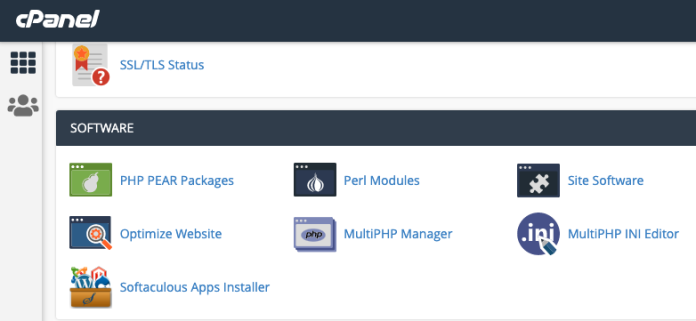
  • In cPanel: Look for MultiPHP Manager under the Software section.
  • In WHM: Locate MultiPHP Manager in the left sidebar.

b. Select the Domains to Upgrade

  • Global Change (WHM):
    You can choose to set a default PHP version for all your accounts or specific domains.
  • Per-Domain Settings (cPanel):
    Select the domain you want to upgrade by checking its box.

c. Choose Your Desired PHP Version

  • From the drop-down menu, select the new PHP version you wish to use (e.g., PHP 7.4, PHP 8.0, or PHP 8.1).
  • Click the Apply or Update button to save your changes.

3. Update PHP Configuration (Optional)

  • MultiPHP INI Editor:
    After upgrading, you may need to adjust PHP settings. In cPanel, navigate to the MultiPHP INI Editor to modify directives like memory_limit, upload_max_filesize, or max_execution_time for each domain.

4. Test Your Website

  • Check Functionality:
    Visit your website to ensure that everything works correctly with the new PHP version.
  • Review Error Logs:
    If issues arise, review your error logs (accessible via cPanel or WHM) to troubleshoot any compatibility problems.

Final Thoughts

Upgrading your PHP version in cPanel using MultiPHP Manager is a straightforward process that can enhance your site’s security and performance. Always test your website thoroughly after the upgrade and adjust PHP settings as needed to ensure a smooth transition.

Ready to upgrade? Log in to your cPanel or WHM, use the MultiPHP Manager, and enjoy the benefits of a modern PHP environment!

How to monitor bandwidth usage in cPanel

How to Monitor Bandwidth Usage in cPanel

Keeping track of bandwidth usage is essential for managing your hosting resources, understanding your website traffic, and avoiding overage fees. cPanel offers several tools to help you monitor and manage bandwidth effectively. Here’s a step-by-step guide:


1. Use cPanel’s Built-In Bandwidth Tool

  • Access the Bandwidth Tool:
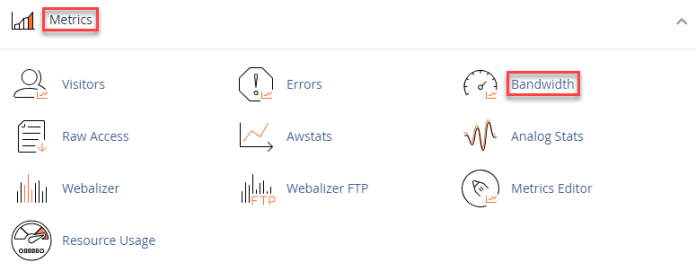
    Log in to your cPanel account and scroll down to the Metrics section. Click on Bandwidth.
  • Review Bandwidth Statistics:
    The Bandwidth page displays graphs and data showing your website’s traffic over various time periods (daily, weekly, monthly). You can see:

    • Total Bandwidth: The total amount of data transferred.
    • Per-Domain Usage: Bandwidth consumption for individual domains or subdomains hosted under your account.
    • Visitor Breakdown: Information about visitor IP addresses, countries, and the protocols (HTTP/HTTPS) used.

2. Analyze Detailed Reports

  • Graphical Data:
    Use the visual graphs to identify trends or unusual spikes in traffic. Hover over graph points for detailed data on specific dates.
  • Raw Data:
    At the bottom of the Bandwidth page, you may find detailed tables listing data per hour, which can help diagnose time-specific issues.

3. Set Up Alerts and Monitor Over Time

  • Regular Monitoring:
    Check the bandwidth reports regularly to ensure you’re not nearing your hosting plan limits.
  • Automated Alerts:
    Some hosting providers may offer options to set up automated alerts when bandwidth usage exceeds certain thresholds. Check with your provider or use third-party monitoring services if needed.

4. Use Third-Party Tools (Optional)

  • Additional Analytics:
    Tools like Google Analytics can provide complementary insights into your website’s traffic. However, for data transfer details, cPanel’s Bandwidth tool remains your primary resource.

Final Thoughts

By utilizing cPanel’s built-in Bandwidth tool, you can easily monitor your website’s data usage, analyze trends, and take proactive measures to manage traffic. Regularly reviewing these metrics will help you optimize performance and ensure you remain within your hosting plan limits.

Ready to keep your bandwidth in check? Log in to your cPanel account and start monitoring your traffic today!

How to reset a cPanel password

xr:d:DAFBgihhA_I:31,j:38019379349,t:22101416

How to Reset a cPanel Password

Resetting a cPanel password can be done either by the end-user if the “Forgot Password” option is enabled or by the server administrator via WHM. Follow these steps based on your scenario:


1. For End-Users (Using cPanel Interface)

a. Use the “Forgot Password” Feature

  • Access the Login Page:
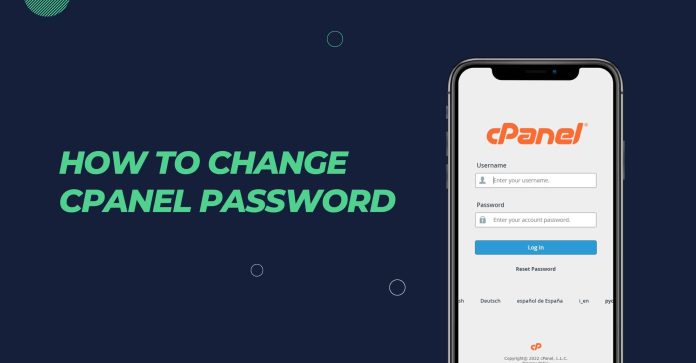
    Navigate to your cPanel login page (e.g., yourdomain.com/cpanel or cpanel.yourdomain.com).
  • Click “Forgot Password”:
    Look for the “Forgot Password” link on the login page and click it.
  • Enter Your Email Address:
    Provide the email address associated with your cPanel account.
  • Follow the Email Instructions:
    Check your email for a password reset link or instructions. Follow the provided link to set a new password.

b. Troubleshooting End-User Resets

  • No Email Received:
    If you don’t receive a reset email, check your spam folder or contact your hosting provider’s support for assistance.
  • Disabled Feature:
    Some hosting providers may disable the “Forgot Password” feature. In that case, you’ll need to contact support or use the admin method below.

2. For Administrators (Using WHM)

a. Log in to WHM

  • Access WHM:
    Open your browser and navigate to your WHM interface (e.g., https://yourserver-ip:2087) and log in as root or a reseller with the appropriate privileges.

b. Locate the Account

  • Navigate to “Modify an Account”:
    In WHM’s left sidebar, search for and click on Account Functions > Modify an Account.
  • Select the Account:
    Choose the cPanel account for which you want to reset the password.

c. Reset the Password

  • Enter New Password:
    In the account modification settings, locate the password field. Enter a strong, secure new password.
  • Save Changes:
    Click Save or Modify to apply the new password to the cPanel account.

d. Inform the User

  • Notify the Account Owner:
    If you’re an administrator resetting a client’s password, be sure to securely notify the user of their new credentials.

3. Command Line Reset (Advanced)

If you have SSH access and need to reset a cPanel account password manually, you can use the following command as root:

/scripts/passwd username newpassword
  • Replace username:
    Substitute with the cPanel account’s username.
  • Replace newpassword:
    Substitute with the desired new password.

Final Thoughts

Resetting a cPanel password is a straightforward process, whether you’re using the built-in “Forgot Password” feature, managing it through WHM as an administrator, or using the command line for advanced scenarios. Always choose strong, unique passwords and share new credentials securely.

Ready to reset a password? Follow the steps that match your situation and regain access to your cPanel account with a fresh, secure password.

How to transfer cPanel accounts between servers

How to Transfer cPanel Accounts Between Servers

Transferring cPanel accounts between servers can help you migrate websites, maintain client data, or upgrade your hosting infrastructure with minimal downtime. Here’s a step-by-step guide to make the process smooth:


1. Prepare Both Servers

  • Ensure Compatibility:
    Confirm that both your source and destination servers are running compatible versions of cPanel/WHM.
  • Check Network Connectivity:
    Verify that the servers can communicate with each other over SSH.
  • Backup Data:
    Always create a full backup of your accounts on the source server as a precaution.

2. Use WHM’s Transfer Tool

WHM includes a built-in Transfer Tool that simplifies the migration process.

a. Log in to WHM on the Destination Server

  • Access WHM:
    Open your browser and log in to the WHM interface on your destination server using root credentials.

b. Open the Transfer Tool

  • Navigate to Transfer Tool:
    In WHM’s left sidebar, search for Transfer Tool (under the Transfers section) and click on it.

c. Configure Transfer Settings

  • Source Server Details:
    Enter the source server’s IP address or hostname, along with the SSH port (usually 22), and provide root credentials or an SSH key for authentication.
  • Select Accounts:
    The Transfer Tool will display a list of available cPanel accounts on the source server. Select the accounts you want to migrate. You can choose individual accounts or select all.

d. Start the Transfer

  • Initiate Transfer:
    Review your settings and click Copy or Transfer to begin the migration process.
  • Monitor Progress:
    WHM will show a progress screen, and you can review logs for any errors during the transfer.

3. Verify the Migration

  • Test Accounts:
    Once the transfer is complete, log in to several migrated cPanel accounts on the destination server to ensure that websites, databases, and email configurations are intact.
  • Update DNS:
    Update your domain’s DNS records to point to the new server’s IP address. Lower TTL values before the migration to speed up propagation.
  • Confirm Functionality:
    Check that all aspects of the websites (content, links, applications) are functioning as expected.

4. Final Cleanup

  • Cancel Old Hosting (if applicable):
    Once you’re confident the migration is successful and DNS has fully propagated, consider canceling the old hosting account to avoid duplicate charges.
  • Inform Clients:
    If you’re transferring accounts for clients, notify them about the migration and any actions they may need to take.

Final Thoughts

Using WHM’s Transfer Tool is an efficient way to migrate cPanel accounts between servers with minimal manual intervention. By preparing both servers, configuring the transfer properly, verifying the results, and updating DNS settings, you can ensure a smooth transition.

Ready to move your accounts? Log in to WHM on your destination server and start the transfer process today!

How to install apps using Softaculous in cPanel

How to Install Apps Using Softaculous in cPanel

Softaculous is a one-click installer that simplifies the process of deploying various web applications—such as WordPress, Joomla, Drupal, and many more—directly from your cPanel dashboard. Follow these steps to install an app using Softaculous:


1. Log in to Your cPanel Account

  • Access cPanel:
    Open your web browser and navigate to your cPanel login page (e.g., yourdomain.com/cpanel or cpanel.yourdomain.com).
  • Enter Credentials:
    Log in using your hosting account’s username and password.

2. Locate Softaculous Apps Installer

  • Find the Softaculous Icon:
    In your cPanel dashboard, look for the Softaculous Apps Installer icon. It’s usually located under the Software section.
  • Click Softaculous:
    Click the icon to open the Softaculous interface.

3. Choose the Application to Install

  • Browse or Search:
    Softaculous offers a wide range of applications. You can browse through categories (like Blogs, Forums, CMS, etc.) or use the search bar to find the app you want (for example, WordPress).
  • Select Your App:
    Click on the application’s icon to view details, screenshots, user reviews, and installation requirements.

4. Start the Installation Process

  • Click “Install”:
    On the application’s page, click the Install button to begin the installation process.

5. Configure Installation Settings

  • Installation URL:
    Choose the domain and directory where you want to install the application. For example, if installing WordPress on your main domain, leave the directory field empty. To install it in a subdirectory, enter the desired folder name.
  • Site Settings:
    Enter the necessary details such as:

    • Site Name and Description: Customize your application’s title and tagline.
    • Admin Account: Set up the admin username, password, and email address.
    • Language and Version: Select the language and, if applicable, the version of the application you want to install.
  • Advanced Options (Optional):
    Configure additional settings like database name, table prefix, or automatic backups if available.

6. Install the Application

  • Review Settings:
    Double-check all the details you’ve entered.
  • Click “Install”:
    Once you’re satisfied with the settings, click the Install button. Softaculous will then process the installation.
  • Wait for Completion:
    The installation process may take a few minutes. Once completed, you’ll see a confirmation screen with details about your new installation, including URLs to access your application’s admin panel and front end.

7. Access Your New Application

  • Admin Dashboard:
    Use the provided URL (e.g., yourdomain.com/wp-admin for WordPress) to log in to the application’s admin dashboard and begin customization.
  • Front End:
    Visit your domain to see your application live.

Final Thoughts

Softaculous makes installing web applications a breeze, allowing you to deploy and manage popular apps with just a few clicks. With proper configuration and customization, you can have your new application up and running quickly, ready to serve your online needs.

Ready to get started? Log in to your cPanel, launch Softaculous, and install your favorite app today!

How to reduce spam on your cPanel email

How to Reduce Spam on Your cPanel Email

Reducing spam on your cPanel email can improve your inbox efficiency, protect your bandwidth, and maintain a professional communication environment. Follow these steps and best practices to minimize spam:


1. Enable SpamAssassin

  • Activate SpamAssassin in cPanel:
    Log in to cPanel, locate the Email section, and click on Spam Filters or SpamAssassin.
  • Configure SpamAssassin:
    Enable SpamAssassin and adjust the scoring threshold if necessary. A lower score might catch more spam, but be cautious not to filter out legitimate emails.
  • Auto-Delete Spam:
    Optionally, configure SpamAssassin to automatically delete emails that exceed a specific score.

2. Set Up Email Authentication Records

  • SPF (Sender Policy Framework):
    Add an SPF record to your domain’s DNS to specify which mail servers are allowed to send emails on behalf of your domain.
  • DKIM (DomainKeys Identified Mail):
    Enable DKIM signing in cPanel under Email Authentication. DKIM adds a digital signature to your emails, ensuring authenticity.
  • DMARC (Domain-based Message Authentication, Reporting & Conformance):
    Configure a DMARC record to instruct receiving servers how to handle emails that fail SPF or DKIM checks. DMARC helps reduce email spoofing and spam.

3. Utilize Blacklists and Blocklists

  • cPanel Email Filters:
    Use Email Filters to set up rules that automatically block or flag emails from suspicious addresses or domains.
  • IP and Domain Blocker:
    Navigate to the IP Blocker tool in cPanel to block known spam IP addresses.

4. Implement User-Level Spam Filters

  • Customize Filters for Individual Accounts:
    Encourage users to set up their own email filters via their webmail client (e.g., Roundcube, Horde) to automatically sort or delete suspected spam messages.
  • Folder Management:
    Create folders or labels to manage and review filtered spam, giving users the option to restore false positives if needed.

5. Educate Your Users

  • Phishing Awareness:
    Train users to recognize phishing emails and spam. Advise them not to click on suspicious links or attachments.
  • Regular Updates:
    Inform users about any changes to spam filtering settings and best practices for maintaining a clean inbox.

6. Monitor and Adjust

  • Regularly Review Spam Reports:
    Check SpamAssassin logs and cPanel email statistics to understand the volume and types of spam your server is receiving.
  • Fine-Tune Settings:
    Adjust spam filter thresholds, update blocklists, and modify email authentication settings based on observed patterns and feedback.

Final Thoughts

Reducing spam on your cPanel email involves a combination of technical measures and user education. By enabling and configuring SpamAssassin, setting up SPF, DKIM, and DMARC records, utilizing blocklists, and creating effective email filters, you can significantly reduce the volume of spam reaching your inbox.

Ready to cut down on spam? Implement these strategies in your cPanel environment to enjoy a cleaner, more secure email experience.

How to improve cPanel login security (2FA)

How to Improve cPanel Login Security with Two-Factor Authentication (2FA)

Enhancing your cPanel login security with Two-Factor Authentication (2FA) adds an extra layer of protection by requiring a second form of verification in addition to your password. Follow these steps to enable and configure 2FA for your cPanel account:


1. Log in to Your cPanel Account

  • Access cPanel:
    Navigate to your cPanel login page (e.g., yourdomain.com/cpanel or cpanel.yourdomain.com) and sign in with your current credentials.

2. Locate the Two-Factor Authentication Settings

  • Navigate to Security Options:
    Once logged in, scroll to the Security section of your cPanel dashboard.
  • Find Two-Factor Authentication:
    Click on Two-Factor Authentication (sometimes listed as 2FA).

3. Enable Two-Factor Authentication

  • Start the Setup:
    Click the Set Up Two-Factor Authentication button to begin the process.
  • Use a 2FA App:
    You’ll be prompted to use a mobile authentication app such as Google Authenticator, Authy, or Microsoft Authenticator.
  • Scan the QR Code:
    Open your authentication app, use it to scan the QR code displayed in cPanel, and note the generated verification code.

4. Complete the Verification Process

  • Enter the Verification Code:
    Input the code from your 2FA app into the provided field in cPanel.
  • Enable 2FA:
    Click Enable or Submit to activate Two-Factor Authentication on your cPanel account.

5. Backup Your Recovery Codes

  • Save Recovery Codes:
    cPanel may display a set of recovery codes. Save these in a secure location. Recovery codes allow you to regain access if you lose your mobile device.

6. Test Your New Login Process

  • Log Out and Re-Log In:
    Sign out of cPanel and try logging in again. You should now be prompted to enter the verification code from your authentication app.
  • Confirm Functionality:
    Ensure the 2FA process works smoothly before considering the setup complete.

Final Thoughts

By enabling Two-Factor Authentication on your cPanel account, you significantly enhance your login security, making it much harder for unauthorized users to gain access—even if your password is compromised.

Ready to secure your cPanel login further? Follow these steps to set up 2FA and enjoy the added peace of mind that comes with enhanced security.

How to harden your server security

How to Harden Your Server Security

Harden your server security by taking a layered, proactive approach that minimizes vulnerabilities and protects against attacks. Follow these best practices and steps to secure your server environment:


1. Keep Software Up-to-Date

  • Regular Updates:
    Always update your operating system, applications, and server software (e.g., web server, database, PHP) to patch security vulnerabilities.
  • Automate Updates:
    Configure automatic updates where possible, or schedule regular maintenance windows to install critical patches.

2. Secure Remote Access

  • SSH Configuration:
    • Change the default SSH port to reduce automated attacks.
      # Edit /etc/ssh/sshd_config
      Port 2222  # (Example; choose a non-standard port)
      
    • Disable root login over SSH and use key-based authentication instead:
      PermitRootLogin no
      PasswordAuthentication no
      
  • Use VPNs:
    Consider setting up a Virtual Private Network (VPN) for remote administration to add an extra layer of security.

3. Implement a Robust Firewall

  • Install Firewall Software:
    Use a firewall like UFW (for Ubuntu/Debian), firewalld (for CentOS/AlmaLinux), or CSF for cPanel environments to filter incoming and outgoing traffic.
  • Configure Firewall Rules:
    Allow only essential services (SSH, HTTP, HTTPS) and block all unnecessary ports. Regularly review and update these rules.

4. Harden Services and Applications

  • Disable Unused Services:
    Turn off or remove any services or applications that are not needed. Fewer running services reduce potential entry points.
  • Secure Web Applications:
    Implement HTTPS with a valid SSL/TLS certificate, and regularly update CMSs, plugins, and themes.
  • File Permissions:
    Set correct file and directory permissions (typically 755 for directories and 644 for files) to limit unauthorized access.

5. Enhance Authentication and Access Controls

  • Strong Password Policies:
    Use complex, unique passwords for all accounts, and consider implementing multi-factor authentication (MFA) where possible.
  • Access Restrictions:
    Limit user access to only what’s necessary. Use sudo privileges for administrative tasks and regularly review user accounts and permissions.

6. Monitor and Audit Your System

  • Log Monitoring:
    Regularly review system logs (found in /var/log/) for signs of suspicious activity. Consider using centralized logging and monitoring tools.
  • Intrusion Detection Systems (IDS):
    Deploy tools like Fail2Ban to detect and block brute-force attacks or configure an IDS to monitor for unusual behavior.

7. Backup and Recovery

  • Automated Backups:
    Set up regular, automated backups of your server data and configurations. Store backups securely offsite or in the cloud.
  • Test Restores:
    Periodically test your backup restoration process to ensure you can quickly recover from any security incidents.

8. Additional Best Practices

  • Security Audits:
    Regularly perform security audits and vulnerability scans using tools like Lynis, OpenVAS, or Nessus.
  • Educate Your Team:
    Ensure that all administrators and users are aware of security best practices and are trained to recognize phishing and other common attacks.
  • Document Procedures:
    Keep detailed records of your security configurations and any changes made. This documentation can be crucial for troubleshooting and audits.

Final Thoughts

Harden your server security by applying multiple layers of defense—keeping software updated, securing remote access, using a robust firewall, hardening services, and monitoring your system. With these measures in place, you significantly reduce the risk of unauthorized access and ensure that your server environment remains secure.

Ready to fortify your server? Start implementing these best practices today and enjoy enhanced security and peace of mind for your online infrastructure.

How to set up a firewall on your server

How to Set Up a Firewall on Your Server

Setting up a firewall is essential for protecting your server from unauthorized access and malicious traffic. A firewall acts as a barrier between your server and potential threats by filtering incoming and outgoing network traffic. Here’s a step-by-step guide to set up a firewall on your server:


1. Choose Your Firewall Software

Depending on your server’s operating system and requirements, you can choose from several firewall solutions:

  • UFW (Uncomplicated Firewall): Ideal for Ubuntu/Debian systems.
  • firewalld: Common on CentOS/AlmaLinux systems.
  • CSF (ConfigServer Security & Firewall): A popular option that integrates well with cPanel/WHM for shared hosting environments.
  • iptables: The underlying Linux firewall tool, used for advanced configurations.

2. Install Your Chosen Firewall

For UFW (Ubuntu/Debian):

  1. Install UFW (if not already installed):
    sudo apt update
    sudo apt install ufw -y
    
  2. Enable UFW:
    sudo ufw enable
    

For firewalld (CentOS/AlmaLinux):

  1. Install firewalld (if not already installed):
    sudo yum install firewalld -y
    
  2. Start and enable firewalld:
    sudo systemctl start firewalld
    sudo systemctl enable firewalld
    

For CSF:

  1. Download and Install CSF:
    cd /usr/src
    sudo wget https://download.configserver.com/csf.tgz
    sudo tar -xzf csf.tgz
    cd csf
    sudo sh install.sh
    
  2. Access CSF in WHM (if using cPanel) or edit its configuration file at /etc/csf/csf.conf for further customization.

3. Configure Firewall Rules

Common Rules to Implement:

  • Allow Essential Traffic:
    • SSH: Allow connections on your SSH port (e.g., 22 or a custom port).
    • HTTP/HTTPS: Allow traffic on ports 80 and 443.
  • Deny All Other Incoming Traffic:
    • Default to denying all incoming connections, then explicitly allow services you need.

Example for UFW:

  1. Allow SSH (adjust the port if necessary):
    sudo ufw allow ssh
    
  2. Allow HTTP and HTTPS:
    sudo ufw allow http
    sudo ufw allow https
    
  3. Enable the Firewall:
    sudo ufw enable
    
  4. Check Status:
    sudo ufw status verbose
    

Example for firewalld:

  1. Allow SSH, HTTP, and HTTPS:
    sudo firewall-cmd --permanent --add-service=ssh
    sudo firewall-cmd --permanent --add-service=http
    sudo firewall-cmd --permanent --add-service=https
    
  2. Reload firewalld to apply changes:
    sudo firewall-cmd --reload
    
  3. Verify the configuration:
    sudo firewall-cmd --list-all
    

4. Test Your Firewall Configuration

  • Check Open Ports:
    Use tools like nmap from a remote machine to scan your server’s open ports and verify that only allowed ports are accessible.
  • Monitor Logs:
    Review firewall logs (often located in /var/log/) to ensure that legitimate traffic is allowed and malicious attempts are blocked.

5. Regular Maintenance and Updates

  • Review and Adjust Rules:
    As your server or applications evolve, periodically review and update your firewall rules to ensure optimal security.
  • Software Updates:
    Keep your firewall software updated to protect against newly discovered vulnerabilities.
  • Backup Configurations:
    Save a copy of your firewall configuration so you can quickly restore settings if needed.

Final Thoughts

Setting up a firewall on your server is a crucial step in securing your environment. By choosing the appropriate firewall software, installing and configuring it correctly, and regularly monitoring and updating your settings, you can significantly reduce the risk of unauthorized access and potential security breaches.

Ready to secure your server? Follow these steps to set up your firewall and enjoy enhanced protection for your online infrastructure!