Home Blog Page 281

How to Buy Airtel Airtime Online – Step-by-Step Guide

How to Buy Airtel Airtime Online – Step-by-Step Guide

Purchasing Airtel airtime online is a quick and convenient way to stay connected without needing physical scratch cards or visiting a retail shop. Below is a simple guide on various methods you can use to buy Airtel airtime online. While steps may vary slightly depending on your country and banking options, the core process is similar across Africa.


1. Via Airtel Mobile Money App

Why Use It

If you have an Airtel Money account, using the official Airtel Money app (if available in your region) is often the most direct and secure method to top up your airtime.

Steps

  1. Download/Update the App:
    • Find the Airtel Money (or MyAirtel) app in your device’s app store (Google Play Store for Android, Apple App Store for iOS).
    • Install or update to the latest version.
  2. Log In or Register:
    • Open the app and log in with your phone number and PIN. If you don’t have an account, register by following the in-app prompts.
  3. Select “Buy Airtime” or “Recharge”:
    • Look for an option like “Buy Airtime,” “Recharge,” or “Top Up.”
  4. Enter Details:
    • Confirm the phone number you want to top up (this can be your own or someone else’s).
    • Input the amount of airtime you wish to purchase.
  5. Confirm and Pay:
    • Review the transaction details, ensure your Airtel Money balance covers the purchase.
    • Tap “Pay” or “Confirm” to complete the transaction.
  6. Check Airtime Balance:
    • You should receive a confirmation SMS. Dial the balance check code (e.g., *123#) to confirm the new airtime amount.

2. Using a Banking or Fintech App

Why Use It

Many African banks and fintech solutions offer direct airtime purchase options for multiple networks, including Airtel. This method is convenient if you have a bank account or e-wallet with enough funds.

Steps

  1. Open Your Bank/Fintech App:
    • Log in to your mobile banking or fintech (e.g., Chipper Cash, Wave, etc.) app.
  2. Find the “Buy Airtime” or “Airtime/Data” Section:
    • Look for a menu item named “Airtime,” “Top-up,” or “Buy Airtime.”
  3. Select Airtel as the Operator:
    • Choose Airtel from the list of telecom providers.
  4. Enter Amount and Phone Number:
    • Input the amount of airtime and confirm the Airtel phone number you want to recharge.
  5. Confirm and Authorize Payment:
    • Check the details for accuracy.
    • Authorize the purchase with your app PIN, fingerprint, or other security method.
  6. Verification:
    • Wait for the in-app confirmation and SMS message from Airtel stating your new balance.

3. Buying Online Through a Web Portal

Why Use It

If you don’t want to install an app, many websites allow direct top-ups using debit cards, credit cards, or mobile money. This is useful for topping up from a computer or if you’re outside the country.

Steps

  1. Visit a Trusted Top-Up Website:
    • Examples might include the official Airtel site, third-party platforms like Recharge.com, Ding.com, or local aggregator sites.
    • Ensure the site uses HTTPS for security.
  2. Enter Phone Number and Network:
    • Specify the Airtel phone number and confirm the network (Airtel).
  3. Select or Input Amount:
    • Choose a preset airtime amount or type in a custom figure.
  4. Payment Method:
    • Most sites accept card payments (Visa, Mastercard) or mobile wallet options (e.g., M-PESA, Airtel Money, etc., depending on the country).
  5. Check Out and Confirm:
    • Provide your payment details, then review and confirm.
  6. Confirmation:
    • You’ll see a success message onscreen, and the phone number recharged should receive an SMS indicating the updated balance.

4. USSD Shortcodes (If Linked to a Bank Account)

Why Use It

USSD (Unstructured Supplementary Service Data) codes work without internet, making it easy to buy airtime directly from your bank account or mobile money wallet.

Steps

  1. Dial the USSD Code:
    • If your bank or Airtel Money supports USSD, dial the code (e.g., *185#, *140#, or *444#—the exact code depends on your country/region).
  2. Select “Airtime” or “Buy Airtime”:
    • Navigate through the menu options.
  3. Enter Phone Number:
    • Confirm the number you’re topping up if asked.
  4. Enter Amount:
    • Specify how much airtime you want.
  5. Confirm Payment:
    • Enter your mobile money PIN or bank PIN if prompted.
  6. Check SMS Confirmation:
    • Wait for the text confirming a successful top-up.

Tips and Best Practices

  • Keep PINs Secure:
    Whether using Airtel Money, bank apps, or USSD, never share your PIN with anyone.
  • Check for Promotions:
    Airtel often runs bonus airtime or data promotions when buying via specific channels. Stay updated on these to maximize value.
  • Regularly Track Transactions:
    Keep an eye on your bank statements or mobile money transaction logs to ensure accuracy and catch any fraudulent activity promptly.

Final Thoughts

Buying Airtel airtime online is a flexible and quick process—use the method that aligns best with your resources and preferences. Whether via Airtel’s own app, a banking or fintech platform, a web portal, or USSD, you can instantly top up without the hassle of physical cards.

Ready to simplify your Airtel top-ups? Choose any of these convenient methods, follow the prompts carefully, and enjoy effortless recharging anytime, anywhere!

7 Easy Ways to Fix Slow Wi-Fi at Home (African ISPs)

7 Easy Ways to Fix Slow Wi-Fi at Home (African ISPs)

Experiencing sluggish Wi-Fi at home can be frustrating, especially when you’re trying to stream videos, work online, or keep multiple devices connected. Whether you’re using MTN, Telkom, Safaricom, Airtel, or another African ISP, these straightforward fixes can help boost your network’s performance.


1. Check Your Internet Plan and Speeds

Why It Matters

Sometimes slow Wi-Fi isn’t about your router or devices—it may be your internet plan. If your plan provides limited bandwidth, upgrading to a higher-speed package might be necessary.

What to Do

  • Run a Speed Test: Use tools like Speedtest.net to see if your actual speed matches your plan.
  • Contact Your ISP: If speeds are consistently below what you’re paying for, reach out to your ISP to discuss options or troubleshoot line issues.

2. Optimize Your Router Placement

Why It Matters

Wi-Fi signals weaken when they have to pass through walls or when there’s interference from appliances or metal objects. Placing your router strategically can improve coverage and speed.

What to Do

  • Central Location: Position your router in a central area of your home.
  • Elevate It: Place it on a shelf or mount it high on the wall—avoid cramped corners and floor-level spots.
  • Away from Interference: Keep your router away from devices like microwaves, cordless phones, or Bluetooth gadgets that can disrupt Wi-Fi signals.

3. Change the Wi-Fi Channel or Band

Why It Matters

In areas with multiple overlapping Wi-Fi signals (apartments, urban neighborhoods), congestion on a specific channel or band can slow performance.

What to Do

  • Router Settings: Log in to your router’s admin panel (consult the device’s manual) and navigate to the wireless settings.
  • Channel Selection: Switch between 2.4GHz and 5GHz bands or try different channels (1, 6, 11 on 2.4GHz) to reduce interference.
  • Auto Channel Mode: Some routers automatically select the least congested channel—enable this if available.

4. Update Router Firmware and Device Software

Why It Matters

Firmware updates can address security vulnerabilities, enhance performance, and fix bugs. Similarly, outdated device software can hamper connectivity.

What to Do

  • Router Firmware Update: Check your router manufacturer’s website or the admin panel for firmware updates.
  • Device Updates: Keep your smartphones, laptops, and tablets updated with the latest software and drivers.

5. Use Wi-Fi Extenders or Mesh Systems

Why It Matters

Large homes or buildings with thick walls can experience Wi-Fi dead zones. Extenders or mesh systems ensure consistent coverage.

What to Do

  • Wi-Fi Extender: Place it midway between your router and the dead zone to boost signal strength.
  • Mesh Network: Consider investing in a mesh Wi-Fi system if you have a large home. Mesh nodes create a unified network for seamless connectivity.

6. Secure Your Network

Why It Matters

An unsecured or weakly protected Wi-Fi network can invite unauthorized users, which slows speeds and poses security risks.

What to Do

  • Strong Password (WPA2/WPA3): Use a robust passphrase instead of default or simple passwords.
  • Disable WPS: Wi-Fi Protected Setup can be exploited; turn it off if not needed.
  • Guest Network: Provide visitors with a separate guest network to protect your primary devices and data.

7. Contact Your ISP (When All Else Fails)

Why It Matters

Persistent slow speeds may signal a line issue, ongoing network congestion, or hardware faults. Your ISP can run diagnostics to identify the root cause.

What to Do

  • Document Issues: Keep notes on times and frequencies of slowdowns.
  • Request a Technician: If phone support can’t resolve your issue, ask for an on-site visit.
  • Explore Alternatives: If your ISP repeatedly fails to provide stable speeds, consider switching to another provider or upgrading to fiber if available in your area.

Final Thoughts

Slow Wi-Fi can be fixed with a combination of simple in-home adjustments and proactive ISP communication. Whether you fine-tune router placement, upgrade your plan, or strengthen network security, these steps can help ensure a smoother, faster online experience—regardless of your location in Africa.

Ready to boost your Wi-Fi? Start by testing your current speeds, then apply these tips to restore reliable connectivity for all your online needs.

Telkom vs. Safaricom: Which Data Plan Is Right for You?

Telkom vs. Safaricom: Which Data Plan Is Right for You?

Choosing the right data plan in Kenya often comes down to Telkom and Safaricom—two leading providers with varying coverage, pricing, and promotional offers. Deciding which one fits your needs can be challenging, but comparing key factors like network coverage, cost, speeds, and unique features can help. Here’s a side-by-side look to guide your choice:


1. Network Coverage and Reliability

Telkom

  • Coverage:
    Strong in major urban centers like Nairobi, Mombasa, and Kisumu. Rural coverage can be spotty in certain regions.
  • Reliability:
    Generally stable in areas with 4G coverage, but network consistency may vary outside city limits.

Safaricom

  • Coverage:
    Widely regarded as the most extensive network in Kenya, with 2G/3G/4G coverage reaching even remote areas.
  • Reliability:
    Typically praised for consistent connectivity, though congestion can occur in densely populated areas.

Verdict: If reliable nationwide coverage is a top priority, Safaricom tends to have the edge, while Telkom offers decent coverage in key urban zones at potentially lower costs.


2. Data Plan Costs and Value

Telkom

  • Pricing:
    Known for competitive data bundles at lower prices than Safaricom, especially for larger data allocations.
  • Special Offers:
    Frequent promotions like “FREEDOM BUNDLES” or “TUMEKUWA” bundles can provide extra data or night bundles at affordable rates.
  • Validity Periods:
    Offers daily, weekly, and monthly plans, with some unlimited night data packages.

Safaricom

  • Pricing:
    Typically higher than Telkom, but the premium often comes with more extensive coverage and consistent performance.
  • Special Offers:
    Includes deals like “Tunukiwa” and occasional “BLAZE” offers for specific demographics.
  • Validity Periods:
    Offers daily, weekly, monthly, and even hourly bundles (e.g., data deals for short-term heavy usage), plus “Home Fibre” for at-home connectivity.

Verdict: Telkom generally caters to budget-conscious users looking for substantial data amounts at cheaper rates, while Safaricom offers a wider variety of plans at a higher price point, often bundling coverage advantages.


3. Internet Speeds

Telkom

  • 4G Speeds:
    Competitive in urban centers, though speeds can fluctuate.
  • Network Upgrades:
    Ongoing 4G expansion aims to improve speeds and consistency.

Safaricom

  • 4G Speeds:
    Typically among the fastest in Kenya, especially in major cities.
  • Network Innovations:
    Early adoption of technologies like VoLTE and 4G+ in select areas for higher data throughput.

Verdict: If top-tier speeds are essential—particularly if you live in a major city—Safaricom’s 4G coverage and performance often outpace Telkom. However, Telkom’s speeds can still be solid where 4G coverage is robust.


4. Customer Support and Extras

Telkom

  • Customer Service:
    Offers support via social media, call centers, and Telkom shops, but sometimes considered less streamlined than Safaricom.
  • Extras:
    Occasional freebies like free WhatsApp or night data bundles. Mobile money service (T-kash) is less widespread than M-PESA.

Safaricom

  • Customer Service:
    Generally rated well with multiple channels (call center, social media, self-care apps).
  • Extras:
    M-PESA is ubiquitous, offering integrated financial services, pay bills, loans, and savings. Frequent loyalty rewards (Bonga Points).

Verdict: Safaricom’s broader ecosystem with M-PESA integration and known customer support can be appealing. Telkom focuses more on raw data deals and simpler add-ons but may not offer as many extras.


5. Choosing the Right Provider

  • Budget Shoppers and City Dwellers:
    If you’re primarily in a city with strong Telkom coverage, value for money and larger data allocations from Telkom may be your best bet.
  • Nationwide Coverage and Reliability:
    Safaricom is ideal if you travel frequently or need dependable service in rural areas, despite potentially higher costs.
  • Speed Demands and Extras:
    For top speeds, integrated financial services, and more add-ons, Safaricom’s ecosystem might justify the premium.

Final Thoughts

Both Telkom and Safaricom serve diverse user needs—from budget-friendly and data-hungry offers to extensive coverage and reliable connectivity. By assessing coverage in your specific area, considering your typical data usage, and factoring in budget constraints, you can select the carrier and plan that best suits your lifestyle and internet demands.

Ready to pick a plan? Evaluate your usage habits, check coverage maps, and weigh promotional deals. Whether you opt for Telkom’s cost-effectiveness or Safaricom’s expansive network and extras, you’ll stay connected in the ever-evolving Kenyan telecom landscape.

Top 10 Fintech Startups in Ghana You Should Know

Top 10 Fintech Startups in Ghana You Should Know

Ghana’s fintech scene is rapidly evolving, driven by innovative startups that aim to modernize the country’s financial landscape. These companies are fostering financial inclusion, streamlining payments, and providing secure solutions for businesses and individuals. Here’s a look at ten leading fintech startups in Ghana worth following:


1. ExpressPay

Founded: 2014
What They Do:

  • Provides an online payment gateway that supports card and mobile money payments.
  • Offers a platform for bill payments, airtime top-ups, and remittances.
    Why It’s Notable:
  • One of the pioneers in integrating mobile money with online payments.
  • Simplifies e-commerce transactions, making them more accessible to everyday Ghanaians.

2. Zeepay

Founded: 2014
What They Do:

  • Specializes in mobile financial services, particularly remittances and digital payments.
  • Offers solutions for international money transfers directly into mobile wallets or bank accounts.
    Why It’s Notable:
  • Provides cross-border payment solutions that support diaspora remittances, contributing to Ghana’s financial inclusion efforts.

3. Hubtel

Founded: 2005
What They Do:

  • Offers a unified platform for bulk SMS, airtime distribution, and mobile payments.
  • Provides businesses with payment collection tools (POS terminals, QR codes, etc.) to streamline transactions.
    Why It’s Notable:
  • Known for pioneering SMS messaging services in Ghana and later expanding into payments and e-commerce solutions.

4. Mazzuma

Founded: 2015 (formerly Cyst company)
What They Do:

  • Focuses on mobile money payments and blockchain-based payment infrastructure.
  • Enables fast, secure, and peer-to-peer transactions through a user-friendly interface.
    Why It’s Notable:
  • Integrates blockchain technology to enhance the security and speed of mobile money payments.

5. Bitsika

Founded: 2019
What They Do:

  • Facilitates cross-border payments in Africa using crypto and traditional currencies.
  • Allows users to send and receive money, pay for services, and convert currencies.
    Why It’s Notable:
  • Combines cryptocurrency solutions with local payment methods, improving remittance and forex services.

6. Bloom Impact

Founded: 2017
What They Do:

  • Uses a mobile app to connect small businesses and entrepreneurs with financial institutions (loans, savings, insurance).
  • Employs data-driven scoring to match users with tailored financial products.
    Why It’s Notable:
  • Focuses on financial inclusion by making it easier for MSMEs (Micro, Small & Medium Enterprises) to access credit and grow.

7. EziPay

Founded: 2018
What They Do:

  • Offers cross-border digital wallets for remittances, payroll, and online purchases.
  • Supports various African currencies, allowing users to send money across regions seamlessly.
    Why It’s Notable:
  • Aims to simplify pan-African payments while maintaining affordable transfer fees.

8. PaySwitch

Founded: 2015
What They Do:

  • Provides payment processing solutions, integrations, and gateway services for businesses.
  • Enables secure online transactions and supports multiple payment channels (mobile money, cards, etc.).
    Why It’s Notable:
  • Empowers merchants with robust payment infrastructure and advanced fraud prevention tools.

9. Bezo Money

Founded: 2019
What They Do:

  • Delivers digital savings and investment products targeted at the unbanked and underbanked communities.
  • Offers tools to help users build a consistent savings habit and access micro-loans.
    Why It’s Notable:
  • Strong focus on financial literacy and inclusive growth through accessible digital banking solutions.

10. Paycode

Founded: 2013
What They Do:

  • Specializes in biometric-enabled payment solutions to facilitate secure transactions in areas with limited infrastructure.
  • Employs offline capabilities allowing users to transact without continuous internet access.
    Why It’s Notable:
  • Innovative approach to bridging the digital gap in remote regions, boosting financial access for underserved populations.

Tips for Engaging with Ghanaian Fintech Startups

  1. Assess Your Needs:
    Decide if you require payment processing, remittance solutions, micro-loans, or e-commerce tools, then choose a startup that aligns with your goals.
  2. Stay Updated:
    Follow these startups on social media or subscribe to their newsletters for updates on new products, partnerships, and expansions.
  3. Consider Collaborative Opportunities:
    If you run a business, look for possible integrations or partnerships that can leverage the technology offered by these fintech startups.
  4. Embrace Mobile Money:
    Mobile money usage is high in Ghana—ensure the fintech solution you pick integrates well with mobile money providers like MTN, AirtelTigo, and Vodafone Cash.

Final Thoughts

The fintech ecosystem in Ghana continues to flourish, promoting financial inclusion and empowering entrepreneurs with cutting-edge solutions. Whether you’re looking for simplified payment processing, remittance services, micro-loans, or advanced mobile wallet technology, these ten startups offer a range of products worth exploring.

Ready to be part of Ghana’s fintech revolution? Explore these startups, test their services, and discover how they can transform your financial transactions or business operations in the rapidly evolving African market.

How to Unlock Your MTN SIM Card Without Losing Data

How to Unlock Your MTN SIM Card Without Losing Data

Unlocking your MTN SIM card can allow you to use it on different devices or networks without losing important information like contacts, messages, and other stored data. While the process may vary slightly depending on your device and region, here’s a step-by-step guide to help you unlock your MTN SIM card safely and securely, ensuring your data remains intact.


1. Back Up Your Data

Before making any changes, it’s important to safeguard your information:

  • Contacts & Messages:
    • Android: Sync your contacts with your Google account or export them as a VCF file. Use apps like SMS Backup & Restore to save your messages.
    • iPhone: Sync your contacts and messages with iCloud or export them using iTunes.
  • Other Data:
    Ensure any additional data (such as photos or documents stored on the SIM, if applicable) is backed up to a cloud service or your computer.

2. Determine the Lock Type

Identify whether your MTN SIM card is locked to a specific device or if it’s network locked:

  • Device Lock (SIM PIN):
    If your SIM asks for a PIN code when you insert it, you might need to enter the correct SIM PIN or use the PUK code provided by MTN if you’ve entered the PIN incorrectly multiple times.
  • Network Lock (SIM Unlock):
    If you want to use your MTN SIM on a different device or network (e.g., switching from MTN to another operator), you may need to request an unlock code from MTN.

3. Unlocking Your SIM Card

a. For SIM PIN/PUK Unlock

  1. Enter the Correct PIN:
    If prompted, enter the PIN provided with your MTN SIM card. If you’ve forgotten it, contact MTN support for assistance.
  2. PUK Code:
    If you enter the PIN incorrectly too many times, your SIM may become locked and ask for a PUK code.

    • Locate the PUK code on your original SIM packaging or log into your MTN account online.
    • Enter the PUK code when prompted. Follow the on-screen instructions to set a new PIN.

b. For Network Unlock (SIM Unlock Code)

  1. Contact MTN Customer Support:
    • Call MTN customer care or visit an MTN service center to request a SIM unlock code.
    • Be prepared to provide your SIM card details (like the ICCID) and personal identification for verification.
  2. Receive the Unlock Code:
    MTN will process your request and provide you with a unique unlock code.
  3. Insert the SIM in the New Device:
    Place your MTN SIM card into the device you wish to use.
  4. Enter the Unlock Code:
    When prompted for the unlock code, carefully enter the code provided by MTN.
  5. Confirmation:
    Once the correct code is entered, your SIM card will be unlocked, and you can use it without restrictions.

4. Verify That Your Data Is Intact

  • Check Contacts and Messages:
    After unlocking, verify that all your contacts, messages, and other data are still available on your device.
  • Test Connectivity:
    Make sure you can send and receive calls and messages, and access the internet.

5. Additional Tips

  • Keep Your Backup Safe:
    Always maintain a current backup of your data, especially before performing any unlocking or major changes to your SIM card.
  • Follow Official Procedures:
    Always use official MTN support channels to request unlock codes or assistance to avoid scams and ensure your data remains secure.
  • Read Your Service Terms:
    Check your MTN service terms regarding unlocking, as some plans may have specific conditions or fees.

Final Thoughts

Unlocking your MTN SIM card can be a straightforward process when you follow the proper steps and take precautions to back up your data first. Whether you’re unlocking a SIM PIN or obtaining a network unlock code, ensuring your contacts, messages, and other important data are safe will give you peace of mind during the process.

Ready to unlock your MTN SIM card? Follow these steps carefully, and you’ll be able to enjoy the flexibility of using your SIM on multiple devices without losing your data. If you encounter any issues, don’t hesitate to reach out to MTN customer support for personalized assistance.

Best Data Bundles in Uganda (Cheap & Reliable Plans)

Best Data Bundles in Uganda: Cheap & Reliable Plans

Staying connected in Uganda doesn’t have to break the bank. With a variety of data bundles available from top providers, you can enjoy affordable internet access without sacrificing reliability. Here’s a roundup of some of the best data bundle options in Uganda, along with tips on how to choose the right plan for your needs.

Top Providers and Their Data Bundles

1. MTN Uganda

MTN is one of the leading providers in Uganda, known for its wide coverage and reliable network.

  • Daily & Weekly Bundles:
    • Daily: Affordable options perfect for light browsing and social media.
    • Weekly: Mid-range bundles ideal for streaming and work.
  • Monthly Bundles:
    MTN’s monthly data plans provide generous allowances for heavy internet users, including students and professionals.
  • Highlights:
    Extensive 4G coverage, consistent speeds, and convenient bundle activation via USSD or the MyMTN app.

2. Airtel Uganda

Airtel Uganda offers competitive pricing and flexible data bundles for various usage needs.

  • Daily and Weekly Options:
    Great for users who need short-term data boosts without long-term commitment.
  • Monthly Packages:
    Bundles that cater to both casual and heavy users, with options that include bonus data promotions.
  • Highlights:
    Reliable network performance and user-friendly management via the Airtel Money app and USSD codes.

3. Uganda Telecom (UTL)

Uganda Telecom is another player in the market, offering cost-effective data plans.

  • Affordable Bundles:
    Known for some of the cheapest data plans in Uganda, making it an attractive option for budget-conscious users.
  • Flexible Terms:
    Options range from short-term to monthly plans, with the ability to top-up as needed.
  • Highlights:
    Competitive pricing with decent coverage, especially in urban areas.

4. Smile Uganda

Smile Uganda specializes in mobile broadband services, providing high-speed data with excellent coverage in major cities.

  • Tailored Plans:
    Bundles are often targeted at data-intensive users, including those who stream video content and participate in online gaming.
  • Monthly Data Deals:
    Competitive monthly packages with the potential for bonus data during promotional periods.
  • Highlights:
    Fast and stable 4G connectivity, ideal for professionals and heavy users in urban centers.

Tips for Choosing the Right Data Bundle

  • Assess Your Usage:
    Consider how much data you realistically need. If you primarily use your phone for social media and email, a smaller daily or weekly bundle may suffice. For streaming or heavy browsing, a larger monthly plan is likely a better investment.
  • Compare Network Coverage:
    Look into which provider offers the best coverage in your area. A cheaper bundle is only valuable if you have reliable connectivity.
  • Check for Promotions:
    Providers often run promotions that offer bonus data or reduced prices during special events or holidays. Keep an eye on their websites and social media channels for updates.
  • Manage Your Data:
    Use apps provided by the network (like MyMTN or Airtel Money) to monitor your data usage and avoid overages.

Final Thoughts

Uganda’s competitive data market means you have plenty of options to stay connected without overspending. Whether you choose MTN, Airtel, UTL, or Smile, the key is to match the bundle with your usage habits and ensure the provider offers reliable coverage in your area.

Ready to upgrade your internet experience? Compare these plans, check out the latest promotions, and select a data bundle that keeps you connected at a price that suits your budget. Happy surfing!

How to add a new domain in cPanel (Addon Domain)

How to Add a New Domain in cPanel (Addon Domain)

Adding an addon domain in cPanel allows you to host multiple domains on a single hosting account. Follow these steps to add a new domain to your cPanel account:


1. Log in to Your cPanel Account

  • Access cPanel:
    Open your web browser and navigate to your cPanel login page (e.g., yourdomain.com/cpanel or cpanel.yourdomain.com).
  • Sign In:
    Enter your cPanel username and password provided by your hosting provider.

2. Navigate to the Addon Domains Section

  • Locate the Addon Domains Icon:
    In your cPanel dashboard, scroll down to the Domains section and click on Addon Domains.

3. Add the New Domain

  • Domain Name:
    In the New Domain Name field, enter the domain you want to add (e.g., newdomain.com).
  • Subdomain/FTP Username:
    cPanel will automatically create a subdomain and FTP account based on the domain name. You can modify these details if needed.
  • Document Root:
    cPanel will set a default document root (e.g., /public_html/newdomain.com). This is the folder where your new domain’s files will be stored. You can change it if necessary.
  • Password:
    Set a password for the FTP account associated with the addon domain. Alternatively, cPanel may auto-generate one for you—make sure to note it down.
  • Create the Domain:
    Click the Add Domain button to complete the process.

4. Verify Your Addon Domain

  • File Manager:
    Navigate to the File Manager in cPanel to see the new folder created for your addon domain in the document root (e.g., /public_html/newdomain.com).
  • DNS Settings:
    Ensure that your new domain’s DNS records (particularly the A record) point to your hosting account’s IP address. This is usually handled automatically by your registrar if your nameservers are set correctly.
  • Test the Domain:
    Open your browser and visit the new domain (e.g., http://newdomain.com) to confirm that it loads properly. At first, you might see a default index page or a blank page until you upload your website content.

Final Thoughts

Adding an addon domain in cPanel is a straightforward process that allows you to expand your online presence without needing a separate hosting account for each domain. Once added, you can upload your website files to the designated document root and manage the domain using cPanel’s robust tools.

Ready to host a new website? Follow these steps to add your addon domain and start building your online presence today!

How to create subdomains in cPanel

How to create subdomains in cPanel

How to Create Subdomains in cPanel

Creating subdomains in cPanel allows you to organize your website into distinct sections (e.g., blog.yourdomain.com, shop.yourdomain.com) without purchasing new domains. Follow these steps to create subdomains:


1. Log in to Your cPanel Account

  • Access cPanel:
    Open your web browser and navigate to your cPanel login page (e.g., yourdomain.com/cpanel or cpanel.yourdomain.com).
  • Sign In:
    Enter your username and password provided by your hosting provider.

2. Locate the Subdomains Tool

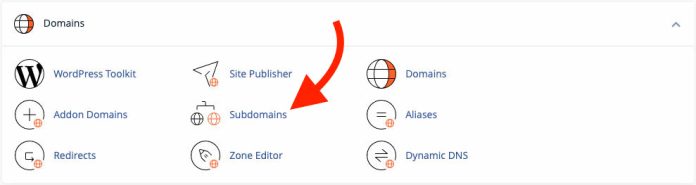
  • Find the Subdomains Icon:
    Scroll down to the Domains section of your cPanel dashboard.
  • Click on Subdomains:
    Click the Subdomains icon to open the subdomain management interface.

3. Create a New Subdomain

  • Enter Subdomain Name:
    In the Subdomains interface, type the desired subdomain prefix (e.g., blog for blog.yourdomain.com).
  • Select the Domain:
    Choose the parent domain for which you want to create the subdomain from the dropdown menu.
  • Document Root:
    cPanel will automatically generate a document root (e.g., /public_html/blog). You can modify this if needed.
  • Add the Subdomain:
    Click the Create button to set up the new subdomain.

4. Verify Your Subdomain

  • File Management:
    After creation, you’ll see a new folder in your File Manager corresponding to the subdomain’s document root.
  • Test the Subdomain:
    Open your web browser and navigate to your new subdomain (e.g., http://blog.yourdomain.com) to ensure it’s working. If no content is present, you may see a default page or error message until you upload files.

5. Configure DNS Settings (If Needed)

  • Automatic DNS Update:
    In most cases, cPanel automatically adds the necessary DNS records for your subdomain.
  • Manual Adjustments:
    If needed, you can manage DNS records via the Zone Editor in cPanel to fine-tune settings.

Final Thoughts

Creating subdomains in cPanel is a quick and efficient way to expand your website’s structure. Whether you’re launching a blog, a shop, or a separate service, subdomains help organize content and keep your main domain uncluttered.

Ready to create your subdomain? Log in to cPanel, follow these steps, and start organizing your website into distinct, easily manageable sections!

How to set up cPanel email in Gmail (POP/IMAP)

How to Set Up cPanel Email in Gmail (POP/IMAP)

Integrating your cPanel email with Gmail lets you manage your messages from your custom domain within Gmail’s familiar interface. Follow these step-by-step instructions to set up your cPanel email account in Gmail using either POP or IMAP.


1. Gather Your Email Settings

Before you begin, make sure you have the following details from your cPanel:

  • Email Address: Your full email address (e.g., user@yourdomain.com).
  • Password: The password for your cPanel email account.
  • Incoming Mail Server:
    • POP3: Usually mail.yourdomain.com (Port 110 for non-encrypted or 995 for SSL).
    • IMAP: Typically mail.yourdomain.com (Port 143 for non-encrypted or 993 for SSL).
  • Outgoing Mail Server (SMTP):
    • Usually mail.yourdomain.com (Port 25 or 587 for TLS, 465 for SSL).
  • SSL Settings: Decide if you want to use secure connections (recommended).

2. Log in to Your Gmail Account

  • Open Gmail in your web browser.
  • Click the Gear Icon in the top-right corner and select “See all settings”.

3. Add Your cPanel Email Account (POP/IMAP)

a. For POP3 (Downloading Emails)

  1. Navigate to Accounts and Import:
    • Go to the “Accounts and Import” tab.
  2. Add a Mail Account:
    • In the “Check mail from other accounts” section, click “Add a mail account”.
  3. Enter Your Email Address:
    • A popup will appear. Type your cPanel email address and click “Next”.
  4. Select Import Option:
    • Choose “Import emails from my other account (POP3)” and click “Next”.
  5. Configure POP Settings:
    • Username: Your full email address.
    • Password: Your cPanel email account password.
    • POP Server: mail.yourdomain.com
    • Port: 995 (if using SSL; otherwise, 110).
    • Options: Check “Always use a secure connection (SSL) when retrieving mail” if applicable, and select whether to leave a copy on the server.
    • Click “Add Account”.
  6. Set Up Outgoing Server (SMTP):
    • Gmail will prompt you to set up the ability to send mail as your cPanel email address.
    • Follow the instructions to enter your SMTP details:
      • SMTP Server: mail.yourdomain.com
      • Port: 465 (SSL) or 587 (TLS)
      • Username: Your full email address.
      • Password: Your cPanel email password.
    • Choose your preferred secure connection type, then click “Add Account”.

b. For IMAP (Synchronizing Emails)

  1. Navigate to Settings:
    • Click the Gear Icon > “See all settings” > “Accounts and Import” tab.
  2. Add a Mail Account:
    • In the “Check mail from other accounts” section, click “Add a mail account”.
  3. Enter Your Email Address:
    • Input your cPanel email address and proceed.
  4. Select IMAP Option:
    • Instead of selecting POP3, look for an option or follow prompts to set up your account using IMAP. (Note: Gmail’s standard procedure primarily supports POP3 for importing emails, but you can configure IMAP via a mail client on your computer if desired.)
    • For full synchronization across devices, ensure your cPanel email is configured for IMAP, and then set up your account in an email client that supports IMAP (like the Gmail app on mobile or desktop clients).

4. Verify and Test

  • Check Incoming Emails:
    Gmail should now start importing emails from your cPanel account. Allow some time for the initial import.
  • Send a Test Email:
    Compose an email from Gmail using your cPanel email address to verify that SMTP settings are working correctly.

Final Thoughts

By adding your cPanel email account to Gmail, you can enjoy a unified inbox and benefit from Gmail’s powerful spam filtering and organization tools while maintaining your professional domain email. Whether you choose POP3 or IMAP depends on whether you want to download emails or sync them across devices.

Ready to streamline your email management? Follow these steps to integrate your cPanel email into Gmail and experience a more efficient workflow!

How to integrate Cloudflare with your web host

How to Integrate Cloudflare with Your Web Host

Cloudflare is a powerful content delivery network (CDN) and security service that can boost your website’s performance, reliability, and security. Integrating Cloudflare with your web host is a straightforward process. Follow these steps to get started:


1. Create a Cloudflare Account

  • Sign Up:
    Go to Cloudflare and create a free account (or choose a paid plan if you need advanced features).
  • Add Your Domain:
    Once logged in, click “Add a Site” and enter your domain name (e.g., yourdomain.com). Click “Begin Scan”.

2. Review and Confirm DNS Records

  • Scan Results:
    Cloudflare will scan your current DNS records. Review the list to ensure all necessary records (A, CNAME, MX, TXT, etc.) are present and correct.
  • Make Adjustments:
    If any records are missing or need updating, add or modify them within Cloudflare’s dashboard.

3. Select a Cloudflare Plan

  • Choose Your Plan:
    Cloudflare offers several plans ranging from Free to Enterprise. Select the plan that best suits your needs and click “Confirm Plan”.

4. Update Your Domain’s Nameservers

  • Cloudflare Nameservers:
    Cloudflare will provide you with two nameservers (e.g., ns1.cloudflare.com and ns2.cloudflare.com).
  • Change at Your Registrar:
    Log in to your domain registrar (e.g., GoDaddy, Namecheap) and update your domain’s nameserver settings to the ones provided by Cloudflare.
  • Save Changes:
    Confirm the changes. DNS propagation can take anywhere from a few minutes to 48 hours.

5. Configure Cloudflare Settings

  • SSL/TLS:
    In Cloudflare’s dashboard, navigate to the SSL/TLS section and choose the appropriate SSL mode (e.g., Full or Full (Strict)) to secure your site.
  • Performance and Security:
    Explore additional settings such as:

    • Caching: Configure caching levels to improve load times.
    • Page Rules: Set up custom rules for URL redirects, cache control, and more.
    • Firewall: Utilize Cloudflare’s firewall features to block malicious traffic.
  • Test Your Website:
    Once nameserver changes have propagated, visit your website to ensure it loads properly over HTTPS and benefits from Cloudflare’s performance enhancements.

Final Thoughts

Integrating Cloudflare with your web host involves creating a Cloudflare account, adding your domain, verifying DNS records, updating your registrar’s nameservers, and configuring Cloudflare settings. This setup not only improves website performance with faster load times and caching but also enhances security with features like DDoS protection and a robust firewall.

Ready to take your website to the next level? Follow these steps to integrate Cloudflare and enjoy a faster, more secure online presence!