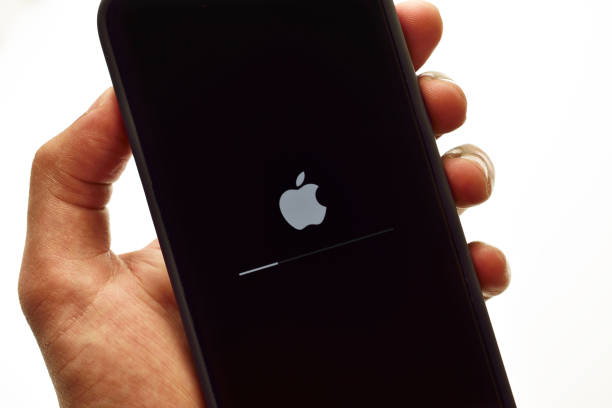

Have you ever noticed your iPhone acting sluggish, apps freezing, or the screen refusing to respond? Before you panic or schedule an expensive repair appointment, there is a simple troubleshooting step that fixes most minor software glitches: a restart.
While restarting a smartphone sounds simple, Apple has changed the button combinations multiple times over the years. This guide breaks down exactly how to restart and force restart every single iPhone model, plus a few clever tricks if your physical buttons are broken.
Method 1: The Standard Restart (For Normal Use)
Use this method if your iPhone is working fine but just needs a quick refresh to clear its temporary memory.
For iPhones with Face ID (iPhone X, 11, 12, 13, 14, 15, 16, and newer)
- Press and hold the Side button and either Volume button simultaneously.
- Release the buttons when the “slide to power off” slider appears on the screen.
- Drag the slider to the right and wait 30 seconds for the device to completely shut down.
- To turn it back on, press and hold the Side button until the Apple logo appears.
For iPhones with a Home Button (iPhone 6, 7, 8, and SE generations)
- Press and hold the Side button (or the Top button on older models like the iPhone 5 or SE 1st Gen) until the power off slider appears.
- Drag the slider to the right and wait 30 seconds.
- Press and hold the Side (or Top) button again until you see the Apple logo to power it back up.
Method 2: The Force Restart (For Frozen Screens)
If your screen is completely black, frozen, or won’t respond to your touch, a standard restart won’t work. You need to force-reboot the hardware. Note: This will not delete your data; it simply cuts the power safely and forces a reboot.
For iPhone 8, iPhone SE (2nd/3rd Gen), and all Face ID models
You must perform this sequence quickly, without pausing between steps:
- Press and quickly release the Volume Up button.
- Press and quickly release the Volume Down button.
- Press and hold the Side button.
- Keep holding the Side button even when the screen goes black. Do not let go until you see the Apple logo appear on the screen (this can take up to 15 seconds).
For iPhone 7 and iPhone 7 Plus
- Press and hold both the Volume Down button and the Sleep/Wake (Side) button at the same time.
- Keep holding both buttons until the screen goes black and the Apple logo appears.
For iPhone 6s, iPhone SE (1st Gen), and older models
- Press and hold both the Home button and the Top (or Side) button at the same time.
- Release both buttons only when the Apple logo lights up on the screen.
Method 3: How to Restart Without Using Physical Buttons
What happens if your volume buttons are jammed or your power button is broken? Apple has built software workarounds directly into iOS so you never get stranded.
Option A: The Settings Menu Shutdown
- Open the Settings app.
- Tap General.
- Scroll all the way to the bottom and tap Shut Down.
- Drag the slider to turn off the phone.
(Tip: To turn it back on without a working power button, simply plug your iPhone into a charging cable connected to power).
Option B: The AssistiveTouch Virtual Button
If you want a true one-tap restart capability on your screen:
- Go to Settings > Accessibility > Touch.
- Tap AssistiveTouch and toggle it ON. A gray floating circle will appear on your screen.
- Tap the floating circle, then select Device > More.
- Tap Restart and confirm. Your phone will shut down and reboot automatically.
Summary Checklist: When to Use Which Method
- Phone is laggy/slow: Use Method 1 (Standard Restart).
- Screen is frozen/black: Use Method 2 (Force Restart).
- Physical buttons are broken: Use Method 3 (Software Settings/AssistiveTouch).
Regularly restarting your iPhone—about once a week—is an excellent habit. It flushes out fragmented memory, closes runaway background processes, and keeps your battery operating efficiently.